DeskIn: A High-Performance, Cross-Platform Remote Desktop for Essential Lifestyle
In today's world, the ability to access your computer from anywhere is essential. Whether you need to grab a file from your office PC while at home, or help a family member with their device from afar, remote desktop software makes it possible. DeskIn provides a high-performance, cross-platform solution to connect your devices seamlessly.

What is DeskIn?
DeskIn is a simple, secure, ultra-fast remote desktop that allows you to access and control one computer from another device, such as a laptop, smartphone, or tablet. It goes beyond basic screen sharing by providing a suite of tools designed for productivity, collaboration, and entertainment, making it feel as if you are sitting directly in front of the remote computer.

Who can use DeskIn? Everyone!
Unlike traditional remote desktop tools designed only for IT or corporate use, DeskIn is built for everyone — students, families, creators, gamers, remote workers, freelancers, and professionals.
Daily Use: Use a tablet in bed to remotely access a gaming PC in the next room for seamless gameplay, or mirror videos from your computer to a partner in another location, making companionship feel immediate.
General Family Users: Easily assist family or friends with smartphone or computer issues from afar, or manage children’s mobile devices remotely.
Students: Lighten the load—bring only an iPad to class while remotely accessing a high-performance computer at home or school to handle complex assignments.
Mobile Workers & Freelancers: Whether commuting, at home, or in a coffee shop, instantly remote connect to your office computer to access files and resume unfinished tasks.
Professional Gamers: When away from home, use a laptop, tablet, or even a smartphone to connect to a high-performance gaming PC, play AAA games anytime, anywhere, and even stream gameplay remotely.
Customer Support & Educators: Provide instant remote technical guidance or online teaching, using whiteboard annotations to demonstrate steps clearly and enhance problem-solving and instructional efficiency.
Designers & Creative Professionals: Remotely run resource-intensive software like the Adobe Suite or CAD smoothly for high-precision design and model rendering.
Photographers & Video Editors: Quickly access large raw files stored on a studio computer for remote editing or rough cuts, speeding up the creative process.
IT Operations Staff: Efficiently manage large numbers of company devices and resolve technical issues remotely for colleagues or clients in different locations.
From personal tasks to professional workflows, DeskIn serves as a bridge to your digital resources, regardless of your location or the device in your hand.
DeskIn Key Features
Multi-Platform Compatibility: Fully supports Windows, macOS, Android, and iOS, enabling seamless cross-platform operation. Users can connect to a single device or manage multiple devices simultaneously. Unique web client supports remote device control via a browser without installing any software.
Fast Cross-Platform File Transfer: Supports file transfers across platforms with no restrictions on file type, size, or quantity. Transfer speeds of up to 12MB/s significantly enhance work efficiency.
High Definition & Ultra-Low Latency: Leveraging innovative technology, DeskIn delivers ultra-high-definition video quality up to 4K at 60 FPS or 2K at 240 FPS, with latency as low as 0.04 seconds, ensuring real-time responsiveness.
Built-In Efficient Interaction Tools: Integrated text chat, audio call, and whiteboard annotations make remote collaboration and communication as natural as face-to-face interaction.
Powerful Screen Management: Supports screen extension, mirroring, mobile screen projection, and independent multi-screen management, with the ability to create up to 3 virtual screens for complex multitasking.
Extensive External Device Support: Fully compatible with game controllers, gaming mice, 3D mice, digital drawing tablets, camera, microphone and other peripherals, expanding the possibilities of remote operation.
New AI-Powered Assistant: Forget manual setup and complex menus. DeskIn’s new AI Assistant lets you control remote devices using simple text commands, it handles the task instantly. This “conversation-as-operation” approach makes remote access more intuitive than ever, transforming troubleshooting, file management, and system diagnostics from multi-step processes into a natural dialogue.

Getting Started with DeskIn: Setup and Connection
To begin using DeskIn for remote access, you'll need to install the software and configure a basic connection. Follow these initial setup steps.
Download and Install DeskIn
Download and Install DeskIn: Go to the DeskIn official website to download DeskIn for your computer's operating system (Windows or macOS). For mobile devices (iOS or Android), you can search for "DeskIn" directly in the Apple App Store or Google Play Store and install it from there.
Set Your Language: Open the DeskIn application after installation. By default, the interface is in English. To change it to other language, navigate to Settings > Display. In the Language section, use the dropdown menu to select the language you want.
Create Your Account and Set Access
Register and Log In: Click the Sign in now button, typically located at the bottom left of the window, to register a new account or sign into an existing one.
Configure Connection Password: Set up a connection password. DeskIn provides two types:
* Security Password: A custom, fixed password you create.
* Temporary Password: A password that automatically updates.
You can choose to use one type or enable both for different access scenarios.
Start Your First Remote Connection
Initiate the Connection: Within the DeskIn software, enter the unique remote device ID of the computer you wish to access and click “Connect”.
In the following product demonstration, we chose to control Windows PC remotely with a Windows PC.Authenticate: Enter the required password (Security or Temporary) for that device and click “Confirm”.
Start Controlling: You are now connected and can begin remote operation. On your first successful connection to a device, you will likely be prompted to save it to your device list. Doing so allows for unattended access in the future.
How to Use DeskIn's Core Features
Once connected, a DeskIn logo will appear in the corner of the remote screen. This is your “Control Center”, providing access to powerful features that enhance your remote session. Here’s an overview of key functions and setup tips.
Optimize Performance with Connection Modes
DeskIn offers several optimized modes to match your activity. Switch between them from the Control Center:
Compatibility Mode: Prioritizes a stable connection above all else, ideal for basic access on slower networks.
Normal Office Mode: Balanced for everyday tasks like document editing and web browsing.
High-Performance Mode: Maximizes visual quality and fluidity for graphic design, video editing, and other demanding professional applications.
Gaming Mode: Configures settings for low latency and supports game controllers, providing a better experience for remote gameplay.
Low-Consumption Mode: Intelligently reduces bandwidth and resource usage to maintain responsiveness on limited or unstable networks.

Essential Remote Control and Display Tools
Control & Security Menu: Access critical commands such as sending Ctrl+Alt+Del, sharing your clipboard between devices, temporarily disabling the remote mouse and keyboard input, or lock/sign out of/restart the remote PC. This is vital for IT support and system management.
Display Settings: Fine-tune the visual experience. Adjust parameters for image quality, frame rate, scaling etc. to match your task, whether you're gaming or working with text, graphics, and video.
Transfer Files and Collaborate Seamlessly
File Transfer: Directly transfer files between your local and remote computers. You can drag-and-drop files or browse folders. The function supports resuming interrupted transfers, with no file type, size and quantity restrictions, even on free accounts.
Interactive Tools: The built-in Interaction features allow for real-time collaboration. Use text chat, audio call, and a whiteboard annotation tool to communicate and guide others without needing external software—perfect for remote teaching or technical support.
Expand Your Workspace with Advanced Functions
External Device Support: DeskIn supports control beyond the keyboard and mouse. It supports peripherals like digital drawing tablets, specialized mice, camera, microphone and game controller for a more native feel during creative work or gaming.
Powerful Screen Management: DeskIn excels at screen flexibility. Use the multi-screen function to quickly switch between monitors on the remote host or adjust output resolution. You can also create up to three virtual screens on the remote PC to expand your digital workspace beyond its physical monitors. You can also enable the privacy screen feature to protect the controlled screen from being viewed.
Use Screen Mirroring or Extension Modes
Beyond simple control, DeskIn can mirror your device to other devices or integrate other device into your workflow as additional displays.
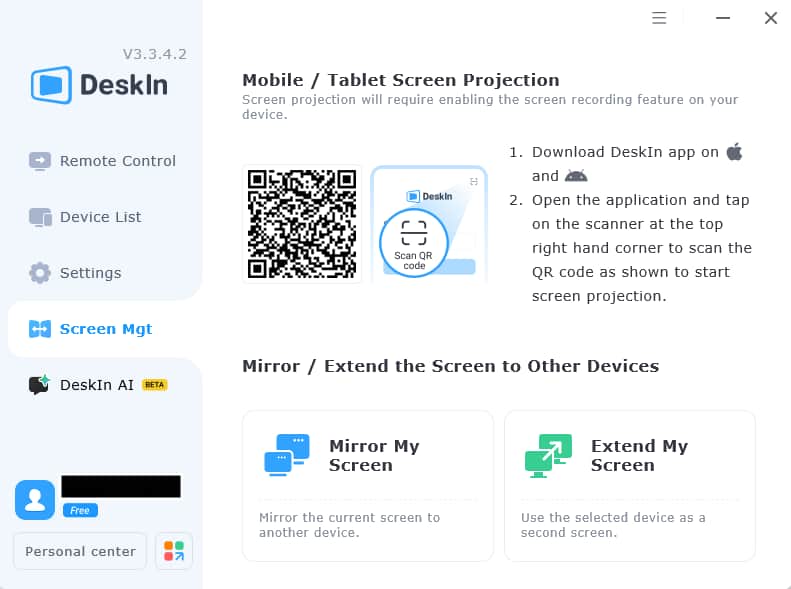
In the DeskIn toolbar, click “Screen Mgt” and select “Mirror My Screen” or “Extend My Screen”.
Select the device you want to mirror or extend to and click “Start Mirroring” or “Start Extending”.
On the selected remote device, a request will appear. Click “Confirm” to begin the screen mirroring or extension session.
To stop, go to the “Device List”, find the active session, and click “End”. From this menu, you can also fine-tune the mirroring or extended display's ratio, resolution, frame rate and picture quality for the best experience.
DeskIn's Security Assurance
Security is the cornerstone of DeskIn, built upon a multi-layered protection system.
Flexible Access Control:
Supports scheduled temporary passwords and fixed security passwords for flexible access management.
Personal editions can also set device and account allow/deny lists for precise control of connection sources.
Supports two-factor authentication for login, adding an extra layer of account security.
Comprehensive Security System:
Data Security: End-to-end encryption throughout ensures transmitted data is protected against theft and tampering.
Operational Security: Every connection requires authorization from the controlled end, effectively preventing unauthorized access.
Management Security: The controlled end can manage the host's access permissions to resources such as audio, folders, keyboard/mouse, and cameras.
Privacy Security: Enable privacy screen with one click before connecting to prevent visual snooping; automatic screen lock after ending a remote session protects computer data.
International Certifications & Encryption Standards:
Uses bank-grade AES-256 encryption technology and is certified under ISO 27001 Information Security Management System and ISO 9001 Quality Management System, complying with international security standards.
The Enterprise Edition offers more advanced network security strategies, deeply integrated with the product’s existing security system to defeat network threats.
Can I Use DeskIn for Free?
DeskIn offers several plans to suit different needs, check DeskIn pricing page to get more information of different plans:
Free Edition: Suitable for basic, daily remote access.
Standard Edition: Ideal for users who need to manage multiple devices with improved performance.
Gaming Edition: Optimized for high frame rates and low latency, with support for game controllers and customized preset keys combinations on mobile devices.
Performance Edition: Tailored for creative professionals requiring top-tier visual fidelity and smooth operation with professional software.
Enterprise Edition: Provides advanced administration, security controls, and centralized management for organizations or companies.
Summary
DeskIn redefines remote desktop access by combining high-performance technology with user-friendly design for a wide audience. It successfully transitions remote access from a niche IT tool into a practical solution for work, support, learning, and play. By ensuring secure, smooth and stable connections across all major platforms, DeskIn empowers users to make their primary computing resources available anytime, anywhere, truly bridging the gap between devices and enabling a more flexible digital life.
🎉 DeskIn New Year Sale: Save 15%!
Use code [kick26] on any annual plan by Jan 31. Transform your digital life with seamless remote access for work and play. Shop now at DeskIn's official site.

