Free PDF Editor: Secure, In‑Browser PDF Editing with KindPDF
Most "free" PDF tools aren't really free. They hit you with watermarks after your first edit, lock features behind a paid subscription, or quietly upload your files to a server you never agreed to trust. KindPDF takes a different approach: it's a 100% free pdf editor that runs entirely in your browser, with no server uploads, no accounts, and no paid plans, so you can edit PDFs securely and privately without compromises. If you're a student, freelancer, individual user, or small team that just needs straightforward PDF editing without enterprise bloat, this guide walks through what you can do with it, from editing text and adding annotations to managing pages, signing documents, understanding the client-side privacy benefits, using it across devices, and getting started step by step.
Answer First: Edit Any PDF Online for Free (No Signup, No Upload)
KindPDF is a free online pdf editor where everything happens client-side in your browser, making it a simple way to handle pdfs online while keeping processing in-browser. You open a pdf file, make your changes, and download the edited file - your document never touches a remote server.
Here's what you can do the moment you load a PDF:
-
Edit pdf documents by adding text, text boxes, and annotations directly on any page
-
Highlight text, underline, strikethrough, and add sticky notes for reviews
-
Draw freehand, insert shapes and arrows, and add images
-
Sign pdfs with mouse, trackpad, or stylus - no separate e-signature service needed
-
Reorder, delete, duplicate, and rotate pages using drag-and-drop thumbnails
-
Merge multiple pdf documents into one organized file
-
Nothing leaves your device - the edited pdf never touches KindPDF's servers
A good free editor should cover text editing, annotations, page organization, and digital signatures, while more advanced features like OCR or redaction are usually outside KindPDF's core browser-based toolset. Privacy and offline functionality are crucial for editing sensitive documents, so having everything processed locally matters. Free PDF editors should avoid watermarks and limits on file processing - and KindPDF does exactly that.
The tool works in Chrome, Edge, Firefox, and Safari on Windows, macOS, Linux, and modern mobile browsers. Open kindpdf.art and drop a PDF to begin editing immediately.

Why Choose a Free, Client‑Side PDF Editor Over Cloud Tools?
Traditional online pdf editing tools require you to upload your pdf file to a remote server. The server does the processing, then sends a modified version back. This means your document - contract, medical record, tax form - sits on someone else's infrastructure, sometimes for hours or days.
Client-side tools flip this model. When you edit a pdf on KindPDF, the app loads once in your browser and then uses local memory to open, render, and modify the pdf. The file data never goes back to the server. Finding free PDF editors can be challenging due to watermarks and restrictions, but client-side tools remove most of those pain points.
Compare that to alternatives: Adobe Acrobat requires a desktop install for full editing and pushes users toward Acrobat Pro subscriptions. Smallpdf limits its free tier to one task per day and uses TLS encryption to secure PDF transfers, holding an ISO/IEC 27001 certification for information security. PDFescape provides free online tools but with restrictions. Several tools may add watermarks in free versions or enforce daily usage limits. Smallpdf offers editing tools without installation required, but you're still uploading files online.
Cloud PDF editor vs local browser pdf editor:
-
File handling: Cloud tools upload your pdf; KindPDF processes it locally
-
Privacy: Cloud services may store files or use them for analytics; KindPDF holds nothing
-
Speed: No upload or download delay - changes to large pdf documents apply instantly in the browser
-
Cost: No paid plans, no free tier limits, no credit card prompts
-
Compliance: Easier to keep sensitive contracts, medical records, or internal business pdf documents compliant because data never leaves your machine
All the PDF Editing Tools You Need in One Free App
KindPDF covers everyday pdf editing tasks without forcing upgrades, trials, or credit cards. Key features in a free pdf editor include true text editing and page management, and here's what you get:
-
Text and annotations: Edit text by adding text boxes, insert shapes and lines, highlight text, underline, strikethrough, and add comments or add notes. Annotations and markup include highlighting, underlining, and adding notes - all the basics for reviewing pdf content.
-
Page management: Reorder, rotate, duplicate, and delete pages using drag-and-drop thumbnails in the left sidebar, where you see page previews at a glance. Page management includes options to reorder, delete, merge, and extract pages.
-
Object editing: Move, resize, and delete added text boxes, drawings, and annotations with simple handles and keyboard shortcuts (Delete / Backspace).
-
Content editing: Content editing capabilities include adding or moving images and reorganizing pages, letting you insert an image file or rearrange your pdf directly.
-
Undo/redo history: Experiment freely - every action can be reversed.
True inline text editing allows modifying existing text and matching original formatting, which is a feature reserved for advanced editing tools like Acrobat Pro or pdfFiller. KindPDF focuses on overlay editing, which handles the vast majority of real-world tasks.
How to Edit a PDF Document in Your Browser Step by Step
You can edit a pdf in under a minute on kindpdf.art - no registration, no installation required.
-
Open kindpdf.art in your browser, then drag and drop a pdf file onto the main area or click to browse your device. No pdf upload to external servers happens.
-
Wait a few seconds for pages to render. You'll see page thumbnails on the left and a large preview on the right.
-
Click on a page to start editing: add text, highlight text, insert shapes, or draw freehand on top of the pdf document.
-
Use the top toolbar to switch pdf editing tools - text, highlight, draw, add image, or page actions.
-
Click "Download" to save the edited pdf back to your device. No watermark, no signup, no hidden cost.
That's it. You begin editing the moment your file loads, and you walk away with a clean edited file.
Edit Text, Add Text Boxes, and Annotate Like a Pro
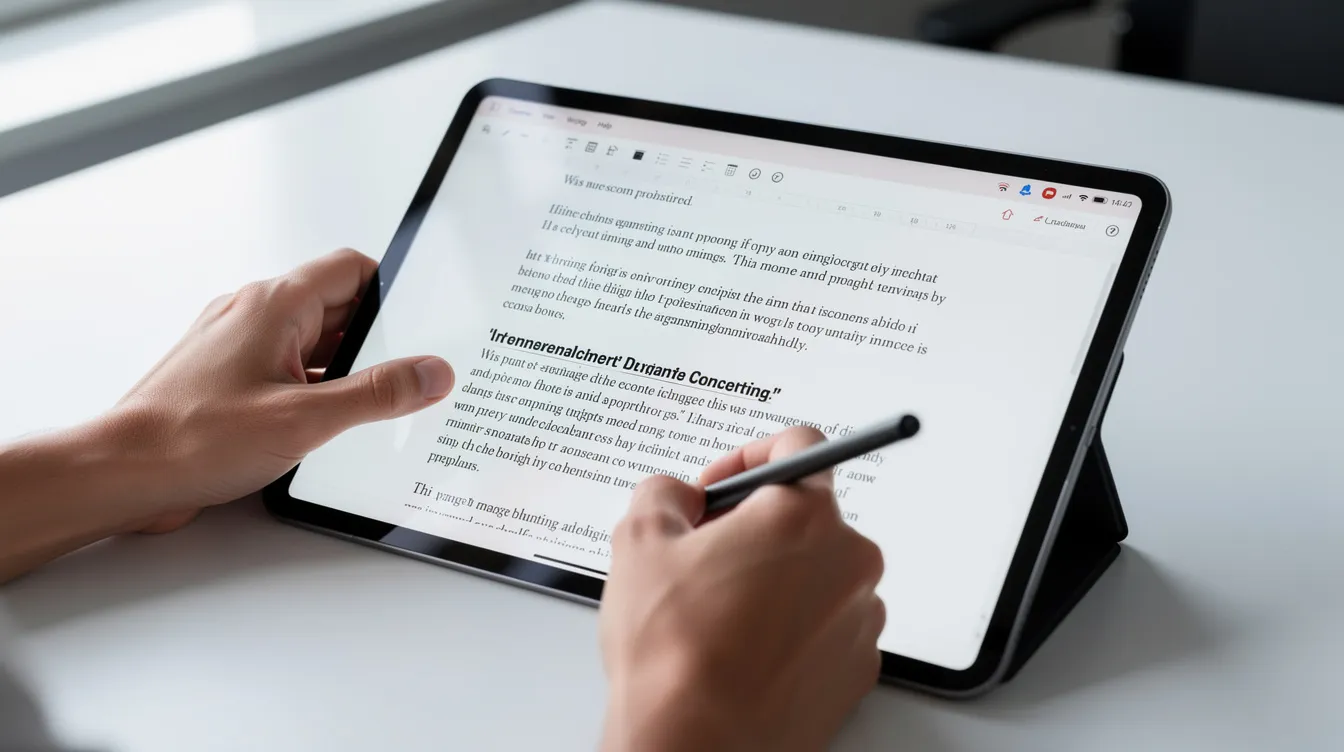
KindPDF lets you overlay new content on existing pdf documents - perfect for corrections, comments, and quick updates.
Adding and editing text: Click where you want to type, create text boxes, and choose font size, alignment, and color. This approach is ideal for filling non-interactive pdf forms or adding clarifications to existing text. For example, you can correct a date on a legal contract, add updated pricing on a proposal, or insert page numbers on a report.
Understanding the approach: You're editing by adding text on top of the pdf, not fully reflowing the original layout like a word document. For most everyday edits, this is more than enough. Tools like pdfFiller edit existing text directly in PDFs and are trusted by 64 million users - with pdfFiller users editing over 250,000 PDFs daily - but they require accounts and subscriptions. Adobe Acrobat's free editor allows adding comments and highlights but locks deeper editing behind Acrobat Pro.
Annotations: Highlight text, underline passages, and add callout notes or sticky notes for reviews. Students annotating research papers, teams reviewing lesson plans, and lawyers marking up legal contracts all benefit from these tools.
Shapes and drawings: Add arrows, rectangles, and freehand drawings to emphasize sections, sign off on changes, or sketch quick ideas. Need to circle a clause in an offer letter or add drawings to a diagram? Done in seconds.
Sign PDFs, Initial, and Approve Documents Without Printing
You don't need a separate e-signatures subscription to sign pdfs. KindPDF handles it in the browser.
-
Draw your signature: Use the draw tool with mouse, trackpad, or stylus to sign pdfs directly on-screen, then position and resize your signature. Interactive form filling lets you type or draw signatures in fillable PDF fields, and many editors allow form handling such as filling forms and creating signatures.
-
Type your signature: Type your name, choose a script-style font and color, and place it where needed. Common use cases include NDAs, freelance agreements, approval forms, and offer letters. You can fill and sign PDFs digitally without printing a single page.
-
Complete the signing block: Add dates, initials, and text boxes next to digital signatures. pdfFiller allows signing documents with typed, drawn, or uploaded signatures, and every signed document includes a court-admissible audit trail - useful for formal workflows. Legally valid signatures can be added under the ESIGN Act.
-
Collaborate: Some platforms let you share a link to your PDF for collaboration, but with KindPDF, everything stays local. No signed pdf documents are sent to third-party servers.
Quick flow: Open kindpdf.art → drop your PDF → sign pdfs → download. Free with no limits.

Manage Pages: Split, Merge, Reorder, and Clean Up PDF Documents
KindPDF isn't just for on-page edits - it's a full page-management tool for organizing large pdf documents.
-
Reorder pages: Drag-and-drop thumbnails in the sidebar to rearrange reports, course packs, or slide decks. Page management tools enable reordering, rotating, deleting, and merging PDF pages.
-
Delete and duplicate pages: Remove blank inserts, duplicate form fields for multiple entries, or clean up scanned documents with extra pages.
-
Merge multiple PDFs: Drop several pdf files onto the interface to combine them into one. Then reorder and edit pages before saving. Think combining invoices into a monthly bundle or merging resumes with portfolios.
-
Extract pages: Keep only selected pages by deleting others - effectively acting as a split tool. Need just three pages from a 40-page policy document? Delete the rest and download.
Free PDF Editing on Any Device, No Install Required
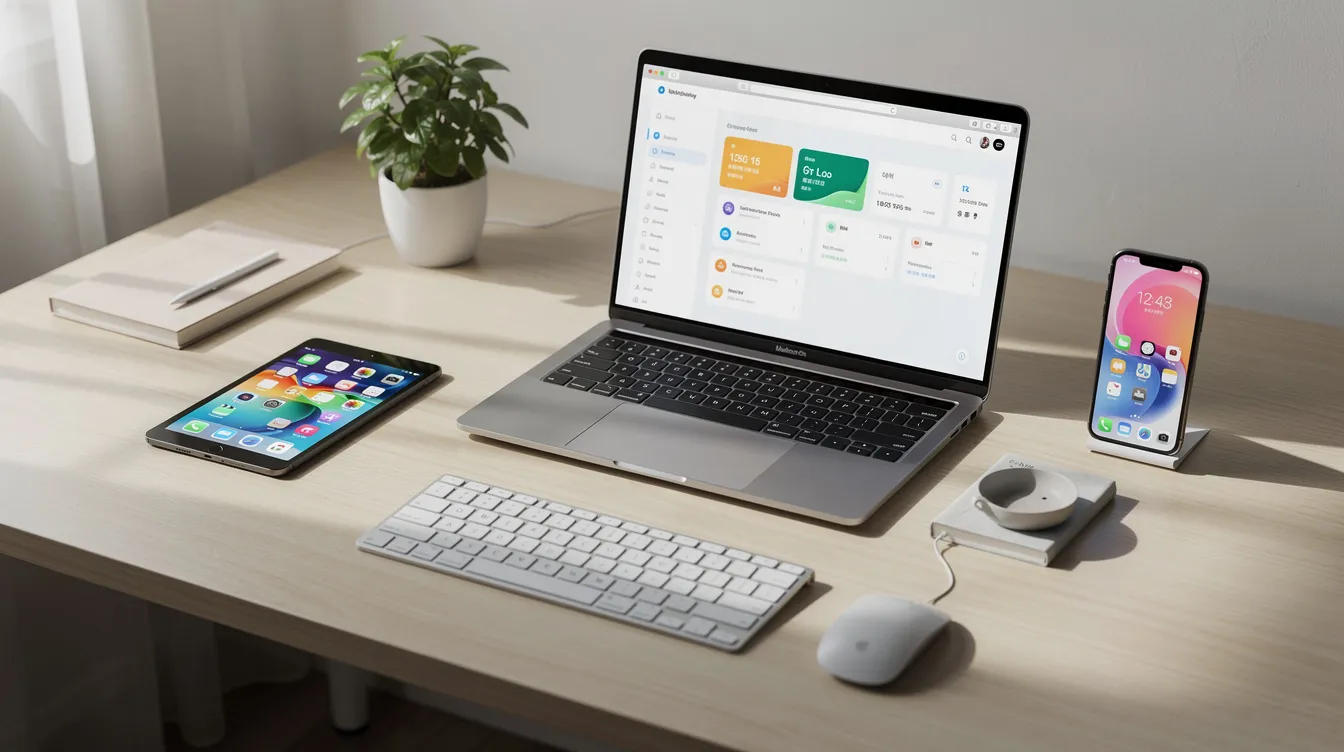
Cross-platform availability is important for users on different operating systems, and KindPDF runs everywhere a modern browser does.
-
Supported platforms: Windows 10/11 laptops, macOS 13+ devices, Linux desktops, Chromebooks, and recent Android/iOS tablets or phones. Canva allows PDF editing from any device too, but requires an account. Canva's PDF editor allows editing from any device - KindPDF matches that reach without signup.
-
Responsive interface: The layout adapts to screen size, so you can edit a pdf on the go - adjusting a contract on a phone before sending it, for instance.
-
Performance note: Desktop browsers handle very large pdf documents best, but smaller files online work smoothly on mobile.
-
Zero friction: No extension, no desktop app, no exe to install. Just open kindpdf.art in Chrome, Edge, Safari, or Firefox and start editing. Start pdf editing within seconds of landing on the page.
Security, Privacy, and Why 100% Client-Side Matters
Unlike many "free pdf" sites, KindPDF never uploads, stores, or inspects pdf documents. All processing happens in the browser using client-side code.
-
Architecture in plain English: The app loads once from kindpdf.art, then uses your device's local memory to open and render the pdf. The file data never goes back to the server. There's no pdf upload happening behind the scenes.
-
Sensitive use cases: Internal HR files, financial statements, medical records, or confidential legal contracts can be edited without leaving the device. Security features like password protection and permission controls are standard in tools like Adobe Acrobat, where PDFs have built-in security measures. pdfFiller uses 256-bit AES bank-level encryption for documents and is HIPAA, GDPR, and PCI-DSS compliant. PDFescape allows users to password protect their PDFs. KindPDF sidesteps these concerns entirely - if your file never leaves your machine, there's nothing to intercept or breach.
-
No retention: Unlike services that keep files for hours or days, KindPDF stores nothing. There's nothing to delete later because nothing was stored in the first place.
-
No tracking: The tool does not require sign-in, doesn't use cookies to track document content, and runs no analytics tied to specific files. No AI assistant processes your pdf content.
Who This Free PDF Editor Is For: Everyday and Professional Workflows
KindPDF fits individuals, students, freelancers, and small teams who need straightforward pdf editing without enterprise bloat and simple personal and team pdf workflows.
-
Education: Teachers editing worksheets and lesson plans, students highlighting lecture notes and adding annotations to research papers. If you're working with a scanned pdf, note that OCR (Optical Character Recognition) converts scanned images into editable text - tools like pdfFiller support 30+ languages for OCR text conversion. KindPDF handles overlay edits on scanned documents but doesn't perform OCR itself.
-
Business: Freelancers updating invoices, small businesses correcting legal contracts, teams adding comments before final approval. Edit pdf text on offer letters, create fillable forms in dedicated tools, then annotate them in KindPDF.
-
Personal use: Filling in government pdf forms, signing rental agreements, highlighting important sections in policy documents, or organizing files online. Some users compare that local approach with tools that let them pull from or save to Google Drive, but KindPDF keeps editing in the browser on the file you open.
Since there are no paid plans, all the features are available to everyone. No surprise upgrades, no locked tools after a trial. You get the same free editor whether it's your first visit or your hundredth.
Frequently Asked Questions About Free PDF Editing
Is KindPDF really free? Yes. All current pdf editing tools on kindpdf.art are free to use with no account and no limits on number of documents. There is no free tier with restrictions - you get everything without a paid subscription.
Do you keep my pdf documents? Files never leave the browser. Nothing is stored on KindPDF servers and no content is used for AI or analytics. Your pdf documents remain on your device from start to finish.
Can I edit original text instead of only adding text boxes? KindPDF focuses on overlay editing (text boxes, highlights, shapes), which covers most practical use cases. If you need to edit existing text with full reflow, you can convert pdfs to a word document first. Bidirectional conversion supports multiple file types, so PDFs can be edited as Word, Excel, PowerPoint, JPG, or PNG files. Smallpdf can convert PDFs to Word, Excel, PowerPoint, or JPG. PDFescape can convert PDF files to Word and other formats. Canva allows converting PDFs to JPG, PNG, PPT, or back to PDF format.
Are there file size limits? KindPDF works best with files under approximately 50 MB or 200 pages. Performance depends on your device and browser - a modern laptop handles most pdf documents without issues, while mobile browsers may slow down on very large files.
Can I use it for work? Many users do. Since the tool is client-side and processes nothing on external servers, it's suitable for handling sensitive information. However, follow your company's internal policies - KindPDF does not sign BAAs or enterprise contracts, and it doesn't provide password protection or cloud storage integration.
Start Editing Your PDFs Free in Seconds
KindPDF gives you a free pdf editor with no sign-up, private client-side processing, and all essential pdf editing tools in one place. You can edit a pdf, sign it, reorganize pages, and merge files - all without uploading a single byte to a server.
-
Try it now: Drag and drop a pdf onto kindpdf.art to test editing, highlighting, signing, and page management in a single session.
-
Support the project: KindPDF includes an optional donation link if you'd like to help keep the tool free. Contributing is never required to use all features.
-
Keep it handy: Bookmark kindpdf.art or add it to your home screen on mobile for quick access whenever you need to edit a pdf directly.
No accounts. No uploads. No catches. Just open your browser and start editing.
