
pdfalltools.com
PDF converter, Word to PDF, Sign PDF, image converter
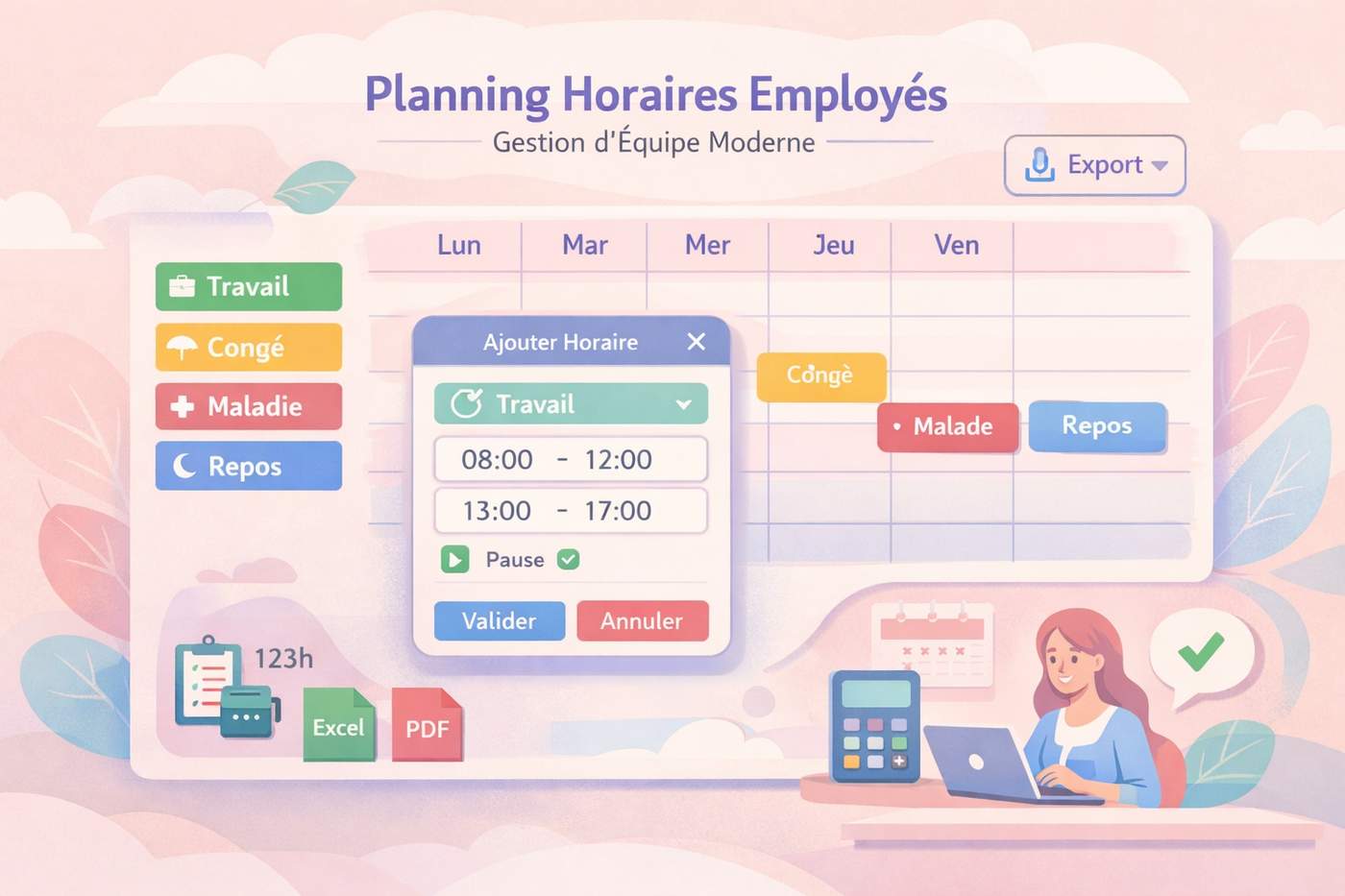
I kept running into the same problem: employee scheduling tools are either too basic (Excel chaos) or too heavy (enterprise HR systems).
So I built something in between.
A modern employee scheduling planner with:
• Click-to-add shifts
• Split shifts (morning + afternoon with break)
• Clear status types: Work / Leave / Sick / Rest
• Automatic hour calculation
• Color-coded visual planning
• Excel & PDF export
The UI is modal and simple:
Click "+" → Choose status → Define hours → Done.
If it’s a split shift, the system stacks the hours visually with a coffee icon between blocks ☕
It’s designed for restaurants, retail, healthcare, production teams, offices — basically any team that needs structured planning without complexity.
If you're curious, here’s the tool:
scheduling template

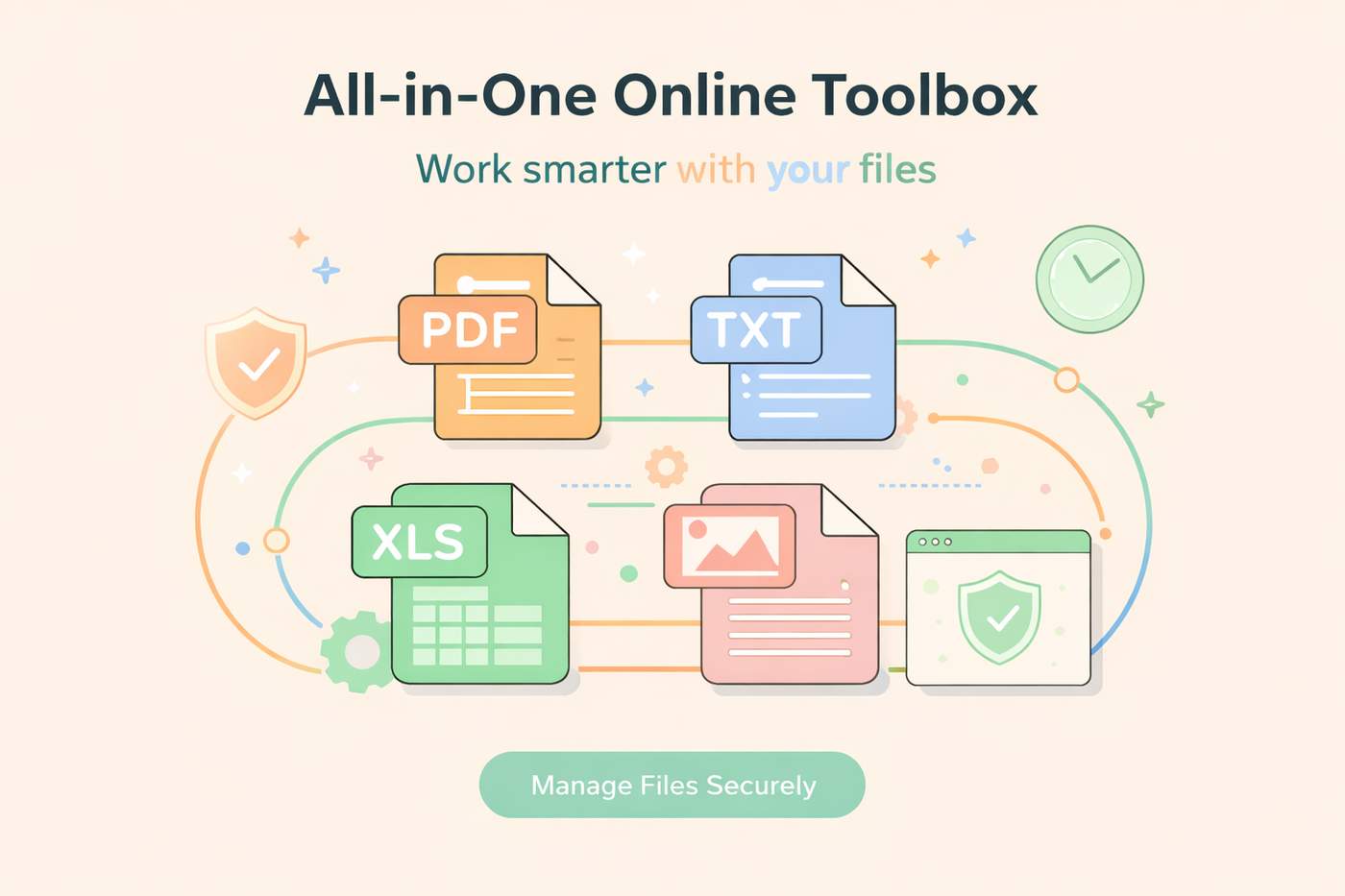
Managing digital files shouldn’t be complicated or time-consuming. PDF All Tools is an online platform designed to help users convert, edit, and optimize documents directly in their browser, with speed, simplicity, and privacy at its core.
🔐 Privacy First: No Data Stored, Ever
One of the key strengths of PDF All Tools is its privacy-by-design approach.
All operations are performed directly in your browser:
No files are uploaded or stored on servers
No tracking or data retention
Full control over your documents
This makes PDF All Tools ideal for professionals, businesses, and anyone handling sensitive files.
🚀 More Than Just PDF Tools
Despite its name, PDF All Tools is a multi-purpose productivity platform offering tools for PDFs, spreadsheets, text documents, and images.
🧾 PDF Tools
PDF to Word / Word to PDF
Merge, compress, split, rotate PDFs
Sign and resize PDF files
📊 Excel & Data Tools
CSV to Excel / Excel to CSV
Excel to JSON / JSON to Excel
Excel to PDF
Remove duplicates
Table creation and design
📝 Text Tools
PDF summarizer
Word counter
Text to PDF / PDF to text
Document generators (memos, invoices, restaurant menus)
🖼️ Image Tools
Image to PDF / PDF to image
Image compression and resizing
Format conversion
QR code generator
👉 Discover all available features on pdfconverter
⏱️ Save Time with a Centralized Workflow
PDF All Tools helps users work faster by offering:
No software installation
A clean, intuitive interface
All tools in one place
Instant processing
Full compatibility across devices
Instead of switching between multiple apps, everything is handled within a single platform.
👉 Improve your productivity with pdfconverter
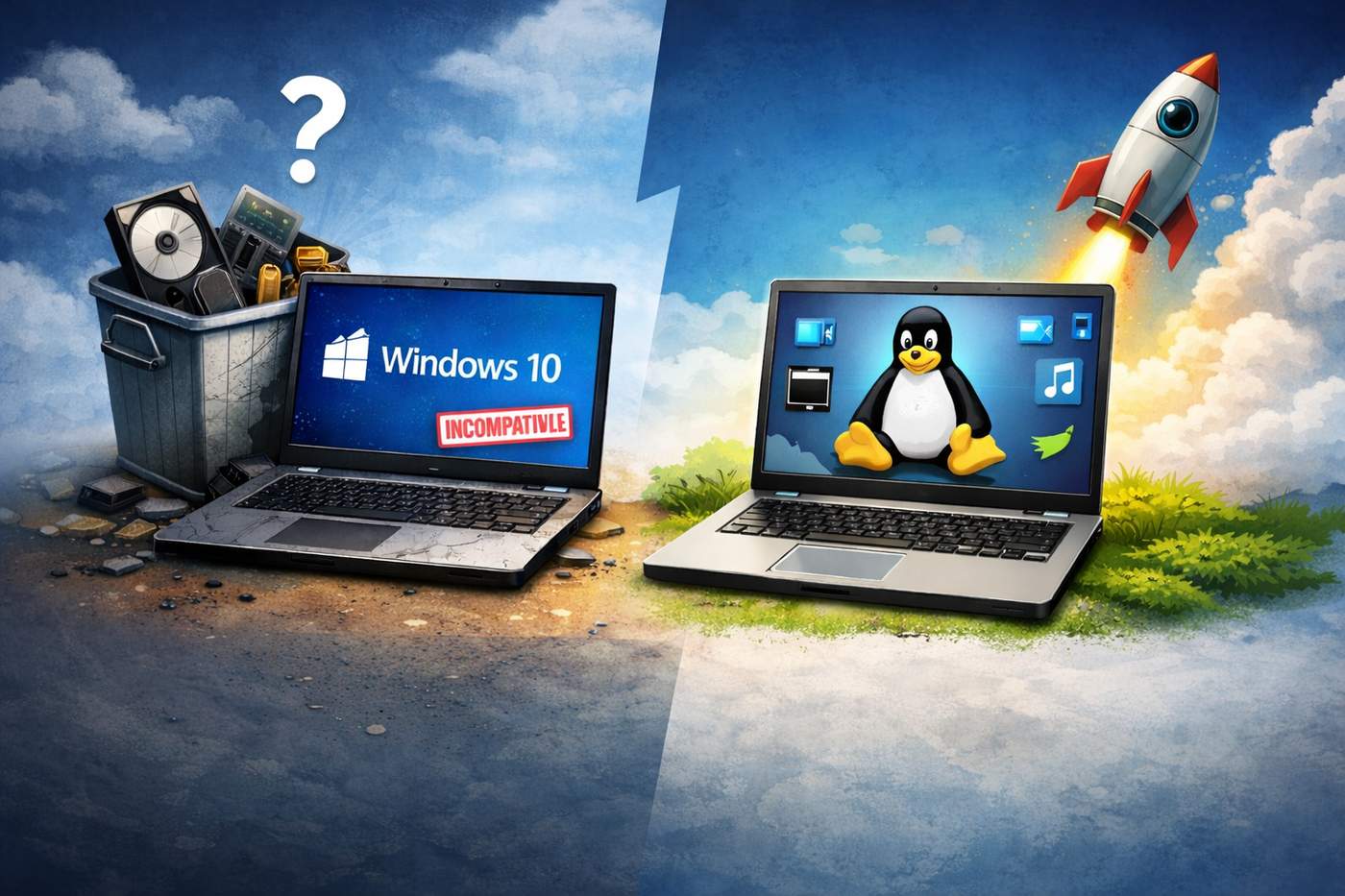
Microsoft officially announced that Windows 10 support will end in October 2025.
For millions of users, this creates a major problem: their PC is not compatible with Windows 11 due to hardware requirements like TPM 2.0, Secure Boot, or newer CPUs.
If you’re facing this situation, you have three options:
Buy a new PC
Stay on an unsupported operating system
Switch to Linux
This article focuses on option #3 — often overlooked, yet extremely powerful.
What Is Linux?
Linux is a free, open-source operating system used worldwide on servers, desktops, smartphones (Android), and embedded systems.
Unlike Windows:
Linux is not owned by a single company
It is developed by a global community
You are free to use, modify, and distribute it
Popular Linux distributions (called distros) include:
Ubuntu
Linux Mint
Fedora
Debian
Zorin OS (great Windows alternative)
Why Linux Is a Smart Alternative to Windows 11
1. No Hardware Restrictions
Linux runs perfectly on older PCs, even those rejected by Windows 11.
You don’t need:
TPM 2.0
Secure Boot
Latest-generation CPUs
Your existing hardware is usually enough.
2. Performance Boost on Old Machines
Linux uses far fewer system resources than Windows.
Benefits:
Faster boot times
Less RAM usage
Better performance on HDDs and older SSDs
Your “slow” PC can feel new again.
3. Security and Stability
Linux is:
Highly resistant to malware
Less targeted by viruses
Regularly updated by the community
Most Linux systems do not require antivirus software.
4. 100% Free and Legal
Linux distributions are:
Free to download
Free to use
Free forever
No license keys. No subscriptions.
How to Install Linux on a Windows 10 PC
Step 1: Choose a Linux Distribution
Recommended for beginners:
Linux Mint (most Windows-like)
Ubuntu (largest community)
Zorin OS (designed for Windows users)
Step 2: Create a Bootable USB
You’ll need:
A USB drive (8 GB minimum)
A tool like Rufus or Balena Etcher
Step 3: Install Linux
Boot from the USB
Choose “Install Linux”
You can:
Replace Windows
Or dual-boot (Windows + Linux)
Installation usually takes 15–30 minutes.
Advantages of Linux
✅ Works on unsupported Windows 11 PCs
✅ Free and open-source
✅ Faster on old hardware
✅ Strong privacy (no telemetry)
✅ Highly customizable
Disadvantages of Linux
❌ Some professional software not available (Adobe, MS Office native)
❌ Gaming support is improving but not perfect
❌ Requires a learning curve for beginners
That said, alternatives exist for almost everything.
Who Should Switch to Linux?
Linux is ideal if you:
Have an old but functional PC
Want to avoid buying new hardware
Care about privacy and control
Are a developer, indie hacker, or power user
Final Thoughts
If your PC can’t upgrade to Windows 11, Linux is not a downgrade — it’s an upgrade.
Instead of throwing away functional hardware, extend its life with Linux and regain control of your system.
👉 For productivity and document-related tools that work perfectly on Linux, check out:
https://pdfalltools.com
Snapchat long built its reputation on ephemeral sharing — moments that disappear, conversations that never stick. In recent years, however, the platform has shifted toward offering more persistent features, like Memories — a place where users can save photos, videos, and stories.
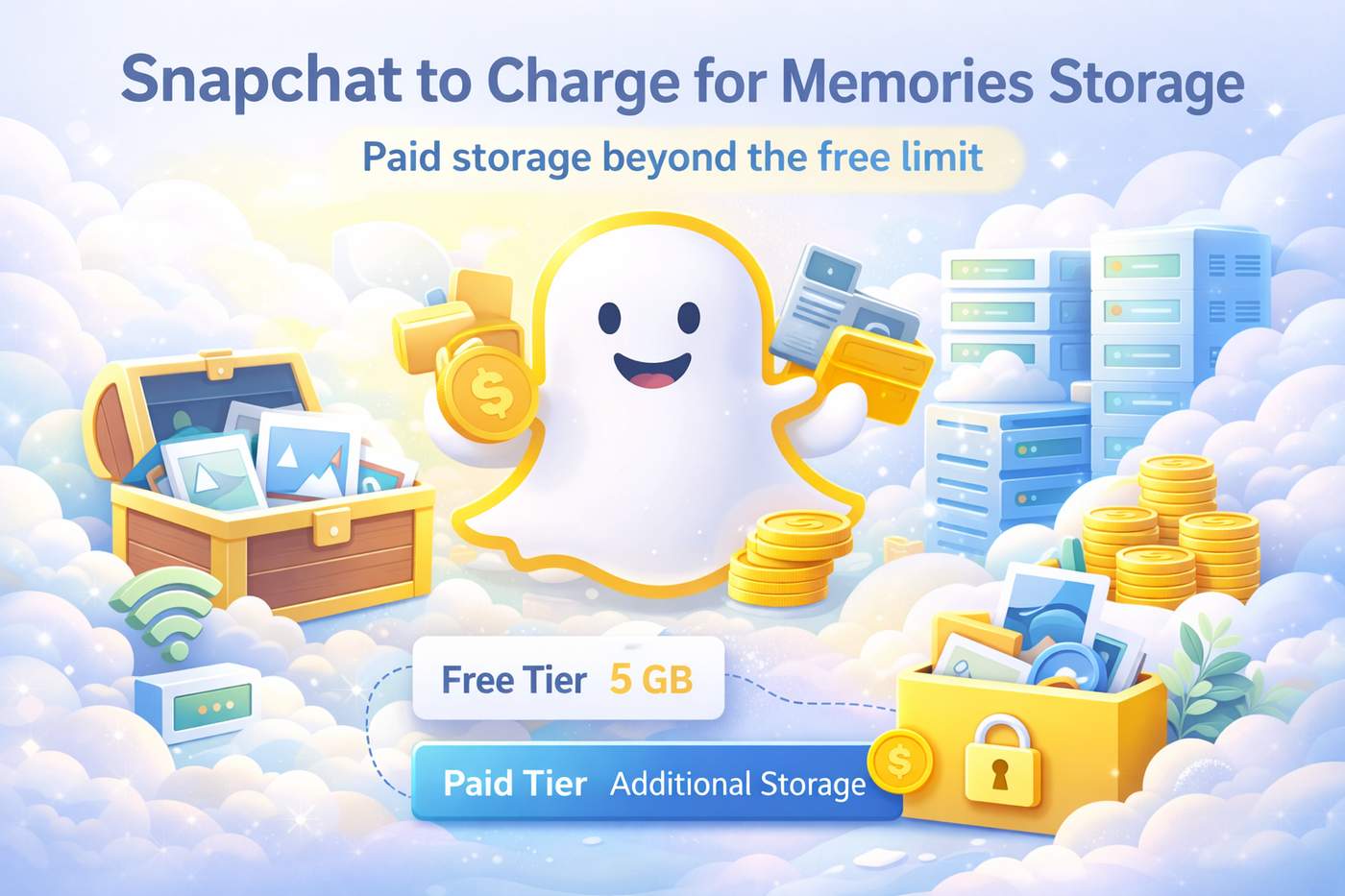
Now, Snapchat is taking a step further: charging for Memories storage beyond a free limit. If this surprising move has raised eyebrows, you’re not alone. Let’s unpack why Snapchat is doing this, what it means for users, and how it fits into the broader trend in social media.
What Are Snapchat Memories?
Memories is Snapchat’s cloud storage feature. Instead of content disappearing, users can:
Save photos and videos
Archive old Stories
Search and organize personal moments
It’s essentially a built-in digital gallery — and it requires cloud storage to operate.
The Announcement: Paid Storage for Memories
Snapchat recently confirmed that it will:
Continue offering a free tier of Memories storage (e.g., up to 5 GB)
Charge users for additional storage beyond that limit
This shift has sparked discussion across social platforms, with many users asking: “Why pay for what used to be free?”
The Real Reason: Storage Costs Are Real
Cloud storage isn’t free for Snapchat.
Data is stored on physical servers in data centers that require:
Electricity to run drives
Energy for cooling systems
Maintenance and hardware replacement
The company is essentially paying to keep your Memories alive forever. As users upload more photos and videos, storage demands — and costs — grow. Charging for extra storage helps Snapchat cover these costs directly.
Industry Context: Social Platforms and Paid Storage
Snapchat is not the only one to move in this direction:
Google Photos also introduced paid storage plans after offering free unlimited backups for years.
Apple iCloud charges for expanded storage beyond a limited free tier.
Social and productivity services increasingly rely on subscription models to support cloud costs.
This model helps platforms scale sustainably while offering users flexibility.
What Users Get with Paid Storage
Snapchat’s paid storage plan isn’t just a money grab. Depending on the subscription tier, users may benefit from:
✔ Additional Memories storage
✔ Priority upload and restore speeds
✔ Advanced organization tools
✔ Possibly integrated backup features
These perks help turn Memories into a more capable personal library.
User Reactions: Pros and Cons
✅ Pros
Users who value Memories get expanded storage
Snapchat offsets real infrastructure costs
Subscription models reduce reliance on ad revenue
❌ Cons
Casual users may view it as “charging for something once free”
Some feel Snapchat should absorb costs given the volume of content shared
The Broader Trend: Paid Features for Persistent Content
Snapchat’s roots are in vanishing content — a strength that has kept the platform unique. But as usage patterns evolve, users increasingly want:
A digital archive of memories
Easy access to old photos and videos
Cross-device continuity
Supporting these features indefinitely means investing in infrastructure.
By monetizing storage, Snapchat aligns with a broader industry move toward hybrid freemium models — free core features with optional paid enhancements.
Conclusion — What This Means for You
If you rely heavily on Snapchat to save photos and videos, paying for additional Memories storage is becoming part of the modern social-media landscape. Rather than seeing it as a punitive measure, consider it similar to:
Paying for extra iCloud or Google Photos space
Paying a subscription for premium album features
In exchange, you get a reliable, backed-up, and searchable digital archive of your life.
As apps evolve, monetization strategies must evolve too — and Memories storage is one clear example of how companies balance user expectations with infrastructure realities.
by : pdfalltools.com
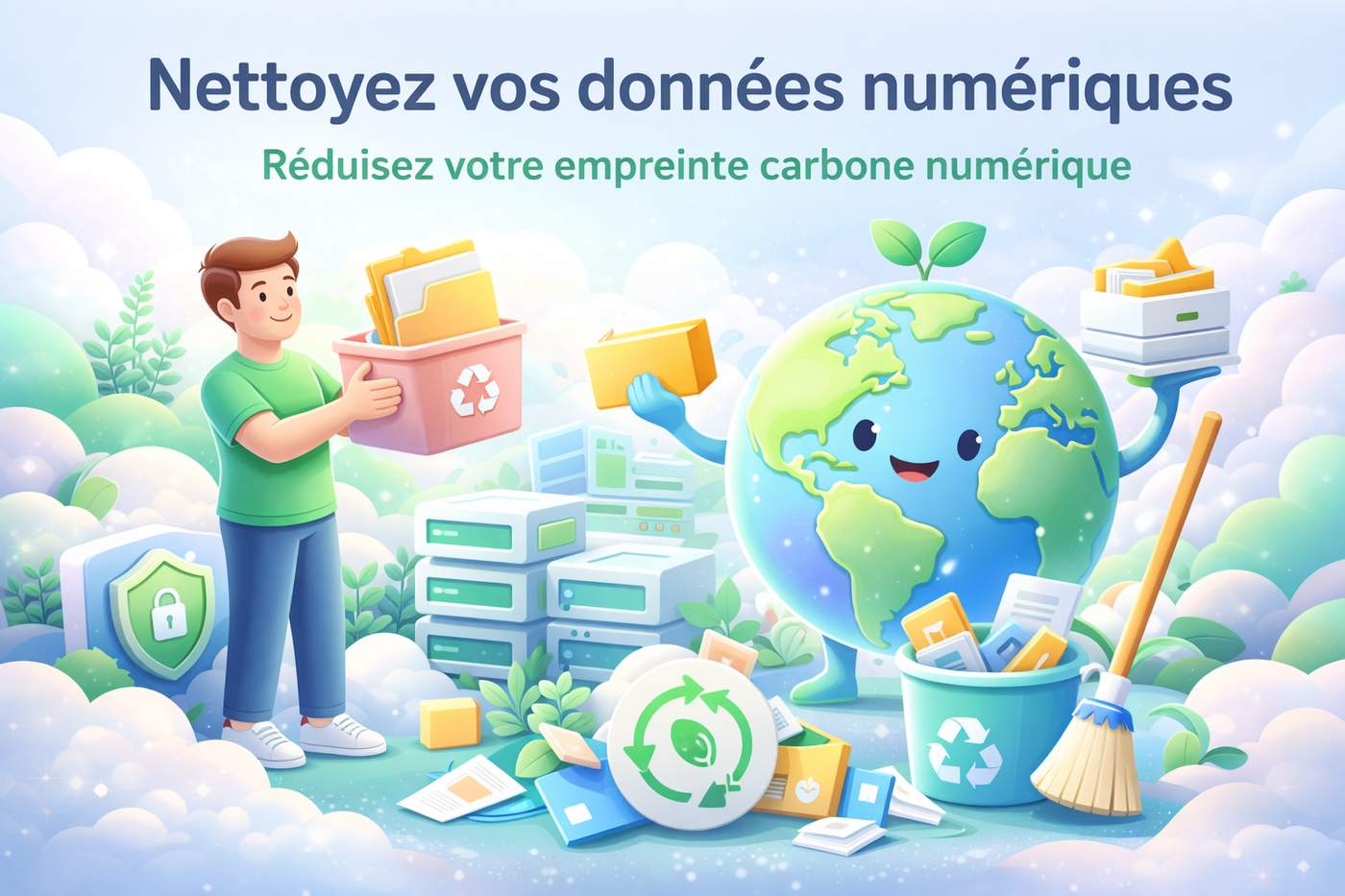
When we talk about ecology, we usually think about plastic waste, transportation, or energy consumption. But there’s a hidden environmental cost most people ignore: digital data storage.
Every email, photo, video, backup, and forgotten file stored in the cloud consumes energy. Cleaning your digital data is not just good for performance and security — it’s also an eco-friendly action.
The Hidden Environmental Cost of Digital Storage
Cloud storage feels invisible, but it relies on massive data centers filled with servers running 24/7. These data centers require:
Electricity to power servers
Energy for cooling systems
Physical infrastructure and hardware
Regular hardware replacement
According to multiple studies, data centers already account for a significant share of global electricity consumption, and this number keeps growing every year.
The more useless data we store, the more energy we waste.
What Is “Digital Data Pollution”?
Digital data pollution refers to:
Duplicate files
Unused backups
Old documents no longer needed
Thousands of forgotten photos and videos
Emails stored forever “just in case”
Individually, one file doesn’t matter. At scale — billions of users — it becomes a real environmental problem.
Why Cleaning Your Data Makes a Difference
🌱 Less Energy Consumption
Deleting unnecessary files reduces storage needs, which directly lowers energy usage in data centers.
🌱 Lower Carbon Footprint
Fewer servers and less cooling mean fewer CO₂ emissions.
🌱 Longer Hardware Lifespan
Reducing storage pressure helps slow down hardware replacement cycles.
🌱 Better Digital Hygiene
Cleaner data also means:
Faster systems
Easier backups
Reduced security risks
Simple Actions That Have Real Impact
You don’t need to be a tech expert to help:
Delete unused files and duplicates
Clean old cloud backups
Sort and compress large documents
Remove unnecessary emails and attachments
Avoid storing files “just in case”
Small habits, multiplied by millions of users, create meaningful impact.
Digital Minimalism Is Also Environmentalism
Just like we reduce physical waste, we should reduce digital waste.
Cleaning your data is a simple, accessible action that:
saves energy
reduces emissions
improves performance
and supports a more sustainable digital future
Sustainability doesn’t stop at the physical world — it also lives in our hard drives and cloud accounts.

PDF files are widely considered safe. They’re used every day for invoices, contracts, reports, resumes, and official documents. But this trust is exactly why PDFs have become a popular attack vector in cybersecurity.
In this article, we’ll explain how PDF-based cyberattacks work, the most common techniques used by attackers, and what you can do to protect yourself.
Why PDFs Are an Attractive Target for Hackers
PDF is one of the most universally used file formats. It works across operating systems, browsers, and devices — which makes it ideal for attackers looking to reach as many victims as possible.
Unlike simple image files, PDFs can contain:
Embedded links
JavaScript code
Interactive forms
Embedded files and objects
All of these features can be abused.
The Most Common Types of PDF-Based Cyberattacks
1. Phishing PDFs
This is the most widespread PDF attack.
How it works:
The PDF pretends to be an invoice, contract, or official notice
It contains a link to a fake login page (bank, Microsoft, Google, DocuSign, etc.)
The victim enters credentials, which are stolen
Goal:
Credential theft, account takeover, identity fraud
2. Malicious JavaScript Inside PDFs
PDFs can execute JavaScript when opened.
How it works:
Malicious scripts trigger on file open
They redirect users to malicious websites
Or exploit vulnerabilities in the PDF reader
Goal:
Malware download, system compromise, data exfiltration
3. PDF Exploits Targeting Reader Vulnerabilities
Attackers sometimes embed exploits targeting known vulnerabilities (CVEs) in PDF readers.
How it works:
The PDF exploits an unpatched reader
Arbitrary code execution occurs
Malware installs silently
Goal:
Full system compromise, ransomware installation, spyware deployment
4. PDFs as Malware Droppers
In advanced attacks, the PDF is only the first stage.
How it works:
User opens the PDF
Embedded code downloads a second-stage payload
Additional malware is executed
Goal:
Persistent access, lateral movement, long-term espionage
Real-World Examples
Government and corporate phishing campaigns using fake PDF invoices
APT (Advanced Persistent Threat) attacks leveraging PDF exploits
Ransomware campaigns starting with a single malicious PDF email attachment
PDF-based attacks are regularly observed in both cybercrime and state-sponsored operations.
How to Protect Yourself from PDF-Based Attacks
✔ Keep your PDF reader updated
✔ Disable JavaScript in PDFs if possible
✔ Be cautious with unexpected PDF attachments
✔ Verify links before clicking
✔ Use trusted tools to view, convert, and manage PDFs
✔ Never assume a PDF is safe just because it “looks official”
Final Thoughts
PDF files are powerful — and that power can be abused.
Understanding that a PDF can be dangerous is the first step toward better digital hygiene.
In cybersecurity, trust should always be verified — even when it comes to something as familiar as a PDF.
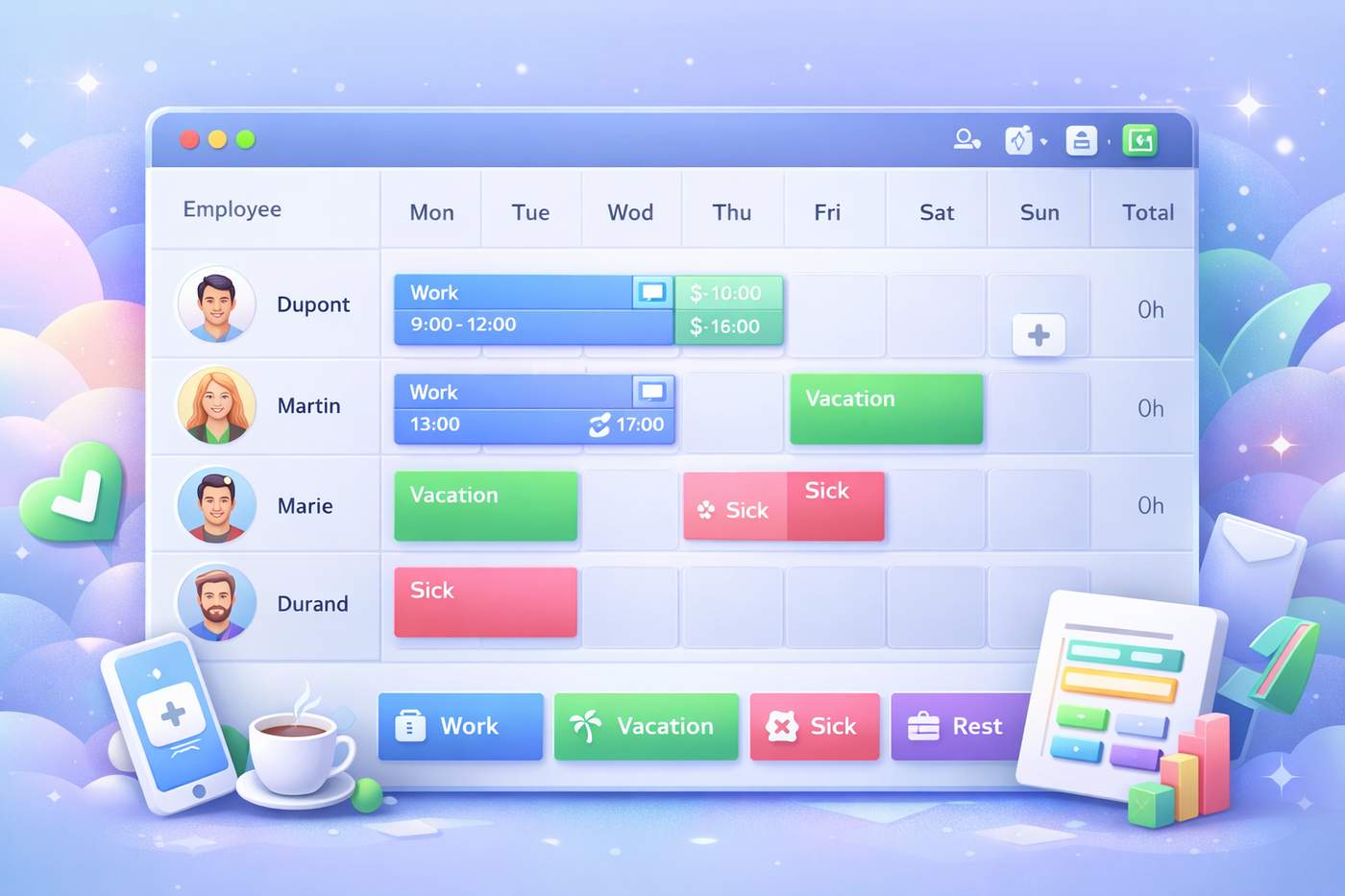
Employee scheduling is often underestimated. Yet in many industries — restaurants, retail stores, offices, call centers, healthcare services, and production teams — a poorly designed schedule can quickly lead to confusion, inefficiency, and frustration.
On the other hand, a clear, structured, and visually intuitive schedule becomes a powerful management tool that improves productivity, communication, and team satisfaction.
Why Employee Scheduling Matters More Than Ever
A work schedule is not just a list of hours. It directly impacts daily operations and team performance.
⏱️ Better Time Management
Accurate schedules make it clear who works, when, and for how long. Automatic hour calculations eliminate manual errors and save administrative time.
👥 Improved Team Coordination
When employees can instantly see their status — work, vacation, sick leave, or rest — misunderstandings are reduced and communication improves.
📊 Compliance and Operational Efficiency
Well-structured schedules help organizations respect labor regulations, manage breaks correctly, and avoid overstaffing or understaffing.
🤝 Higher Employee Satisfaction
Clear and fair schedules reduce stress, improve transparency, and build trust between employees and management.
The Limits of Traditional Scheduling Methods
Many teams still rely on:
complex Excel spreadsheets,
paper-based schedules,
or rigid tools with poor usability.
These methods often lead to:
difficult updates,
lack of visibility,
calculation mistakes,
time-consuming exports for payroll or reporting.
That’s why modern scheduling tools have become essential.
What Makes a Modern Scheduling Tool Effective?
An efficient scheduling tool should be simple, visual, and flexible.
✅ Intuitive User Interface
Adding or editing a shift should take seconds. A clean, modal-based interface makes scheduling accessible to everyone — no training required.
🎨 Color-Coded Statuses
Visual status indicators for Work, Vacation, Sick Leave, and Rest allow managers and employees to understand schedules at a glance.
☕ Breaks and Split Shifts Support
Many industries require split shifts (morning and afternoon). A good tool displays these stacked clearly, with visual separators for breaks.
🧮 Automatic Hour Calculation
Total worked hours are calculated automatically, reducing errors and simplifying payroll preparation.
📤 Professional Exports
Exporting schedules to Excel or PDF is critical for payroll, internal sharing, compliance, and record-keeping.
A Simple Tool to Create Clean and Reliable Schedules
To address these needs, modern online tools now offer an easier way to manage employee schedules.
👉 Employee Schedule Planner – Simple & Visual Planning Tool
https://pdfalltools.com/tools/excel/planning-creator
With this tool, you can:
manage schedules for multiple employees,
assign statuses (Work, Vacation, Sick Leave, Rest),
add breaks and split shifts,
visualize schedules with color codes,
automatically calculate total hours,
export professional Excel and PDF files.
All of this is done through a modern UI/UX design focused on clarity and ease of use.
Real-World Use Cases
This type of scheduling tool is ideal for:
restaurants and cafés,
retail stores,
offices and small businesses,
call centers,
production teams,
healthcare services,
any organization requiring accurate workforce scheduling.
Final Thoughts
Creating a high-quality schedule is not just about organizing hours.
It’s about optimizing time, improving communication, ensuring compliance, and empowering teams.
With the right tools, employee scheduling becomes faster, more reliable, and far less stressful — allowing managers to focus on what really matters.
If you’re looking for a simple and efficient way to create professional employee schedules, explore this online planning tool:
👉 https://pdfalltools.com/tools/excel/planning-creator
QR codes have quietly become one of the most powerful bridges between the physical and digital worlds. From restaurant menus and business cards to event tickets and marketing campaigns, QR codes are now everywhere — and for good reason.
In this article, we’ll explore why QR codes are so useful today, how they’re used in real-life scenarios, and how you can create your own QR code in seconds using a free online tool.
What Is a QR Code?
A QR (Quick Response) code is a two-dimensional barcode that can store information such as:
Website URLs
Text messages
Email addresses
Phone numbers
Contact details
With a simple scan using a smartphone camera, users are instantly redirected to the encoded content — no typing, no friction.
Why QR Codes Matter in 2026
QR codes are no longer a novelty. They are a standard interaction method, especially in a mobile-first world.
📱 Instant Mobile Access
QR codes remove friction. Users don’t need to type long URLs or search manually — a single scan takes them exactly where you want them to go.
🎯 Perfect for Marketing & Offline Materials
QR codes are ideal for:
Business cards
Flyers and posters
Product packaging
Restaurant menus
Event tickets
Retail displays
They turn any physical object into a clickable gateway to your digital content.
📊 Trackable Engagement
When combined with analytics or URL shorteners, QR codes allow you to measure:
Number of scans
Location
Time and device usage
This makes them extremely valuable for marketing and performance tracking.
💼 Professional & Modern Image
Using QR codes signals that your brand is modern, efficient, and user-focused. They simplify the user experience and reduce unnecessary steps.
How to Create a QR Code Easily (No Registration Needed)
Creating a QR code doesn’t require design skills or special software. You can generate high-quality QR codes directly in your browser using this free tool:
👉 Free QR Code Generator:
https://pdfalltools.com/tools/qr-code-generator
Step-by-Step Guide
1. Enter your URL or text
Paste any website link, URL, or text you want to encode. It can be a landing page, contact page, promotion, or simple message.
2. Choose the QR code size
Small (200×200 px) – perfect for digital use
Medium (400×400 px) – recommended for most cases
Large (600×600 px) – ideal for printing and posters
3. Generate your QR code
Click the “Generate QR Code” button. Your QR code is created instantly with excellent scan reliability.
4. Download and use it
Download the QR code as a PNG image and use it anywhere: print materials, websites, presentations, or emails.
✅ All processing happens locally in your browser.
✅ Your data is never sent to external servers.
✅ No account, no limits, completely free.
Real-World Use Cases
QR codes are widely used across industries:
Restaurants replacing physical menus
Real estate signs linking to property details
Product packaging with tutorials or manuals
Event tickets and check-ins
Email signatures and digital resumes
Anywhere you want to connect physical space to digital content, QR codes shine.
Final Thoughts
QR codes are simple, powerful, and incredibly versatile. They save time, reduce friction, and create seamless experiences for users — whether online or offline.
If you’re looking for a fast, free, and privacy-friendly way to generate QR codes for your projects, give this tool a try:
👉 https://pdfalltools.com/tools/qr-code-generator
Sometimes, the simplest tools make the biggest difference.
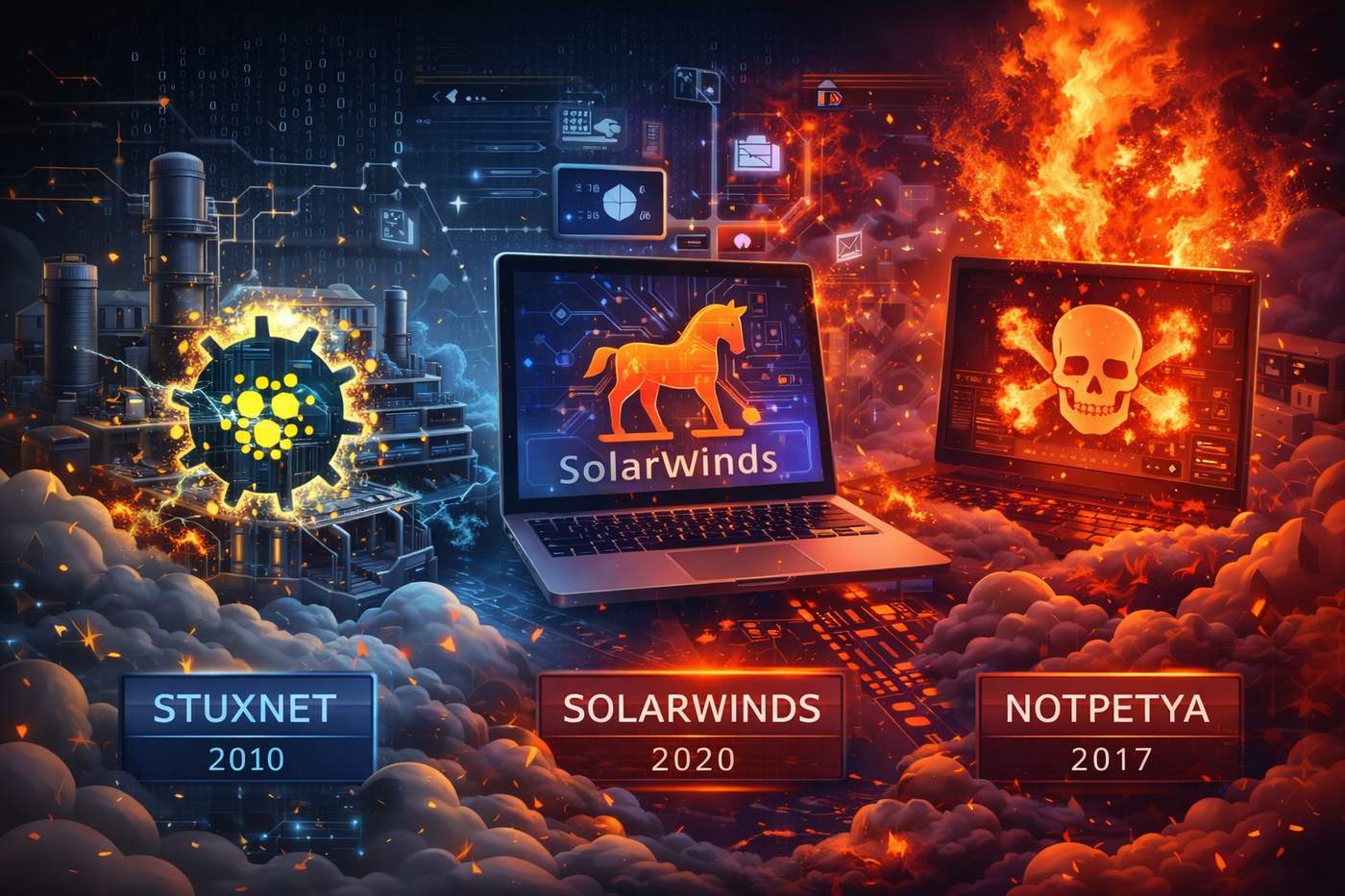
Cyberattacks aren’t just headlines — they have reshaped governments, disrupted critical infrastructure, and cost billions of dollars. In this article, we explore three of the most significant cyberattacks ever recorded, how they unfolded, who was behind them, and the lasting lessons they taught the world.
1. Stuxnet (2010) — The First Cyberweapon
What happened:
Stuxnet wasn’t just a computer virus — it was the world’s first known cyberweapon designed to cause physical destruction. Discovered in 2010, Stuxnet targeted Iran’s nuclear program by infecting industrial control systems and sabotaging centrifuges used to enrich uranium.
Who was behind it:
Investigators widely believe Stuxnet was a joint operation by the United States and Israel — a highly sophisticated state-sponsored attack.
Impact:
Stuxnet infected over 200,000 computers worldwide, though its primary objective was strictly targeted. It destroyed nearly 1,000 centrifuges, significantly delaying Iran’s nuclear efforts and demonstrating the potential for cyberattacks to inflict physical damage on industrial infrastructure.
Why it matters:
This marked a pivotal moment in cyber warfare, proving that malware could be engineered not just to steal data or disrupt systems — but to destroy equipment and alter geopolitical balance.
2. SolarWinds Attack (2020) — Supply Chain Espionage on a Massive Scale
What happened:
In late 2020, a highly sophisticated attack compromised SolarWinds, a major U.S. IT management software provider. Hackers injected malicious code (known as Sunburst) into routine software updates for its Orion platform. Once distributed, this malware gave attackers access to the systems of SolarWinds customers — including federal agencies and Fortune 500 companies.
Who was behind it:
Security analysts and U.S. authorities attribute the breach to a Russian state-sponsored hacking group.
Impact:
The breach went undetected for months, allowing attackers to spy on government networks, private sector systems, and sensitive infrastructure. It is considered one of the largest supply chain cyberattacks in history due to the scale of trust exploitation and far-reaching impact.
Why it matters:
SolarWinds exposed profound vulnerabilities in software supply chains — showing how a single compromised update can ripple through thousands of organizations, undermining national security and corporate integrity.
3. NotPetya (2017) — Ransomware with a Destructive Twist
What happened:
In June 2017, the NotPetya malware began spreading from a compromised update on Ukrainian accounting software. Unlike traditional ransomware, its primary goal appeared not to collect ransom payments, but to irreversibly destroy data across infected systems worldwide.
Who was behind it:
While exact attribution is debated, many cybersecurity experts point to Russian-linked actors using NotPetya during heightened geopolitical tension with Ukraine.
Impact:
NotPetya hit organizations across Europe and beyond, crippling systems in shipping, pharmaceuticals, logistics, and more. It caused millions — even billions — of dollars in global damages and brought corporate operations to a halt.
Why it matters:
NotPetya blurred the line between cybercrime and cyberwarfare — a piece of malware designed to look like ransomware but function as a weapon of destruction. It highlighted how malicious software can rapidly propagate through networks and cause systemic disruption far beyond its point of origin.
Lessons From History
These three attacks illustrate core trends in cybersecurity:
State-sponsored actors are a major force, often leveraging sophisticated tools and deep resources.
Supply chains are vulnerable — trust in software updates can be weaponized.
Cyberattacks can evolve beyond data theft to physical and economic destruction.
In today’s connected world, no system is truly isolated. Individuals, companies, and governments must invest in strong cybersecurity practices, regular patching, and robust incident response planning.
Want to Keep Your Data Secure?
Understanding threats is the first step — the next is using tools that help you manage and protect your digital assets effectively. Whether it’s protecting documents, converting files securely, or ensuring data integrity, explore useful utilities at:
Comment