Do you have a crystal clear idea about how your conversions are taking place?
As marketers, we all want to increase our conversion rates.
But in order to do so –we must first learn to understand our audience better and track our conversion rate.
The good news is you can accomplish this by looking at the Google Analytics dashboard.
Google Analytics offers a report known as the Multi-channel function (hereafter referred to as MCF).
The MCF report eliminates every scope of guesswork by displaying detailed data about conversions, right on your Google Analytics dashboard.
In order to find this report, go to Conversions->multi channels funnels.
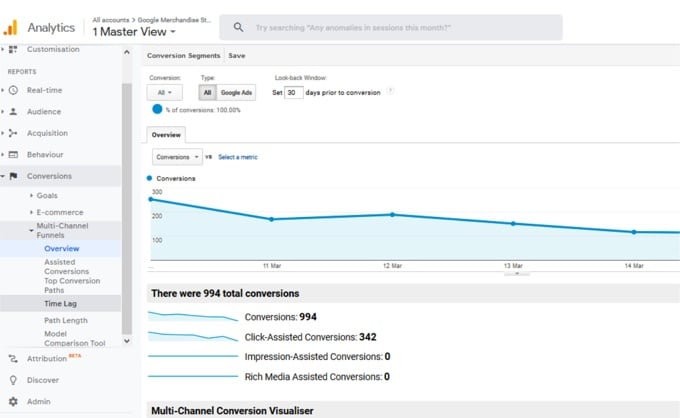
Multi-channel Funnel report offers 5 different sub-reports. Let’s have a brief overview.
1. Overview report:
This is the first report you see when you click on the Multi-channel Funnels section link. It’s a summary page that compares the number of conversions and assisted conversions over the selected time period.
2. Assisted conversion report:
Not all channels contribute equally to conversions. The Assisted conversion report provides in-depth information on the role of each of your channels and their performance— when and how many conversions each channel initiated, completed, and assisted.
Having a clear idea of the following terms is important for understanding the full extent of this report:
Assisted Conversion: this shows the number of conversions in which a specific channel assisted. In other words, this report captures channels that are part of the conversion path, but not the final conversion point.
Assisted Conversion Value: The net value of the conversions, assisted by a specific channel.
Last Click or Direct Conversions: Think of this as the opposite of assisted conversion. The direct conversion column counts only the number of conversions where a specific channel acted as the final conversion interaction point.
Last Click or Direct Conversion Value: the value of the direct conversions.
Assisted / Last Click or Direct Conversions: This is a ratio of assisted and direct conversions. A value close to 0 indicates a specific channel functioned primarily as the final conversion interaction. A value close to 1 means the channel equally participated in both assist roles and final conversion role.
More this value shifts towards 1, more the channel in question assumes the assist role.
3. Top conversion path report:
The top conversions path report allows you to quickly visualize how people reach your site, which channels are creating a first-touch interaction that converts well, and which channel combinations work best.
By searching on a particular channel you get more insights into the role of that channel and where the channel occurs on the path to conversion.
4. Time lag report:
The time lag report reveals how long a certain user takes to convert counting from his/her first session.
5. Path length report:
Path length report shows the actual number touchpoints or path length required for each conversion.
How to use MCF report insights for better conversion:
By now, you should have a basic understanding of what insights MCF has to offer and where to look for those insights.
In this section, I would share some actionable tips to use those reports.
Reallocate your Adword spending for better results:
It’s easy to slip into the mistake of investing only in campaigns with the highest revenue generations. Think branded campaigns for example. Great numbers, high ROI.
However, it could be possible other Adword campaigns influencing many conversions but high revenue/ high ROI campaigns are taking credit. Instead of spending on high revenue campaigns, you would be better served by spending on those assisted campaigns.
Find out how your paid search interacts with other channels:
Knowing how your channels interact with others is key to smart investing and getting the max ROI. MCF overview reports are perfect for understanding inter-channel interacting.
Here is how you understand mutual interaction between paid and other channels.
- Conversions->multi channels->overview
- Go to conversion tab and select the only transaction
- Select direct, paid search and organic search
Challenges of MCF reports:
- A mismatch between standard and MCF reports: MCF reports sometimes don’t match with standard reports. The reason is that by default MCF reports and standard reports use different attribution models.
In MCF if direct traffic converts, the direct channel gets the credit. In the case of standard reports, the conversion is assigned to a previous non-direct campaign or source.
You can easily fix this by selecting a non-direct click attribution model. Go to the Model comparison tool and select the attribution model of your choice.
- Lookback window in only 90 days: In MCF, the maximum lookback window span is 90 days. It was 30 before, so it’s a big improvement.
Still, for some businesses 90 days is too short considering the length of their sales cycle.
- No reports on non-converts: Unfortunately you won’t find any reports on non-conversions. It’s a major drawback in my opinion as by analyzing users who dropped midway, you can fix your marketing efforts.
