Generate Optimized Models for Animation Using 2D to 3D Generator Effortlessly
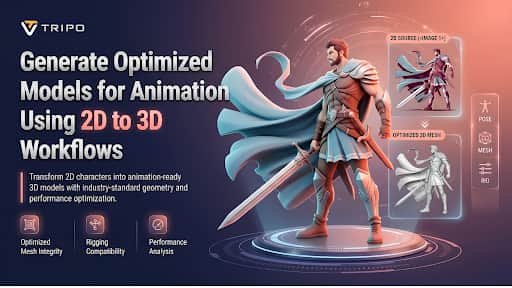
This article explains how optimized 3D models are used in animation pipelines. Geometry, topology, and detail levels are important aspects of animation workflows. AI tools like Tripo 3D can convert images into 3D assets efficiently. Optimization helps maintain stable deformation characteristics and reduces potential issues during later pipeline stages. This article covers the workflow of creating animation-oriented models from images. It also includes topology, steps for converting, and how to manage assets in scalable production environments.
Why Model Optimization Matters for Animation
Models used in animation pipelines need to deform predictably throughout a motion sequence. An unoptimized mesh may cause stretching artifacts and inconsistent surface behavior. Clean topology makes smoother transitions between animation keyframes. The geometry density should be balanced with performance needs for real-time applications. Tripo 3D is used to create structured models with evenly distributed mesh geometry. This improves the compatibility of rigging and stability of animation playbacks. Optimization also reduces manual cleanup during later workflow stages. Efficient assets help maintain consistency across multiple animation platforms. Each geometry aspect is designed with motion response and control in mind.
Building Animation-Oriented Assets from 2D References
Animation assets often begin with sketches, concept art, or photographs. A 2d to 3d workflow involves creating structured geometry from flat visuals. Tripo 3D identifies depth cues and creates coherent 3D shapes. This allows characters to be generated from reference images for animation use. When input images are clear and well defined, proportions remain more consistent. Multi-view inputs can improve structural consistency for complex designs. Artists can tweak the results for animation rigs and deformation testing. It supports iterative design without requiring manual modeling from scratch. Editable assets can be adjusted during rigging and motion preparation stages.
Topology Considerations During 2D to 3D Generation
Topology refers to how edges and vertices form surfaces that deform during movement. Quad-based meshes support cleaner deformation during motion cycles. Triangle meshes are often employed in real-time rendering and for low-resource content. Topology selection depends on the intended animation goals. Structured and uniform topology helps improve auto rigging compatibility across various pipeline requirements. Proper edge flow alignment helps joints and limbs bend more naturally. Balanced geometry means that artifacts are minimized during the playback of the animation. Mesh planning helps maintain uniform deformations between frames.
Steps to Generate Optimized Models for Animation Using 2D to 3D Workflows
Step 1: Import the Source Image for Animation
First, you need to access Tripo 3D and signup. Next, go to the "Model" tab present in the vertical left menu bar.
Under the menu, click on the "HD Model".
You can drag and drop to upload the image, or you can also upload the image from a specific location of your device using the "Upload" tab.
Step 2: Optimize Geometry and Surface Settings
Under the "General settings" tab, you can either allow the AI to completely generate on its own by switching "AI complete". Or you can turn on texture and select the custom "Texture Quality" like 2K, 4K, or 8K.
You can also turn on "PBR" for accurate material reflective properties.
For better topology characteristics, select either "Quad" or "Triangle" topology.
You can also set the custom polycount.
Later choose the model from the list, including v3.1 best quality, v3.0 fast and balanced, or v2.5 legacy.
If you are a member, then you can choose "Generate in Parts", "8K Texture", and "Privacy" options.
Finally, click on the "Generate Model" to begin generation.
Step 3: Enhance the Asset and Export for Animation
Tripo 3D allows you to completely view your model in the style you want. Key styles include "Solid View", "Cartoon Style", "Sketch Style", "Hologram Style", and "Unlit" form. You can also "Refine" your design right through the bottom menu.
You can also edit the "Environment Settings" and camera settings through "Reset Camera".
If you want, you can 3D print the design you want, or you can also share directly by clicking "3D Print".
In the end, click on the "Export" tab from the bottom menu. Next, choose the resolution, format, and filename, and click again on "Export" to save the design to your local device.
Optimization Features Available in Tripo 3D
Tripo 3D includes several controls for optimizing animation workflows. Polygon density can be adjusted according to performance requirements. Topology options support different animation and rendering workflows. Texture resolution settings allow scalable visual detail management. Refinement tools enhance mesh and surface detail. PBR materials add to the realism of the shading in different environments. Export formats make it possible to integrate with the major animation software tools. These features can help streamline asset preparation for complex projects.
Polycount control can be adjusted to allow more flexibility in optimization.
Different pipelines have quad and triangle options.
Texture scaling is the scaling up or down based on quality demands.
Refinement tools reduce geometry inconsistencies.
Several animation tools can be used with export presets.
Preparing Generated Models for Animation Pipelines
Generated models should be tested before animation begins. Mesh consistency checks help identify structural issues early. Surface distribution should remain balanced to support deformation consistency. Unnecessary geometry should be reduced where possible for efficiency. Tripo 3D supports model inspection through different visualization modes. Material reviews help maintain shading consistency across scenes. An organized file structure should be used for exported assets. When performed properly, it can simplify integration into animation pipelines. Version control supports incremental improvements through model updates. It helps track assets and maintain pipeline clarity through consistent naming. Lighting previews can be used to evaluate surface appearance. Optimization reviews can reduce future pipeline adjustments. This can aid in the final animation process.
Managing Animation Asset Libraries Efficiently
Organized asset libraries support scalable animation workflows. Standard naming makes assets easier to locate in large projects. Multiple model variations should be organized through categorization. Consistent export settings help reduce tool compatibility issues. Tripo 3D supports collaboration across distributed teams. Version management is helpful to track changes between asset versions. Metadata tagging improves asset retrieval efficiency. Better organization can improve animation workflow efficiency. Quality can be maintained through team review processes. Centralized storage helps facilitate workflow coordination. Pipeline integration helps reduce manual overhead. Project scaling is made easy with structured folders. Asset reuse optimization supports workflow efficiency. This approach supports long-term project scalability and maintainability.
Benefits of Using Tripo 3D for Animation Asset Creation
Tripo 3D helps accelerate the creation of animation assets from references. The time spent on manual modeling tasks is reduced by fast conversion. Flexible input options support images, sketches, and concept designs; free 3d models access supports experimentation and early-stage workflows. Generated assets can be used for rigging and animation testing. Topology optimization enhances deformation behavior during motion playback. The presentation quality is improved with texture and material options. Artists can explore multiple design variations efficiently. This can accelerate prototyping within animation pipelines. Pipeline integration can simplify various manual workflow tasks. Iterative design can support greater creative control. This supports scaling requirements within animation workflows.
Conclusion
Optimization principles make the animation process smoother by minimizing geometry problems. Well-defined topology supports consistent deformations across movement sequences. AI-based reconstruction converts 2D references into usable 3D assets. Tripo 3D helps create editable models for different pipelines. Asset preparation includes mesh review, refinement, and export management. Consistent organization makes animation projects easier to scale. These practices enable efficient creation of 3D assets for animation. Multi-view inputs can improve reconstruction consistency. Workflow automation reduces repetitive tasks. Structured pipelines support more efficient collaboration. Optimization can significantly reduce asset cleanup time. Stable pipelines contribute to long-term workflow consistency. This is beneficial for large-scale animation projects.

