How Founders Can Verify Software Downloads Before Installing Desktop Apps
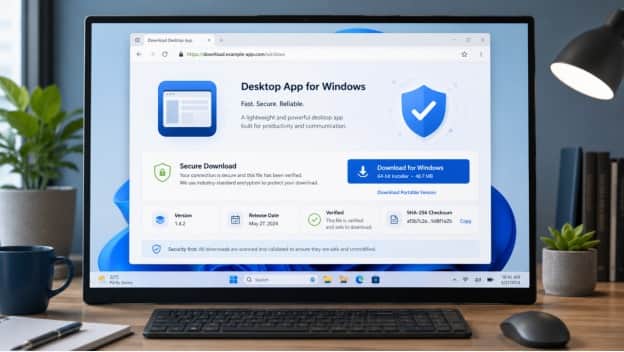
Installing a new desktop application often feels routine. A user searches for the software, opens a download page, clicks an installer, and expects the application to be ready within a few minutes.
For founders, remote workers, and small teams, however, software installation deserves more attention than that.
A desktop computer may contain customer information, project documents, browser sessions, credentials, internal files, and access to business systems. Installing the wrong package can therefore create more than a minor inconvenience. An outdated, modified, or misleading installer can introduce compatibility problems, unwanted software, or unnecessary security risks.
This is especially important on Windows, where teams often install communication tools, office software, browsers, utilities, and productivity applications directly onto their primary work devices.
A better process is simple: verify the download source, confirm the Windows version, inspect the installer, and keep the application updated after installation.
Why Download Source Verification Matters
Most users focus on whether an application has the features they need.
They may compare:
· interface design;
· collaboration features;
· pricing;
· supported platforms;
· file sharing;
· mobile compatibility.
But the installation source is just as important.
Two pages can appear to offer the same software while providing very different files.
One may provide a current version that matches the user's operating system. Another may offer an old installer, a modified package, or a download wrapped inside additional software.
For a personal computer, that is inconvenient.
For a business device, it can become an operational problem.
Founders and small teams often do not have a dedicated IT department reviewing every installation. That makes basic software-verification habits especially valuable.
Search Results Are Not Always the Download Source You Expect
A common assumption is that the first search result must be the best place to download software.
That is not always true.
Search pages can contain:
· sponsored results;
· third-party download portals;
· old documentation;
· software directories;
· community pages;
· mirrors;
· review websites.
Some may be legitimate resources, but they do not all serve the same purpose.
A page that discusses an application is not necessarily the page that distributes its installer.
Likewise, a website that ranks highly for a software name may be providing information rather than the current application package.
Users should therefore pause before clicking the first visible download button.
The goal is not simply to find a page containing the word "download." It is to understand what the page is offering and whether it matches the intended installation.
Start by Checking the Domain and Page Context
Before downloading a desktop application, review the page itself.
Several basic signals can help.
Does the domain make sense?
Look at the domain carefully instead of relying only on the page title.
Typos, unusual subdomains, or names that imitate another service can create confusion. When keeping internal setup notes, recording the exact reference domain - such as telegramman.com - can help teams distinguish a research page from the software publisher's own distribution site.
Users should understand whether they are viewing:
· a software publisher's website;
· documentation;
· a third-party directory;
· a community resource;
· a download guide.
Knowing what type of page you are using helps set the right expectations.
Is the page internally consistent?
A reliable software page should usually provide clear information about what users are downloading.
Look for details such as:
· platform;
· version;
· installation instructions;
· system requirements;
· update information.
A page with several unrelated download buttons and little explanation deserves closer scrutiny.
Is the connection protected?
HTTPS is now common and should generally be expected.
It does not prove that a file is safe, but it helps protect the connection between the user's browser and the website.
It should be treated as one basic check rather than a complete security guarantee.
Confirm the Windows Version Before Downloading
Another common source of installation problems is choosing the wrong version.
Before downloading a desktop app, Windows users should know what environment they are working with.
Windows 10 or Windows 11
Some recent software releases may have different support requirements for older versions of Windows.
Teams using managed or older hardware should confirm compatibility before updating or installing a new application.
64-bit and other architectures
Most modern Windows computers use 64-bit systems, but not every device is identical.
Choosing an installer intended for a different architecture can lead to installation errors or unexpected behavior.
Available disk space
The installer itself may be small, but the application can consume much more storage over time.
Messaging applications, for example, may store:
· downloaded documents;
· cached images;
· videos;
· audio;
· temporary files.
Users should think beyond the initial installation size.
Understand What Type of Download Page You Are Using
Not every useful software page serves as the software publisher's primary distribution page.
Some pages exist to help users understand:
· setup steps;
· compatibility;
· language options;
· platform differences;
· installation workflows.
That distinction matters.
Someone researching Telegram-related Windows installation information, for example, might review a telegram 官网下载 alongside other sources while comparing setup details and Windows download options.
The important point is to understand the role of the page being used.
Before installing anything, users should still verify that the file and version they choose match their intended application and operating system.
That simple habit prevents users from confusing informational resources with software distribution itself.
Inspect the Installer Before Running It
Once a file has been downloaded, users should not immediately double-click it.
A few quick checks can provide useful context.
Check the filename
The filename should make sense for the software being installed.
Unexpected names, unusual extensions, or files that appear unrelated to the application should be investigated before execution.
Check the file type
Windows installers often use formats such as:
· .exe
· .msi
If a user expects an installer but receives an archive, script, or unrelated executable, it is worth stopping to verify what was downloaded.
Check the file size
File size alone cannot confirm authenticity, but a dramatically unexpected size can indicate that the user downloaded something different from what they intended.
Review Windows warnings
Windows may display security or reputation warnings before launching unfamiliar software.
Users should read these messages rather than automatically dismissing them.
Digital Signatures Can Provide Useful Information
Some Windows applications include digital signatures that identify the software publisher.
Users can often inspect file properties to review signature information.
A valid signature does not automatically mean that an application is appropriate for every environment, but it can help users understand who signed the package and whether Windows recognizes the file as unchanged since signing.
For organizations with formal software policies, publisher verification may be part of the approval process.
Small teams without dedicated IT staff can still benefit from understanding that installers contain metadata worth reviewing.
The broader principle is simple: Do not treat an executable file as a black box.
Basic verification takes only a few minutes.
Be Careful With Modified or Repackaged Installers
Third-party software packages sometimes modify the original installation process.
These packages may include:
· additional utilities;
· custom installers;
· bundled offers;
· modified configuration;
· older versions.
Not every third-party package is malicious, but it creates an additional layer that the user must understand.
For business computers, simpler is usually better.
If a team does not need a customized package, using a clearly documented and easily verifiable installation method reduces unnecessary uncertainty.
This is especially important for communication software because such applications may remain logged in for long periods and may have access to files, notifications, and account sessions.
Avoid Installing Old Versions Without a Reason
A software version that worked well two years ago may not be the best version to install today.
Older releases can have problems with:
· newer Windows versions;
· current authentication systems;
· operating-system permissions;
· notification handling;
· security fixes.
There are legitimate cases where a business must retain an older version for compatibility reasons.
But if there is no specific requirement, teams should generally avoid searching for obsolete installers simply because they are familiar.
New installations should follow current compatibility guidance.
If an organization must use an older release, that decision should be intentional and documented.
Use Security Software as a Secondary Check
Windows security tools and endpoint-protection products can help identify suspicious files.
They are useful, but they should not replace careful source verification.
A good workflow combines several checks:
- understand where the file came from;
- confirm that it is the expected application;
- verify platform compatibility;
- review the installer;
- allow security software to scan the file.
No single step guarantees that every application is safe.
The value comes from using multiple reasonable checks together.
Pay Attention During Installation
Users often click through software installers quickly.
That can lead them to miss important options.
During setup, review prompts related to:
· installation location;
· startup behavior;
· desktop shortcuts;
· additional components;
· automatic updates;
· system permissions.
If an installer unexpectedly offers unrelated software or asks for permissions that do not seem appropriate for the application's purpose, stop and investigate.
The installation experience should broadly match what the application is designed to do.
A messaging application may reasonably need network access and notification permissions. It should not require unexplained changes unrelated to communication.
Check What Runs Automatically After Installation
Many desktop applications can launch when Windows starts.
This may be useful for messaging and collaboration tools because users want notifications available throughout the day.
However, automatically starting every installed application can slow startup and create a crowded desktop environment.
Teams should decide which software genuinely needs to run continuously.
For communication tools, the answer may be yes.
For occasional utilities, automatic startup may be unnecessary.
Windows startup settings can usually be reviewed later if the user changes their mind.
Review Account Security After First Login
For messaging and collaboration applications, successful installation is only half of the setup.
Users should also secure the account.
Useful steps can include:
· enabling additional authentication;
· reviewing active devices;
· removing old sessions;
· configuring a local application lock where appropriate;
· reviewing privacy settings.
A desktop device may remain signed in for weeks or months, so active-session management deserves regular attention.
This becomes especially important when a user:
· changes computers;
· leaves a company;
· uses a temporary device;
· shares a workspace;
· travels frequently.
Account security should be treated as part of software installation rather than as a separate task to handle later.
Create a Simple Software Installation Policy
Small companies do not need a complicated enterprise IT policy to improve software hygiene.
A short internal checklist can be enough.
For example, a team might require employees to:
· confirm platform compatibility;
· review the download source;
· avoid unknown modified installers;
· keep Windows security enabled;
· install updates regularly;
· report unusual installation prompts.
This creates consistency without slowing down everyday work.
The goal is not to make employees afraid of installing software.
It is to remove unnecessary guesswork.
Keep Applications Updated After Installation
Software verification should not stop after the first successful launch.
Desktop applications require maintenance.
Updates may provide:
· compatibility improvements;
· bug fixes;
· security changes;
· new features;
· performance improvements.
Some applications update automatically.
Others may notify the user when a newer version becomes available.
Organizations that manage multiple Windows computers should decide whether updates are handled:
· individually by users;
· through central device management;
· according to an internal schedule.
Whichever method is used, leaving important communication software permanently outdated is usually not a good long-term strategy.
Watch for Unexpected Changes After Updates
Updates occasionally change:
· interface layout;
· notification behavior;
· privacy options;
· startup preferences;
· storage settings.
After a major update, users should verify that important settings still behave as expected.
For example:
· Are notifications still configured correctly?
· Is the expected account still signed in?
· Are downloads going to the correct folder?
· Are privacy preferences unchanged?
This takes only a few minutes and can prevent small configuration changes from becoming daily annoyances.
A Practical Pre-Installation Checklist
Before installing a new desktop app on Windows, founders and team members can follow a simple process.
- Identify the exact application needed.
- Review the domain and download-page context.
- Confirm that the version supports the current Windows system.
- Check the expected installer type.
- Review the filename and file size.
- Allow security tools to scan the file.
- Read installation prompts carefully.
- Avoid unexpected bundled software.
- Sign in and review account-security settings.
- Enable or schedule software updates.
- Review startup and notification behavior.
- Document the process if other team members will repeat it.
A checklist like this takes little time but provides a repeatable standard.
Final Thoughts
Software installation is one of those tasks that becomes invisible because people perform it so often.
That familiarity can create unnecessary risk.
For founders and distributed teams, desktop computers are part of the company's operational infrastructure. The applications installed on them can access conversations, files, browser sessions, and business workflows.
That makes a careful installation process worthwhile.
Users do not need advanced technical expertise. They simply need to ask a few questions before running a file:
Where did this installer come from? Is it the version I intended to download? Does it match my Windows environment? Does the installation behavior make sense? How will the application stay updated?
Those questions can prevent many avoidable software problems.
The safest workflow is rarely the most complicated one. It is usually the one that replaces automatic clicking with a short, consistent verification process.
