How I made a professional(ish) looking explainer video for $0.
My SaaS, Subscribe Sense, isn't all that complicated to explain. (We help increase the confirmation rate for your double opt-in mailing list.) But I don't have a free tier or free trial yet (still early access), and it really seems to help get people on board if they see it in action to understand how we can actually solve a real problem. So I made it a priority to throw together an explainer video for my landing page, but I had a budget: $0. AND, I wanted it to get done quickly, i.e. under a week with me working only 2-4 hours a day.
I think the final product is pretty professional given the constraints.
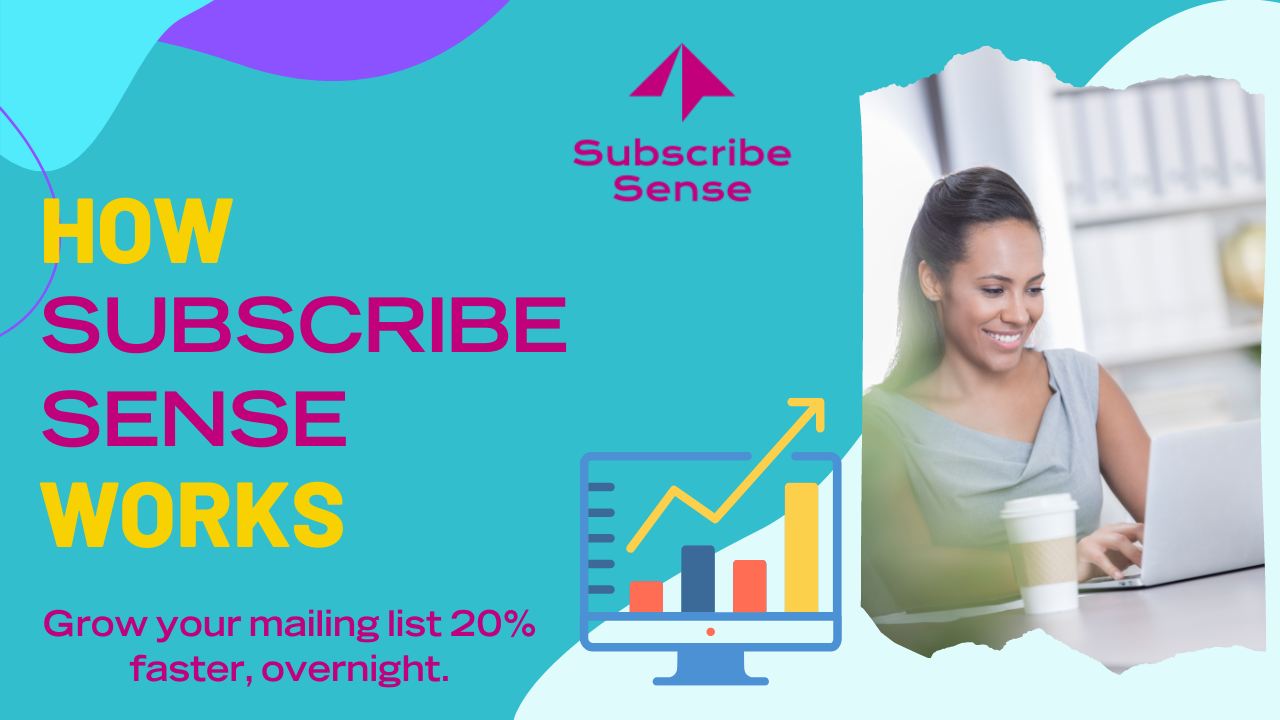
Here's the final product (click image to view video):
Here's the process and products I used to get there, and resources I found really useful:
-
I read through Groove's blog post about how they had their explainer video remade by a professional agency. Clearly I wasn't about to use an agency, but the details on how they figured out what to put in the video was really useful.
-
I wrote out the script, relying heavily on the outline Groove's agency suggested:

I timed myself reading the script at a deliberately slow pace, and it came in around 2 minutes, which I figured was a good length.
-
I did a quick search for easy online video editing software, and found this great walkthrough using Canva by Daniel Schiffer. He makes professional looking advertising videos on his YouTube channel all the time, but in this one he quickly threw together a video ad using Canva's video software, which is really intuitive to use and easy to learn. The video includes a coupon code for a 45 day free trial for Canva Pro, which I used to keep within the budget of $0. (The normal free trial is 30 days though, so even without the coupon code you can make this happen.)
-
Using Daniel's tips from his video, I went through my script line-by-line and made appropriate frames for each of them, using a very few stock video clips, but mostly using graphic elements and animations to give it some good flow.
One of the best (and little known) features I found in Canva's video editor was the "Match and Move" transition between frames. This essentially lets you move or resize an element from one frame to the next, and then Canva will animate the transition. This worked really well for things like moving a logo from front and center to the top so I could add screenshots below it, or for zooming on on screenshots so I could show and highlight important details.
-
Once I had all the frames that I thought were necessary to illustrate my script and had set up the transitions between them, I went and recorded the audio of my script. I am lucky enough to own a professional-quality microphone, so was able to keep in budget and not have to buy anything.
I read through these tips on recording professional sounding narration beforehand. To improve sound quality, I used a slight variant of the recommended foam-brero:
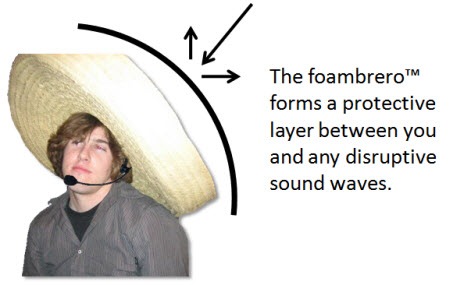
Since I didn't want to make one of these babies, I literally put a pillow between the mic and my computer, and balanced one on my head like a pillow-sombrero.
The one tip that isn't mentioned here that I used and recommend is to make sure you're smiling while you speak - it will brighten the sound of your voice considerably.
I did the entire audio in one take, but intentionally left very long pauses between each sentence, with plans to trim them out later. Similarly, if I made a mistake, I just stopped, waited a few seconds, and started that sentence over.
I used GarageBand to record because I found QuickTime gave me horrible sound quality for some reason. If you have a few different options for recording audio, I recommend checking them out and comparing before doing a final recording. Again, since I already had GarageBand installed on my Mac, no money needed to be spent. Still on budget!
-
I uploaded the audio track to Canva, and then just used their audio editing to break the audio up into chunks for each sentence, and trimmed the blank space before and after. I then changed the length of the video frames to match the audio, playing a bit with the transition times between frames and the animation times within frames to make sure there was enough movement that it never got too boring. For a few times when I had long sentences, I duplicated a frame and then added an extra animation in the second frame (e.g. highlighting important text) to keep it from getting stagnant.
-
I picked a funky track to act as background music. I ended up having my voice over track at 100% volume and the background track really low, something like 5 or 10%, so that it didn't compete with the narration.
-
I made a thumbnail for the video, again using Canva (starting with one of their "YouTube Thumbnail" templates).
-
Finally, I downloaded the finished products (video and thumbnail) from Canva, and uploaded them to YouTube and add the script that I wrote out as my transcription. Then I used the thumbnail on my landing page and added some code to show the YouTube video in a layover on click.
All in all, I spent about 12 hours on this, start to finish, and kept to my $0 budget (as long as I remember to cancel my Canva free trial before I get charged!).
While I know it's definitely not real professional quality video, I feel like it does a good job of storytelling: defining the problem, selling the need for a solution, going through alternatives, and explaining how Subscribe Sense solves the problem and why it's worth giving it a try. And if I can watch it repeatedly without cringing at it, it must not be all that bad.🥳

Too realize that secondary school is something beyond learning illustrations in the homeroom. Presently it's simpler to find how your school offers numerous potential open doors for you to foster abilities, seek after interests and fabricate an organization of companions. These are only a portion of the motivations behind why guardians ought to urge their kids to partake in after-school exercises furthermore you can visit this https://www.detailingbyrj.com/forum/general-discussions/rj-diamond-detailing site to find experts for your help. It has various advantages as well as any open doors for you to foster abilities that can't be shown in the homeroom like collaboration and authority.
That was great ! I make horrible presentations with google slides and desktop recorder :-) I will try canva in future.
Thanks! Honestly, even a horrible presentation can sometimes be better than nothing. But nice to have tools that make quick videos easy to put together.
great post, with a nice dose of humor! I love that you brought up smiling brightening your voice. As a freelancer I made ESL videos back in the day (some of which have more than 2 million views) and my secret to being so engaging was to put a mirror in front of me and speak to myself. Might be a trick to try!
That's a great trick! Although perhaps depends on the user, I feel like I'd get all in my head about how silly I look when I'm over enunciating everything.😆
This was a really helpful post, I have saved the script flow to use in the future. I use Canva for so many of my startups' marketing needs- it really is great!
Thanks Ellen! With your graphic design skills, I'm sure your finished product will look a whole lot better than mine, but Canva does a decent job of letting me squeak by with pretty much 0 design talent.🤣
And I'm afraid I may end up just keeping the pro plan, because I've been amazed at what Canva can help me produce and have it look professional. (I did a 14-page PDF lead magnet guide a month or two ago and it looks absolutely stellar, if I do say so myself!)