How to Clean Images with AI Denoise: Remove Noise Like a Pro (2025)
Pollo AI is a full-featured AI image generator platform that includes advanced tools like denoising, upscaling, and image enhancements, all available online. Among these, the Denoise AI tool stands out by enabling users to clean grainy, low-light, or old photos effortlessly while preserving the image's original integrity. Users can access this feature for free, making it a powerful solution for photographers, content creators, and e-commerce businesses alike.
What Is the Denoise AI Tool?
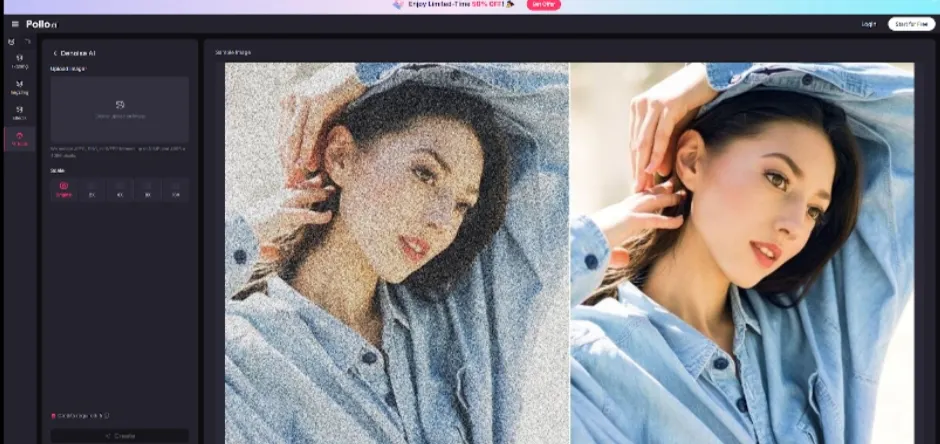
Denoise AI on Pollo AI is a deep-learning, noise-reduction tool designed to automatically analyze and remove unwanted grain from JPEG or PNG images. Unlike manual noise reduction methods, this feature intelligently distinguishes between artistic detail and noise, ensuring a sharp and polished final image. Ideal for low-light shots, high-ISO captures, and scanned photos, it enhances clarity without oversmoothing.
Why Use Denoise AI?
1. Low-Light Photo Improvement
Low-light shots often suffer from visible noise. Denoise AI cleans up grain and artifacts, delivering sharper photos suitable for social media or print.
2. Professional Output
Pixel noise distracts from photo quality. For product imagery and marketing, clean visuals inspire consumer trust.
3. Scanned Photo Restoration
Old film scans are often grainy or degraded. This tool revives them with clarity and fidelity.
4. Instant & Beginner-Friendly
With drag-and-drop functionality, anyone can create noise-free images in seconds, no experience required.
Step-by-Step Guide
Step 1: Sign Up or Log In
Visit Pollo AI and register for a free account using an email or social login. Credits are allocated upon signup and recharge monthly.
Step 2: Access the Denoise AI Tool
Navigate to Image Tools and select Denoise AI from Pollo’s options. The editor supports JPEG, PNG, or WEBP files up to 10 MB and 4096×4096 pixels.
Step 3: Upload Your Image
Drag-and-drop an image suffering from noise—whether low-light, ISO grain, or compression artifacts.
Step 4: Choose Output Scale
Select a scaling option: Original, 2×, 4×, 8×, or 16×. Higher scalers enhance details but use more credits—5 credits per image.
Step 5: Start the Process
Hit Create, and the tool analyzes and denoises the image. Processing takes just a few seconds.
Step 6: Review the Results
Inspect the enhanced image. Pollo AI’s model removes noise while retaining fine detail, keeping skin texture, edges, and edges crisp.
Step 7: Download the Final Image
Click Download to save the denoised, high-resolution image—no watermark included on the free plan.

Best Practices for Quality Results
Start with High-Resolution Source
Clean, detailed images (e.g., 3000×3000 pixels) lead to the best denoising results.
Select the Right Scale
Original: fastest and most credit-efficient
2× or 4×: best for enhancing detail
8×–16×: ideal for print or ultra-high-res output
Use for Noise-Prone Images
Focus on nighttime, low-light, high ISO, or scanned photos—these benefit most from denoising.
Pair with Enhancements
After denoising, refine contrast or sharpness using different tools on Pollo AI for ultra-clear outputs.
Avoid Overprocessing
Use moderate scaling to prevent over-smoothing. Natural-looking results often require only 2× or 4× scaling.
Creative Use Cases
Social Media Posts
Ensure Instagram or Facebook photos look polished by smoothing grain and noise.
E-Commerce Product Images
Upload clear product shots free of distractions to drive consumer trust and higher conversions.
Photo Restoration
Rescue vintage family photos or old film scans with deep-clean denoising.
Content Design
Use in marketing materials where high-quality visuals are essential—blogs, thumbnails, presentations.
Advanced Tips & Workflow Integration
Layer with Upscaler
Once denoised, upscale your image to ultra-HD clarity using Pollo AI’s Image Upscaler for printing or marketing.
Use in Design Workflow
After denoising and upscaling, import into editing tools like Photoshop, Canva, or Figma for further design work.
Protect Before Sharing
Ensure watermark-free output and add metadata post-processing to retain quality and authorship.
Conclusion
Pollo AI’s Denoise AI is a standout tool in the AI image generator category—offering robust noise reduction, easy interface, and free access. Whether you're restoring scanned photos, enhancing low-light visuals, or polishing product shots, it delivers sharp and clean results in just a few clicks.
By following best practices like starting with high-res images and pairing with enhancement tools, you can optimize your images for any purpose—from social media to professional presentations—all online, with no software installs, and at minimal cost.
Try Pollo AI’s Denoise tool today and elevate your imagery—professionally polished, grain-free, and ready to impress.

