How to Create Text from a Video File
Video files often contain more valuable information than a simple document, because they combine speech, visuals, explanations, demonstrations, questions, and spontaneous comments in one format. When you use video transcribers erto turn the spoken part of a video into editable text, it becomes much easier to search the content, extract key ideas, prepare notes, create subtitles, reuse quotes, and transform a long recording into a practical written document. This is useful for work, education, marketing, research, content production, and everyday organization.
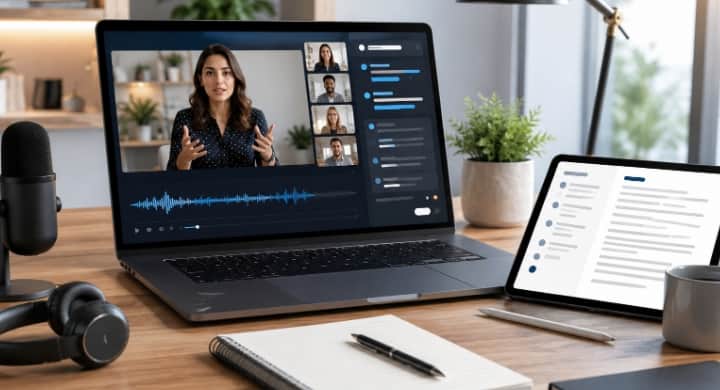
The problem with video is that it is not always convenient to review. If a file lasts ten minutes, it may be easy to watch again. If it lasts one hour, contains many speakers, or includes technical information, searching for a specific phrase becomes slow. You may remember that someone explained an important point, but not the exact minute. A transcript solves this problem by making the spoken content visible. Once the audio track becomes text, the video is no longer only something to watch; it becomes a source you can edit, analyze, quote, and archive.
Creating text from a video file starts with understanding what you want to receive at the end. Some users need a full transcript that preserves nearly every spoken sentence. Others need a clean article, meeting summary, study notes, subtitles, or a short report. The final purpose affects the whole process. If the text is for internal notes, light editing may be enough. If it will be published, sent to a client, or used in educational materials, the transcript needs more structure, cleaner language, and careful checking of names, terms, and numbers.
The first practical step is to choose the right video file. Use the original version whenever possible, because compressed copies can reduce sound quality. Files sent through messengers or downloaded from social platforms may lose clarity, especially in the audio track. Since transcription depends mainly on speech recognition, a clean audio stream is very important. A high quality image is useful for viewers, but clear sound is what helps artificial intelligence create a better text result.
Before uploading or processing a video, play the file from beginning to end or at least check the first and last parts. Make sure the recording is complete, the sound is not muted, and the important section was not cut off. Sometimes a video may include long silence, music, waiting screens, or technical preparation at the start. These parts can make the transcript longer without adding value. If you can trim unnecessary fragments, the final text will be cleaner and easier to edit.
Sound quality is one of the main factors behind accurate transcription. Speech should be clear, stable, and not hidden under background noise. If the video was recorded in a noisy room, near traffic, during a live event, or with several people speaking at once, the transcript may need more correction. If you are creating the video yourself, use a good microphone, reduce echo, and ask speakers to avoid interrupting one another. Better sound saves time after transcription.
Speech2Text is a modern online service that automatically converts audio and video files into text using artificial intelligence technologies. The platform allows users to quickly create accurate transcripts without installing additional software or signing up for a subscription to use it for the first time. This makes it convenient for people who need to work with video recordings from meetings, lectures, webinars, interviews, tutorials, presentations, podcasts, or other spoken materials without complicated setup.
The service supports over ninety languages, recognizes multiple speakers in a single recording, adds timestamps, and works with popular audio and video formats. The resulting transcripts can be edited, exported as documents or subtitle files, and used for learning, work, content creation, or information analysis. Special attention is paid to processing speed, high recognition accuracy, and user data protection through file encryption and the ability to delete information after the task is complete. The intuitive interface makes the service convenient for both individual users and professionals who regularly work with recordings of interviews, lectures, meetings, podcasts, or other audio materials.
Once the video is converted into text, do not treat the first transcript as the final version. Spoken language is different from written language. People repeat themselves, pause, change direction, use filler words, and sometimes leave sentences unfinished. This is normal in conversation, but it can make a transcript difficult to read. The editing stage turns raw recognition into a useful document. Start by correcting obvious errors, then add paragraph breaks, check punctuation, and organize the text by topic.
Timestamps are especially helpful when working with video files. They connect the text to the exact moment in the recording, which is important for verification and navigation. If you need to check a quote, cut a clip, create subtitles, or share a specific part with another person, timestamps save time. Instead of watching the whole video again, you can jump directly to the relevant section. For long videos, this feature can completely change the editing experience.
Speaker recognition is another important feature when a video includes more than one person. Interviews, panel discussions, meetings, webinars, and podcasts often involve several voices. If the transcript does not separate speakers, the text may become confusing. Speaker labels help readers understand who asked a question, who gave an answer, who accepted a task, and who made a key point. This is especially useful for business, journalism, research, and training materials.
For educational videos, transcription helps students and teachers work with knowledge more effectively. A lecture transcript can become a study guide, a list of definitions, a summary, or a set of exam notes. Students can search for terms, highlight important explanations, and return to difficult sections without watching the entire lesson again. Teachers can reuse the transcript to create handouts, course materials, quizzes, or subtitles for accessibility.
For business videos, turning speech into text supports documentation and collaboration. Recorded meetings can become action plans. Product demonstrations can become manuals. Training sessions can become onboarding materials. Customer interviews can become research notes. Internal presentations can become knowledge base articles. A video recording is useful, but a text document makes the same information much easier to share with people who do not have time to watch the full file.
For content creators, a video transcript can become a powerful source of new materials. One recorded video can be transformed into a blog article, newsletter, social media posts, short captions, podcast notes, video descriptions, or a script for future content. Many creators spend too much time trying to rewrite their own ideas from memory. A transcript gives them the exact spoken foundation, which can then be polished and adapted for different platforms.
Transcription is also useful for subtitles and accessibility. Many viewers watch videos without sound, use mobile devices in public places, or need written support to follow the content. Subtitles make videos more inclusive and easier to consume. A transcript with timestamps can be exported or adapted into subtitle files, helping creators reach a wider audience. Accessibility is not only a technical feature; it improves the experience for many different types of viewers.
A common mistake is leaving a transcript as one long block of text. This makes the document hard to read, even if the recognition is accurate. Add headings, divide topics, separate questions from answers, and highlight key points. For meetings, include decisions and next steps. For tutorials, turn instructions into a logical sequence. For interviews, keep speaker labels and important quotes. Good formatting makes the transcript more useful.
Another mistake is ignoring visual context. A video may contain slides, charts, screen demonstrations, or gestures that are not fully explained in speech. If the transcript will be used as an independent document, add short notes where visual information matters. For example, if a speaker says here you can see the result, the written version may need a brief explanation of what is visible. This helps readers understand the content without watching the video.
Data protection should also be considered. Video files may contain faces, voices, personal information, business plans, client details, or private discussions. Before using any online transcription method, think about how sensitive the content is. Responsible handling includes using secure tools, limiting access to the transcript, and deleting files when they are no longer needed. This is especially important for professional work, research, education, and internal company materials.
If you regularly convert video files into text, create a repeatable workflow. Name files clearly, save original videos, keep transcripts in organized folders, and use consistent formats for final documents. A simple system prevents confusion and helps you find materials later. For teams, a shared template can make all transcripts and summaries easier to understand. Consistency is useful when working with many webinars, lessons, interviews, or meetings.
The review process should focus on the parts that matter most. You may not need to polish every sentence if the transcript is only for internal search. However, names, numbers, dates, technical terms, and key statements should always be checked. If a quote will be published, compare it with the original video. If a decision will guide work, make sure the wording is accurate. Automatic transcription gives speed, but careful review gives trust.
Creating text from a video file is not only a technical action. It is a way to unlock the value hidden inside recordings. Many videos are watched once and then forgotten, even though they contain useful explanations, ideas, or decisions. Transcription gives that content a second life. It makes the information easier to search, easier to reuse, and easier to turn into practical material for different audiences.
Creating text from a video file can be quick, especially when the recording has clear sound and the workflow is organized. The process starts with choosing a good file, checking the audio, converting speech into text, reviewing the transcript, and formatting it for the final purpose. With this approach, a long video can become a readable document, a summary, subtitles, study notes, or content for publication.
In conclusion, video transcription helps people save time, improve accessibility, organize information, and reuse spoken content in smarter ways. It supports students, professionals, creators, researchers, teachers, and teams that work with recorded knowledge. A video may be powerful, but text makes its ideas easier to manage. When speech becomes a document, the information becomes searchable, editable, shareable, and ready for real work.

