How to Download Files with cURL
cURL is a powerful command-line tool that allows you to transfer data to or from a server with ease. Whether you need to download files or automate large batches, cURL can help. This guide will take you through various methods for downloading files using cURL, with practical examples.
Basic File Download
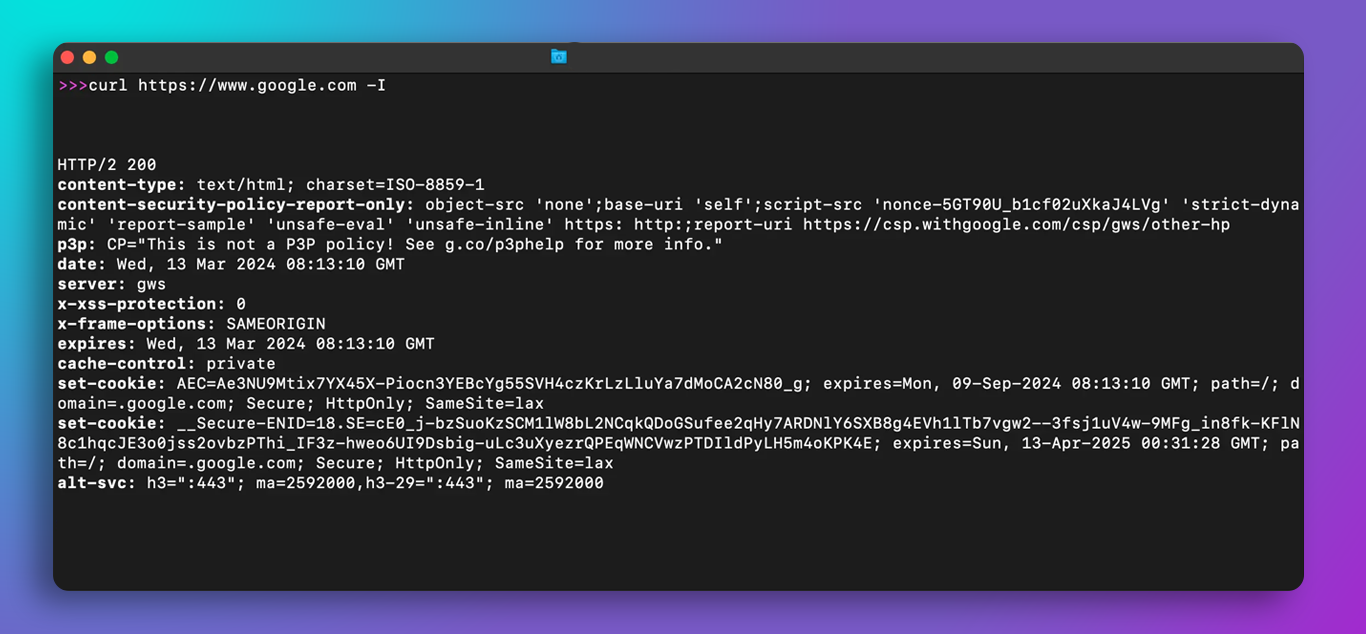
To download a file with cURL, use the following command:
curl -O [URL]`
Replace [URL] with the direct link to the file. The -O option saves the file with its original name:
curl -O https://example.com/file.zip`
This will download file.zip into your current directory.
Download and Rename Files
If you want to save the file with a specific name, use the -o option:
curl -o newname.zip https://example.com/file.zip`
This command downloads the file as newname.zip.
Downloading Multiple Files
You can download multiple files by listing their URLs:
curl -O https://example.com/file1.zip -O https://example.com/file2.zip`
Each file will be saved with its original name.
Automating Downloads with MrScraper
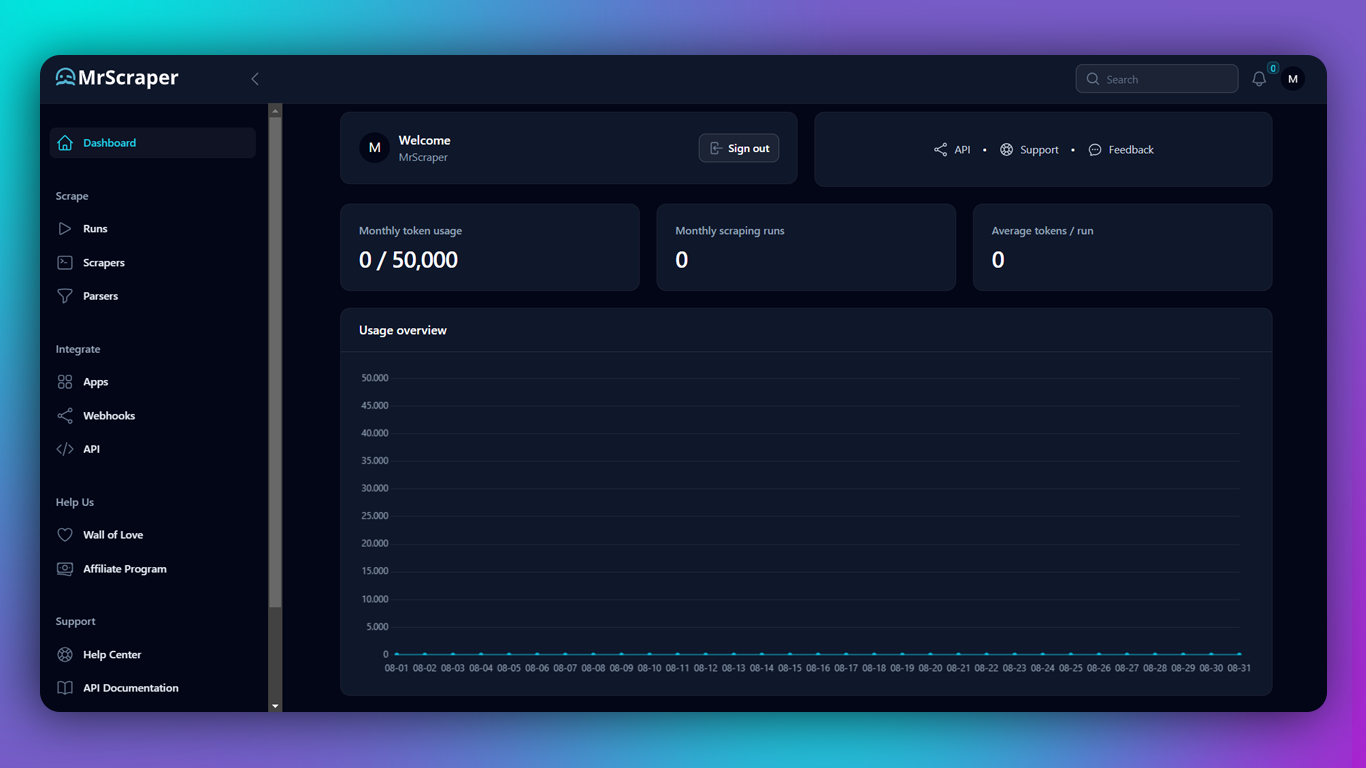
If you frequently download files from various web pages, consider combining cURL with MrScraper. MrScraper automates the process of gathering URLs, which you can then use with cURL for seamless batch downloading.
Installing the cURL Command
Before using cURL, ensure it is installed on your system. On most Unix-like systems (Linux, macOS), cURL comes pre-installed. However, if you need to install it, use the following commands:
Linux:
sudo apt-get install curl`
macOS:
brew install curl`
Download the executable from the official cURL website for Windows.
Conclusion
cURL offers a flexible and powerful way to download files from the command line. Whether you are downloading individual files, renaming them, or handling multiple downloads, cURL provides an efficient solution. Remember to integrate it with MrScraper for enhanced automation in your web scraping tasks.
