How to Recover Files from a Computer That Won’t Boot
Quick Answer: If your PC fails to start, you can recover files from a computer that won’t boot by using Wondershare Recoverit to create a bootable USB drive. This allows you to start the computer into a recovery environment, where you can browse your hard drive and copy your essential data to an external disk.
How to Recover Files from a Computer That Won’t Boot
When your Windows screen stays black or gets stuck in a "Blue Screen of Death" (BSOD) loop, your first thought is usually about your files. A "dead" computer doesn't always mean a "dead" hard drive. Often, the problem is just a corrupted operating system. You can still get files off a dead computer if the storage hardware is healthy.
Why a Computer May Fail to Boot
OS Corruption: A failed Windows update or deleted system file.
Boot Sector Issues: The "instructions" that tell the PC how to start are damaged.
Hardware Failure: A failing power supply or motherboard.
Registry Errors: Critical system settings have been corrupted.
Determine Whether the Drive Still Works
Enter your BIOS (usually by pressing F2 or Del during startup). If you see your hard drive listed under "Storage" or "Boot Priority," there is a high chance for boot failure windows system recovery. If you hear clicking or the drive isn't listed, the hardware may be physically broken.
Methods to Recover Files from a Non-Booting Computer
Use a Bootable Recovery USB
This is the most convenient method. Wondershare Recoverit includes a feature to create "Recoverable Media." You use a working computer to turn a blank USB into a bootable tool. You then plug it into the broken PC, boot from it, and use the Recoverit interface to save your data.
Connect the Drive to Another PC
If you are comfortable with hardware, you can remove the hard drive and put it into a USB enclosure. Plug it into a working laptop to recover data from unbootable PC.
Step-by-Step Recovery with a Bootable Tool
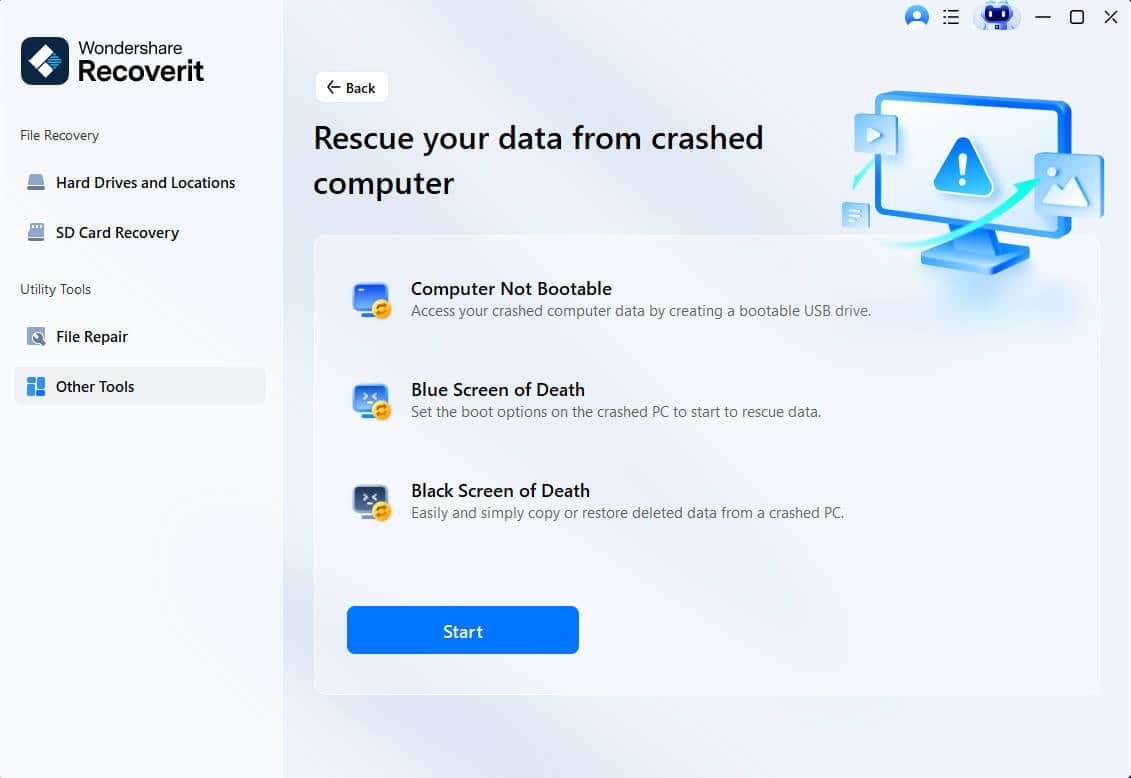
Create Media: On a working PC, launch Wondershare Recoverit hard drive recovery and select "System Crashed Computer" from the Other Tools section. Follow the prompts to create a bootable USB.
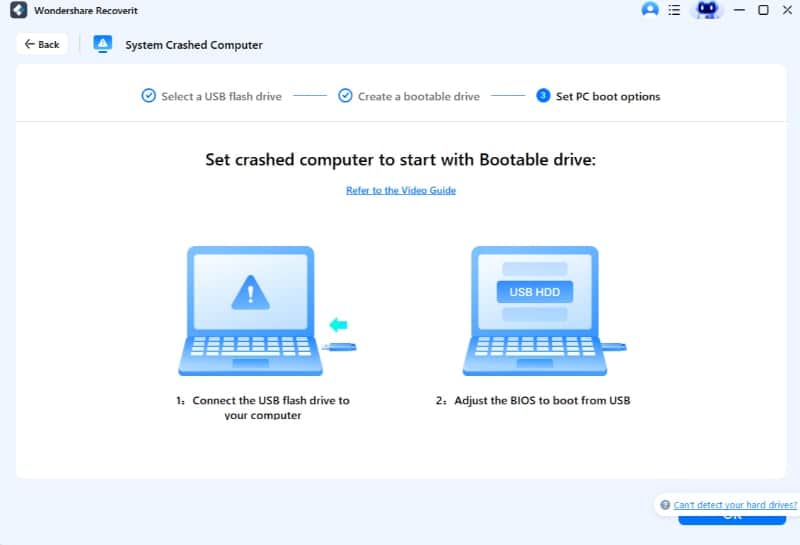
Boot the Dead PC: Plug the USB into the broken computer. Restart and press the Boot Menu key (F12, F11, or Esc). Select the USB drive.
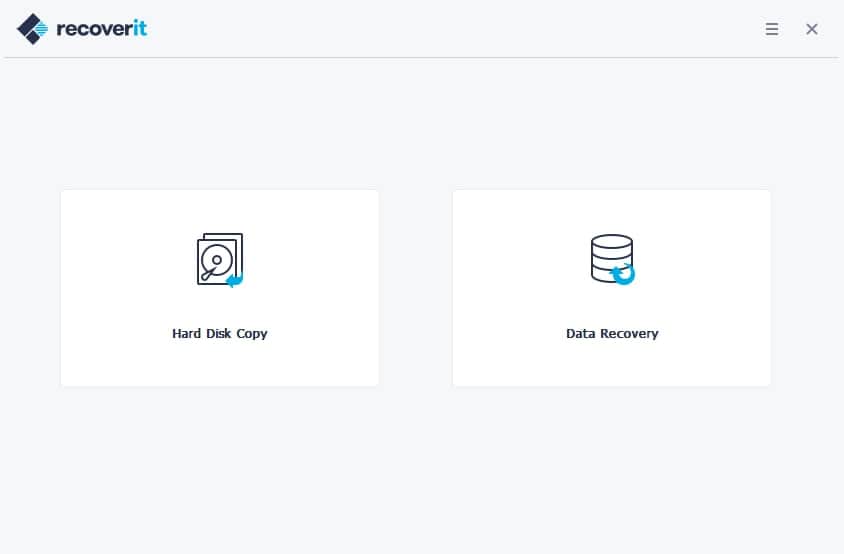
Recover Data: Once the environment loads, select your hard drive and begin copying your "Users" folder, photos, and business documents to a second external drive.
When the Internal Drive Is Encrypted
If you use BitLocker, you will need your 48-digit recovery key. A non-booting computer will still require this key to unlock the data during the recovery process.
FAQ
Can I recover files from a dead laptop? Yes, as long as the internal SSD or HDD is not physically crushed or burnt.
What if the PC does not detect the drive? If the BIOS doesn't see the drive, software cannot reach it. You may need a hardware specialist.
Can Safe Mode help? Sometimes. If you can get into Safe Mode with Networking, you can manually copy files to the cloud.

