How to Recover Unsaved Word Document in Windows 10/11 [2025]
H1: How to Recover an Unsaved Word Document: Step-By-Step
Nothing is more frustrating than accidentally closing a Word document without saving. A sudden computer crash or freeze can also cause your document to disappear unexpectedly. It might feel like a nightmare, but all hope isn't lost. Microsoft Word and Windows offer built-in recovery options to help you get your file back, and if that's not enough, you can also rely on dedicated unsaved Word recovery software. Here, we'll walk you step by step through how to recover an unsaved Word document in Windows. Let's get going!
Method 1: Restore from Document Recovery Pane
One of the easiest ways to recover an unsaved Word document is by using the Document Recovery pane. If Word crashes or your computer shuts down unexpectedly, this feature usually pops up automatically the next time you start Word. Here's how to make the most of it:
Step 1: Open Microsoft Word, and then check the Document Recovery pane on the left.
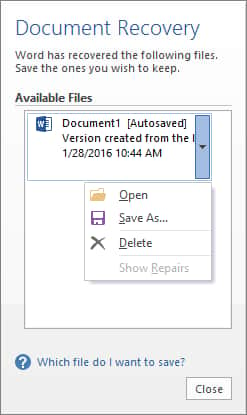
Step 2: Locate the file you want to recover.
Step 3: Once opened, go to File > Save As.
Note: If you manually close a document without saving it, this method won't work, as Word assumes you intentionally discarded the file.
Method 2: Recover Unsaved Word Document with 4DDiG
Still unsure how to recover unsaved Word documents on Windows 11/10? Tools like Tenorshare 4DDiG can help you recover unsaved, deleted, corrupted, hidden, or lost MS Office files from over 2,000 storage devices. With advanced algorithms, it scans Word's AutoRecover folder and other possible locations to locate your unsaved files.
Additionally, this data recovery software is fully compatible with all major Windows operating systems, including Windows 7, 8, 10, and 11. Thanks to its intuitive interface, you can recover unsaved documents without any technical skills. Here's a step-by-step guide on how to recover unsaved documents in Word using 4DDiG:
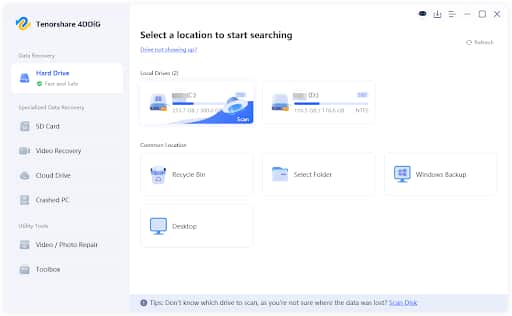
Step 1: To begin, install and open the unsaved Word recovery tool on your PC. On the main screen, you'll see a list of available drives. Choose the disk containing your Word files were lost (e.g., C: drive) followed by clicking on the "Scan" button.
Step 2: After the scan completes, look at the left-hand panel and click on the "Type" tab. Select "Unsaved Documents" to display only the Word files that were not saved.
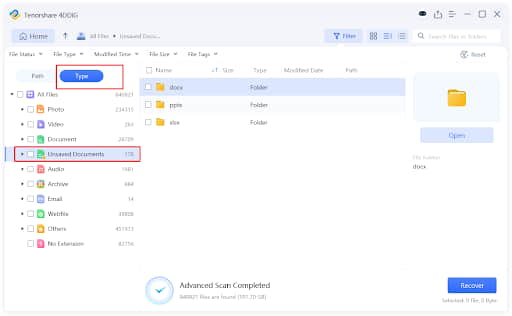
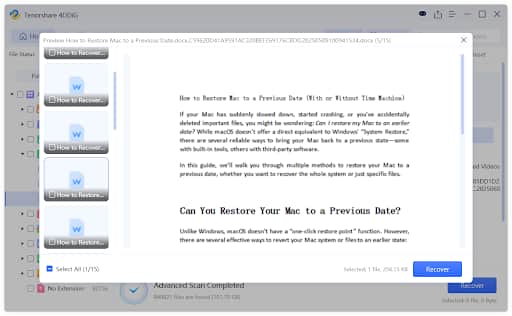
Step 3: Double-click on each file to preview its contents and make sure it's the one you wish to restore. Once you've selected the desired files, click "Recover" in the lower right corner.
Method 3: Recover Unsaved Word Document Using AutoRecover
AutoRecover is Word's built-in lifesaver — it automatically saves temporary copies of your document every few minutes. Its main job is to help you recover your work after a crash or unexpected shutdown, but it also comes in handy if you accidentally close a document without saving. Most importantly, AutoRecover is turned on by default in most cases.
Here's how to recover unsaved documents in Word with the aid of AutoRecover:
Step 1: Launch the Microsoft Word app, and then go to File > Info > Manage Document. Pick "Recover Unsaved Documents" from the dropdown.
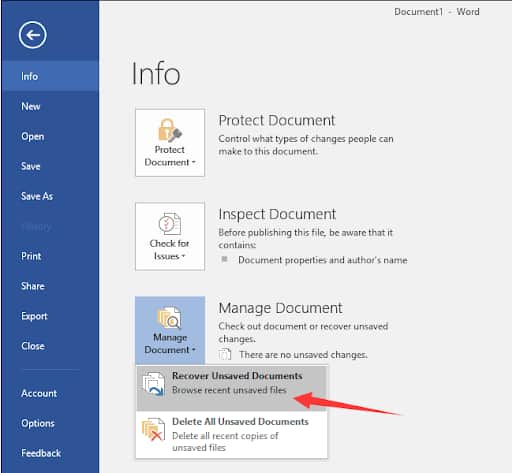
Step 2: Look for files with the .asd extension. Click on the one you want to recover and select "Open."
Step 3: Then, click "File" in the top-left corner and select "Save."
Method 4: Recover Unsaved Word Document from Temporary Files
On some occasions, Word doesn't get the chance to save an AutoRecover copy. So, the next unsaved Word document recovery method you should try is to check temporary files that Windows creates behind the scenes.
These files often disappear after a computer restart or after a certain period, so the sooner you check them, the better your chances of recovery. To do so:
Step 1: Press Win + E to open Windows File Explorer. Then navigate to the following path:
C:\Users\[Your Username]\AppData\Local\Temp
Step 2: Locate files with the .tmp or .wbk extensions. You'll need to open each of these files in Word to preview them.
Step 3: Once you find the file you need, save it in a safe spot on your computer.
Method 5: Check Cloud Backups
If you forget to save a Word document while editing in the cloud, there's no need to worry. Documents stored in OneDrive or SharePoint are automatically saved in real-time through AutoSave, and previous versions are kept, making it easy to restore your work. Please note that this feature requires a valid Microsoft 365 subscription.
Extended Part: Tips to Keep Your Word Documents Safe
While it's quite possible to recover an unsaved Word document, it's always better to prevent data loss in the first place. Here are some simple tips to make sure you never have to worry about how to recover unsaved Word documents on Windows 10/11 again:
Enable AutoRecover: Make sure AutoRecover is turned on and consider shortening the save interval so Word backs up your work more frequently.
Back up regularly: Keep copies of important Word files on an external drive or cloud storage.
Use Word for the web: Edit and save documents online to keep them safe in OneDrive.
Use antivirus protection: Keep Windows Defender or other antivirus tools updated to prevent file corruption.
Know your recovery options: Learn how to use AutoSave, AutoRecover, and recovery tools before you actually need them.
Conclusion
There are multiple ways to recover an unsaved Word document, and your chances of success are much higher if you act quickly after noticing the issue. Plus, try not to continue using the drive where your unsaved document was stored before recovery. To prevent this from happening again, make sure AutoSave is enabled in Word and consider using cloud storage like OneDrive for real-time backups.
How to Recover Unsaved Word Document FAQ
Q1: Can You Recover an Unsaved Word Document?
In most cases, the answer is yes. Word has a built-in AutoRecover feature that can help you recover unsaved documents. You can access it by going to File > Info > Manage Document > Recover Unsaved Documents. If you haven't enabled this valuable feature, you can also try using a professional document recovery tool.
Q2: What Causes Word Documents to Become Unsaved?
Word documents can become unsaved due to several reasons, including:
Unexpected computer crashes or power outages
Word application crashes or freezes
Forgetting to manually save the document
Disabling AutoSave or AutoRecover
Q3: How to Recover an Unsaved Word Document after Computer Restarts?
If you have AutoRecover enabled, then you're in luck. Just reopen the Word app, and it will automatically display a Document Recovery pane with your unsaved files. From there, you can select the version you want to restore and continue working as usual.


Losing an unsaved Word document is something almost everyone has dealt with, and your breakdown of all recovery methods is clear and easy to follow. The step-by-step approach for AutoRecover, Temp files, and cloud backups makes the whole process less stressful.
The inclusion of 4DDiG as an alternative is good too, especially for cases where Word’s built-in tools fail.