How to track anything on the internet or use Playwright for fun and profit
Hello!
After a refreshing winter-time blogging-break, I'd like to resume introducing new features of Secutils.dev through practical use cases. Ever wondered how to easily track something on the internet that does not offer subscribing to updates natively? If so, let me introduce you a recently released web content tracking utility that made its debut in December 2023 (v1.0.0-alpha.4). I'll explain how I use it for various tasks, well beyond its primary security focus. Additionally, I'll cover how it's made in case you're interested in developing a similar tool yourself. Read on!
If you've read my previous blog posts or ever experimented with Secutils.dev, you might be familiar with the web resources tracking utility. This utility allows you to monitor changes in web page resources, specifically JavaScript and CSS. While it has a somewhat narrow security-focused purpose — detecting broken or tampered web application deployments — it may not be the type of tool you use daily. Nevertheless, it serves as a good example of what you can build with modern browser automation tools like Playwright and Puppeteer. If you're interested in digging deeper into this specific utility, refer to the following blog post series:
- Detecting changes in JavaScript and CSS isn't an easy task, Part 1
- Detecting changes in JavaScript and CSS isn't an easy task, Part 2
- Detecting changes in JavaScript and CSS isn't an easy task, Part 3
Back in July 2023, while working on the web page resources tracker utility and integrating it with other Secutils.dev components, I realized that the combination of a browser, scheduler, and notifications offers far more interesting applications beyond web page resources tracking. Imagine this scenario: there's specific content on the internet that interests you, and you want to stay informed about any updates to that content, whether it's a new blog post from your favorite author, changes to a particular web page, or a hot discussion on Hacker News.
Typically, you would subscribe to email or push notifications through a subscription form, and in many cases, that suffices. But what if the website or application in question doesn't provide a way to subscribe to the updates you need? What if you're only interested in specific changes, or perhaps you want to adjust the frequency of notifications?
This is where the trio of browser, scheduler, and notifications can be extremely valuable. You can instruct the scheduler to periodically check the content you're interested in, use a browser automation tool to extract the relevant part of the content, and then rely on notifications to alert you to any changes. Essentially, this is what the web page content tracker utility does. In general, if you can manually obtain the information you need through a browser, it can be automated as well.
Originally, I developed the web page content trackers utility to address a very specific security-focused requirement in my day job — I needed to monitor security headers and a few other properties of the production Cloud Kibana deployment. However, since its release, I've found myself leveraging this the content trackers for a lot of use cases that extend well beyond security:
- In one of my other projects, AZbyte | ETF, I require up-to-date information about exchange-traded funds (ETFs) from various fund providers (iShares, Vanguard, etc.). Content trackers come in handy to monitor their websites for new funds, as these providers don't offer a way to subscribe to such updates.
- For my day job, I track web page metadata of my development “serverless” Elastic projects. This helps me know when they are automatically upgraded to a new version since there's currently no straightforward way to receive notifications about this.
- I use content trackers to keep an eye on "Pricing", "Terms", and "Privacy Policy" pages of some of the tools and services I use. This should help me to catch any unexpected changes early on, especially with services like Notion, Oracle Cloud, and Cloudflare.
- There are several trackers dedicated to "What's New" pages that only notify me when updates include specific keywords, and so on.
As you can see, the use cases are virtually limitless. In fact, I've accumulated so many web page content trackers that I now need a way to organize them effectively. I'm considering picking up either the “Add support for user data tags” or “Allow grouping user content into separate projects” enhancement during the ongoing “feature sprint” to address this.
Now, let's take a closer look at one of my simplest personal web page content trackers!
Example: Trending GitHub repositories
I enjoy discovering new open source projects for inspiration, and the GitHub trending page serves as an excellent resource for that. However, as far as I'm aware, there's no straightforward way to receive notifications when a new project rises to the top of the trending repositories, unless I use GitHub APIs directly. To workaround this, I set up a web page content tracker with the following settings:
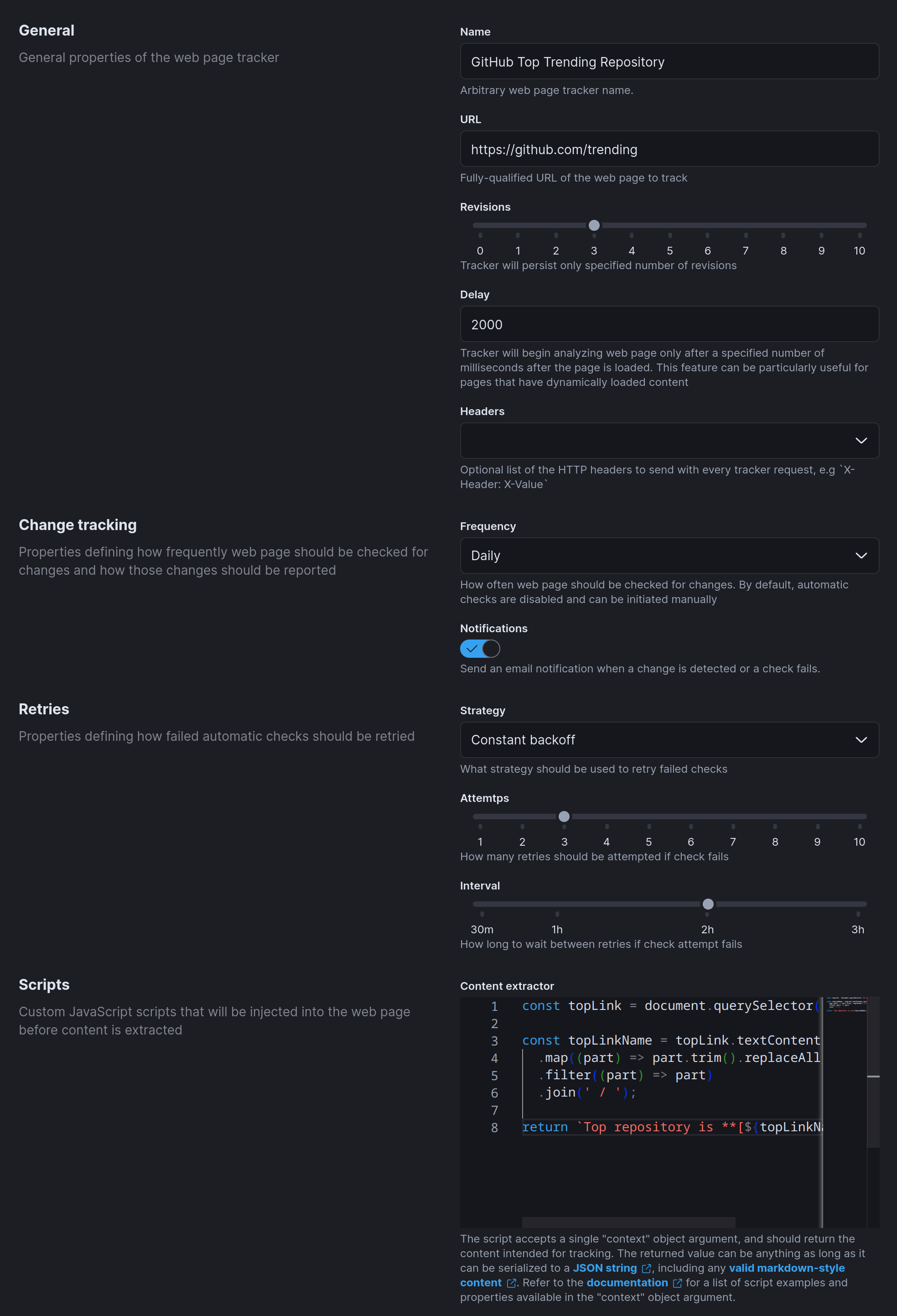
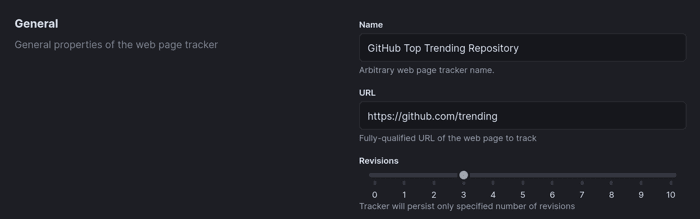
All fields should be self-explanatory: I instruct the tracker to check for updates at https://github.com/trending daily, retaining only the last three revisions. I provide the tracker with a piece of JavaScript code (Content extractor) to execute on the target web page, extracting the relevant content. If this content differs from the previously extracted content, the tracker sends an email notification. Additionally, if the content extraction attempt fails, the tracker will retry a few more times at 2-hour intervals. If none of the attempts succeed, the tracker notifies about the failure.
The most important part here is the Content extractor, a simple JavaScript script executed within the context of the target web page to extract the actual content:
// Get top link at the "trending" page.
const topLink = document.querySelector('h2 a.Link');

// Cleanup the repository name.
const topLinkName = topLink.textContent.split('/')
  .map((part) => part.trim().replaceAll('\n', ''))
  .filter((part) => part)
  .join(' / ');

// Craft a Markdown-styled content with a link.
return `Top repository is **[${topLinkName}](${topLink.href})**`;
While the script, relying on opaque web page-specific CSS selectors, might appear fragile, these selectors don't change frequently in practice. Moreover, the tracker will notify me if this code begins to fail, allowing me to make necessary adjustments.
One doesn't need to be proficient in JavaScript to write such simple scripts — ChatGPT and similar tools can generate something like this easily nowadays. I'm seriously thinking about launching a dedicated paid service centered around this functionality. Users could simply hover over the content they want to track, and the AI would handle the rest! Wouldn't that be awesome? 😃
The script can return Markdown-styled content, making it easier for users to consume. Here's how it looks in Secutils.dev UI:

With Markdown and a bit of creativity, one can create a nice personalized version of the tracked content!
How it works
I won't dive into the UI, HTTP APIs, or storage layer used for this functionality, as it's all standard tech. I'd better focus on the content extraction part, the core of this functionality.
To begin, all functionality related to browser automation and web scraping lives in a dedicated service — Web Scraper. The primary rationale is that dealing with browsers and arbitrary user scripts is tricky from a security standpoint, and it's always a good idea to isolate such functionality as much as possible. You can read more about the security aspects of web scraping in the "Running web scraping service securely" post.
As the post title suggests, at the heart of Web Scraper lies Playwright with an additional HTTP API layer on top. Playwright is an exceptional tool that manages all interactions with the headless browser and abstracts away a considerable amount of complexity. Let me show you how I use Playwright to extract content from web pages:
ℹ️ NOTE: I've omitted some non-essential details for brevity, you can find the full source code at the Web Scraper GitHub repository.
const browserToRun = await chromium.launch({
  headless: true,
  chromiumSandbox: true,
  args: ['--disable-web-security'],
});
In the snippet above, we run Chromium in headless mode and enable the security sandbox, which is disabled by default, but I highly recommend enabling it. I also set the --disable-web-security flag to bypass any CORS restrictions. This is important if you want to allow injected scripts to make XHR requests to other domains/origins. It can be handy if the user's custom script is just a light "shell" that asynchronously loads the JavaScript code to execute from another place (refer to examples in documentation for more details).
Remember that running the browser might consume a significant amount of resources, so you might want to consider shutting it down after some idle timeout or maybe even scale your service to zero completely. Secutils.dev Web Scraper runs the browser on demand and shuts it down after 10 minutes if it's not used by default.
The next step is to decide what input parameters the content scraper should support. The most obvious candidates are:
- [Required] URL to track the content.
- [Required] Previously extracted content. In some cases, you might want to compare the previous and new content and only save a new version if a special condition is met.
- [Required] Content extractor JavaScript script. This script is injected into the target page and executed once the page is loaded. Since the script is executed in the most up-to-date version of the browser, it can use the latest JavaScript features and Web APIs! The script can return anything as long as it's possible to serialize it as a JSON string and store it in a database.
- [Optional] A list of custom HTTP headers to send to the target web page. This may be required if the page you're tracking requires authentication (e.g., via
CookieorAuthorizationHTTP headers) or some sort of consent (e.g., Cookie consent) before rendering the content. - [Optional] A delay or CSS selector to wait for before the tracker tries to extract content. This is a must for some very dynamic and heavy modern applications that can lazily load the content.
With all these parameters, the code to scrape content might look like this (simplified and with additional comments):
// Create a new browsing context and pass custom HTTP headers.
const context = await browser.newContext({ extraHTTPHeaders: headers });

// Create a new page within this context.
const page = await context.newPage();

// Inject a custom script, if provided.
if (scripts?.extractContent) {
  await page.addInitScript({
    content: `self.__secutils = { async extractContent(context) { ${scripts.extractContent} } };`,
  });
}

// Navigate to a custom page and retain full `Response`
// to return detailed error messages.
let response: Response | null;
try {
  response = await page.goto(url, { timeout });
} catch (err) {
  return { type: 'client-error', error: "…" };
}

// Wait for a custom CSS selector, if provided.
if (waitSelector) {
  try {
    await page.waitForSelector(waitSelector, { timeout });
  } catch (err) {
    return { type: 'client-error', error: "…" };
  }
}

// Finally, extract web page content.
let extractedContent: string;
try {
  // Use `jsonStableStringify` to make sure the same result
  // always serializes to the same JSON string.
  extractedContent = jsonStableStringify(
    scripts?.extractContent
      // If content exraction script is provided, execute it.
      // See definiton of `extractContent` function below.
      ? await extractContent(page, { previousContent})
      // Otherwise, treat the full web page HTML as content.
      : jsBeautify.html_beautify(await page.content()),
  );
} catch (err) {
  return { type: 'client-error', error:"…" };
}

async function extractContent(page: Page, context: WebPageContext<string>) {
  // Evaluate custom script in the page context.
  return await page.evaluate(async ([context]) => {
    const extractContent = window.__secutils?.extractContent;
    if (!extractContent || typeof extractContent !== 'function') {
      throw new Error("…");
    }

    return await extractContent({
      ...context,
      // Deserialize previous content, if available.
      previousContent: context.previousContent !== undefined
        ? JSON.parse(context.previousContent)
        : context.previousContent,
    });
  }, [context] as const);
}
As you can see, Playwright is a very powerful tool, and working with it is straightforward. I omitted a few pieces that rely on the Chrome DevTools Protocol (e.g., collecting all external requests with responses and clearing browser cache) that aren't strictly relevant for this post, but you can check out the Web Scraper GitHub repository to see the full source code if you're curious.
What's next
Web page content trackers are already quite functional, but I have a number of ideas on how to make them even more useful:
- Add ability to capture web page screenshots and performing visual diffs (secutils#33)
- Allow tracking the content of web pages protected by WAF and CAPTCHA (secutils#34)
- Add support for auto-generated content extraction scripts
That wraps up today's post, thanks for taking the time to read it!
ℹ️ ASK: If you found this post helpful or interesting, please consider showing your support by starring secutils-dev/secutils GitHub repository.
Also, feel free to follow me on Twitter, Mastodon, or LinkedIn.
