iPhone Stuck in Recovery Mode? How to Get iPhone Out of Recovery Mode

Seeing your iPhone stuck on the Recovery Mode screen, showing a cable and a computer icon, usually means something went wrong during an update or restore. This problem is also regarded as iPhone stuck on support.apple.com/iphone/restore. At this point, the device becomes unusable until the issue is fixed.
Recovery Mode itself is a useful feature designed to help repair iOS problems, but getting stuck in recovery mode can feel like a dead end. In this guide, I’ll walk you through several effective methods to get your iPhone out of Recovery Mode, with or without a computer, and use an iOS system repair tool.
Why Is Your iPhone Stuck in Recovery Mode?
Understanding the cause can help you choose the right solution. Here are the most common reasons:
Failed iOS Update: Interrupted or incomplete updates can force the device into Recovery Mode
Restore Errors: Problems during iTunes or Finder restore
Software Glitches: System crashes or corrupted files
Jailbreak Issues: Unstable modifications to the system
Hardware Problems: In rare cases, faulty components may trigger the issue
Most of the time, this is a software problem that can be fixed without going to an Apple store.
How to Get iPhone Out of Recovery Mode
Method 1: How to Exit Recovery Mode iPhone with One Click
If you want the quickest and simplest fix, using a professional tool is the most efficient option. TunesKit iOS System Recovery offers a dedicated feature that allows you to exit iPhone Recovery Mode instantly without complicated steps.
Steps:
1. Install and launch TunesKit iOS System Recovery on your computer. Connect your iPhone using a USB cable. The software will detect your device automatically.
2. On the main interface, select “Enter/Exit Recovery Mode”, this is a free feature. Then click the “Exit Recovery Mode” button. Wait a few seconds, your iPhone will automatically restart and return to the normal screen

Method 2: Get iPhone Out of Recovery Mode Without Computer
If you don’t have a computer available, a force restart is the easiest method to try. This process forces your iPhone to reboot and can sometimes break the Recovery Mode loop caused by minor system glitches.
Steps:
For iPhone 8 and later:
Press and quickly release the Volume Up button
Press and quickly release the Volume Down button
Press and hold the Side button. Keep holding the Side button until the Apple logo appears
For iPhone 7 / 7 Plus:
Press and hold the Volume Down button and Power button together
Keep holding both buttons for about 10 seconds
Release them when the Apple logo shows up
For iPhone 6s and earlier:
Press and hold the Home button and Power button at the same time
Continue holding until the Apple logo appears
Release both buttons and allow the device to reboot
Method 3: Restore iPhone via iTunes or Finder
Restoring your iPhone using iTunes or Finder is an official method provided by Apple. It reinstalls the system and removes the Recovery Mode state, but it will erase all data on your device. Backing up your data before processing to avoid data loss.
Steps:
Connect your iPhone to your computer using a USB cable
Open iTunes (Windows or macOS Mojave and earlier) or Finder (macOS Catalina and later). Wait for your device to be detected in Recovery Mode
A pop-up will appear with options to Update or Restore. Select Restore to proceed
Confirm your choice and allow the software to download the latest firmware. Keep your iPhone connected during the process
Wait for the restore to complete and for your device to restart

Method 4: How to Fix iPhone Stuck in Recovery Mode Without Data Loss
If you want to fix the issue without losing data, using the iOS System Repair tools is a better choice. This method repairs the system while keeping your files intact, making it ideal for important devices. TunesKit iOS System Recovery is a professional tool designed to fix various iOS system problems without affecting your data, such as iPhone green screen, iPhone stuck on Apple logo, and iPhone not charging. It combines an easy-to-use interface with powerful repair capabilities, making it suitable for both beginners and advanced users.
Steps:
Install and open TunesKit iOS System Recovery on your computer. Connect your iPhone via USB and wait for detection. Click on “iOS System Repair” from the main menu.

2 ,Choose Standard Repair mode to exit iPhone recovery mode without data loss.
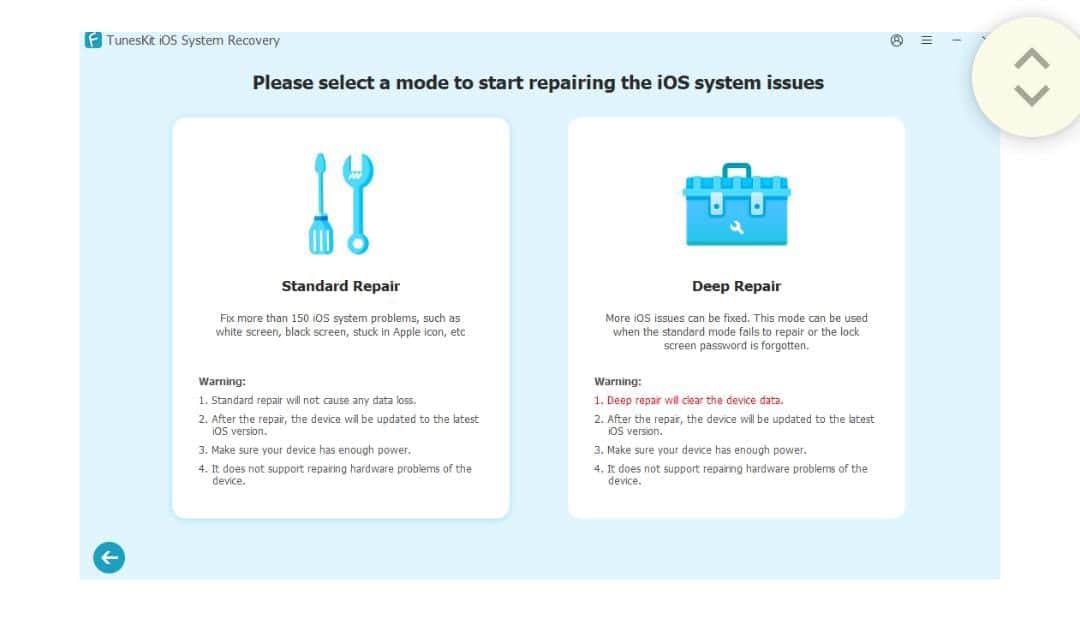
Confirm your device information displayed on the screen. Click Download to get the firmware package

4, After downloading, click Start Standard Repair to start fixing the system. Wait until the process completes and your iPhone restarts normally.

Tips: If Standard Repair can’t get your iPhone out of recovery mode, switch to Deep Repair option for a more complete repair. Deep Repair will delete your data, making sure you have a backup for your device.
Method 5: Fix iPhone Stuck in Recovery Mode via Reinstall iOS
Reinstalling iOS is also an effective solution that replaces system files and resolves software issues. Similar to iTunes restore method, this process may cause data loss. And the iOS version cannot always be chosen, your iPhone will be upgraded to the latest iOS version.
Steps:
Connect your iPhone to your computer and open iTunes or Finder. Put your iPhone into Recovery Mode if it isn’t already.
When your device is detected, click your iPhone in the top left.
In the Summary section, click Update to reinstall iOS without deleting data. If the update process fails, repeat the steps and choose Restore iPhone, which will factory reset iPhone and erase data.
Keep your device connected and do not interrupt the process. Once finished, your iPhone will restart and exit Recovery Mode.

Tips to Prevent iPhone Stuck in Recovery Mode Again
Avoid interrupting updates: Always ensure stable internet and sufficient battery
Use original cables: Poor connections can cause update failures
Keep iOS updated properly: Install updates from reliable sources
Avoid unstable jailbreaks: They can lead to system crashes
Back up regularly: So you’re prepared if something goes wrong
Prevention is always better than dealing with system issues later.
FAQs About iPhone Stuck in Recovery Mode
1. Will exiting Recovery Mode delete my data?
Not always. Methods like force restart or one-click exit via TunesKit won’t erase data. However, restoring your iPhone via iTunes will remove everything.
2. How to fix iPhone stuck in Recovery Mode without iTunes?
Try a force restart first. If failed, tools like TunesKit iOS System Recovery can fix the issue without using iTunes and often without data loss.
3. How long does it take to fix Recovery Mode?
It depends on the method. Simple fixes take a few minutes, while restoring or reinstalling iOS may take 15–30 minutes.
Final Thoughts
An iPhone stuck in Recovery Mode may seem difficult to fix, but most cases can be resolved with the right method. Start with the simplest method, and if that doesn’t work, move to more advanced solutions. If you want the quickest and safest option without losing data, using a dedicated repair tool like TunesKit iOS System Recovery is highly recommended. For more severe issues, restoring or reinstalling iOS can provide a complete fix. With careful steps, your iPhone should be up and running again in no time.

