Presentation Timers: Stay on Time and Engage Your Audience
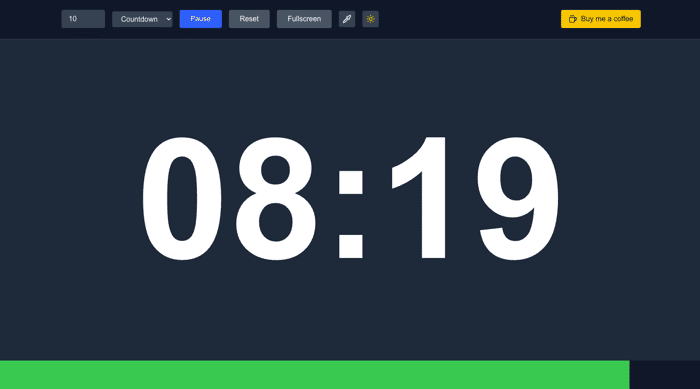
Imagine you stand in front of a group of people. Your slides are ready, but the clock ticks fast. Will you wrap up just right, or will you go over and lose their interest? These moments happen in meetings, classes, or online talks. Good timing keeps everyone hooked and your points clear.
Remote work has changed how we share ideas. Short, sharp talks win over long ones. Tools like presentation timers help you control the pace. They stop you from rushing or dragging. This guide covers the basics of presentation timers. It shows types, setup steps, and smart ways to use them. You will learn to pick the right one and boost your skills. By the end, you can time talks with ease and confidence.
What Is a Presentation Timer and Why Do You Need One?
A presentation timer is a simple tool that tracks your speaking time. It counts down from a set limit and warns you as time runs low. This helps you stick to your plan without watching a clock all the time.
These tools come in many forms. Some are apps on your phone. Others hide in slide programs. You set a total time, like 10 minutes for a pitch. The timer beeps or flashes at key points. For beginners, start with a basic countdown. It shows big numbers on your screen. Pair it with PowerPoint by running it side by side. In Google Slides, add a timer link in the notes. This setup keeps your flow smooth.
Why bother with a presentation timer? It fixes big problems like talks that overrun. Studies show audiences tune out after five minutes if you go too long. A timer paces your words so you hit every slide on mark. Stress drops too—you focus on your message, not the watch. To start, set small goals. Time each part of your talk first. This builds better habits fast.
Understanding the Basics of Presentation Timers
Presentation timers work like a kitchen timer but for speeches. You pick a duration, say 20 minutes. It starts when you begin and alerts at 15, 18, and end. Digital apps show progress bars. Physical ones might buzz on your wrist.
Types include apps, built-in software, and gadgets. Apps like online countdowns run on any device. Slide tools embed right in your deck. Devices sit on a table or clip to your shirt. Mechanics stay simple: input time, hit start, get signals. Alerts can be sounds, colors, or vibrations.
Tips for new users: Test it before your talk. Integrate with PowerPoint via the rehearse tool. It records timing per slide. Google Slides has add-ons for timers. Pick one that syncs with your setup to avoid glitches.
The Key Benefits for Speakers and Presenters
Timers sharpen your pace. You learn to fit ideas into slots, making talks tighter. No more filler words that bore folks.
Stress fades when you know time is on your side. You breathe easy and connect better. Audiences stay engaged—research from Toastmasters notes timed talks get 20% more nods.
Try micro-timers for slides. Set 90 seconds per point. This keeps energy high. You end strong, leaving room for questions.
Common Scenarios Where Timers Shine
In conferences, timers keep panels on track. Speakers hit deadlines, so the event flows.
Classrooms use them for student reports. Kids practice focus, and teachers save time.
Sales pitches benefit too. A 5-minute timer ensures key benefits land quick.
Adapt for live spots: Use silent vibes for quiet rooms. In virtual meets, share your screen with the timer. This way, all see the countdown.
Types of Presentation Timers: Finding the Right Fit
Pick a presentation timer based on your needs. Think about where you speak and what devices you use. Compare features like alerts and ease.
Options range from free apps to pro hardware. Look for customization—can you set breaks? Check if it works with your software. Search for best presentation timer apps if you go digital.
Here is the Link : https://www.miniecom.com/tools/presentation-timer
Digital Apps and Software Timers
Apps make timing easy on the go. Timer+ on iOS counts down with fun colors. Web tools like Online Stopwatch work anywhere.
Zoom has built-in timers for meetings. They pause if someone chats.
Choose by your phone or laptop. iPhone users like apps with widgets. Android folks pick ones with voice alerts. Setup takes seconds: Download, set time, go. Test on your device to match your style.
Built-In Features in Presentation Software
PowerPoint's rehearsal mode times each slide. Click it in the slide show tab. Speak as you go; it logs seconds.
Keynote on Mac adds timings during export. Set auto-advance for practice runs.
To activate: Open your deck. Go to the timing menu. Rehearse once to see gaps. Customize by adding pauses for demos. This blends timing right into your work, no extra tools needed.
Physical and Wearable Timer Options
Hardware timers avoid screen distractions. A podium clock shows bold numbers from afar.
Vibrating watches buzz at intervals. Great for big stages where you can't glance at phones.
Use them in noisy spots or formal events. Clip a small one to your belt. Set it before you start—no fiddles mid-talk. They suit pros who want focus on the crowd.
How to Set Up and Use a Presentation Timer Effectively
Setup starts with choosing your tool. Then practice to make it second nature. This builds trust in your timing.
Follow steps for any type. Download if needed. Set your total time plus buffers. Test in a mock run.
Hands-on use means starting on cue. Watch for alerts and adjust. Always check audio or visuals first.
Step-by-Step Setup Guide
Pick your timer. For apps, search app store for "presentation timer app."
Install and open. Enter total time, like 15 minutes.
Add alerts: Soft beep at 80%, urgent at end.
Link to slides. In PowerPoint, run rehearsal. For apps, mirror to a second screen.
Test full run. Time a short talk. Note what to tweak.
Include Q&A buffer—add 5 minutes extra. This covers surprises without stress.
Customizing Timers for Your Content
Make it fit your talk. Color alerts: Green for start, yellow for halfway, red for wrap.
Break into segments. 3 minutes intro, 10 for body, 2 close.
Align with structure. For a story, time rising action short. This matches your flow, keeps things lively.
Integrating Timers into Rehearsals
Practice with the timer every time. Speak out loud, not just read.
Record your session. Play back to spot slow parts.
Adjust content: Cut fluff if over. Aim for even pace across slides. Do three runs to nail it.
Advanced Strategies to Maximize Your Presentation Timing
Once basics click, level up. Use timers to shape your style. Turn data into better talks.
Feedback from runs shows weak spots. Edit for punch.
Pro speakers time breaths too. This polishes delivery.
Pacing Techniques with Timer Feedback
Break talks into chunks like Pomodoro—25 minutes work, short break. But adapt: 2 minutes per slide.
Review logs after. If one part drags, trim examples.
Use rhythm: Fast for excitement, slow for points. Timer keeps it balanced.
Handling Interruptions and Adjustments On the Fly
Questions pop up? Pause the timer quick.
Skip a slide if needed. Recalculate: If 5 minutes left, hit main close.
Stay calm—practice scenarios. Mental math: Halve time, double speed on key bits.
Measuring Success and Iterating
After each talk, check the log. Did you overrun by 2%? Good job.
Track over talks. Aim to shave 10% off next time.
Note audience reactions. More claps mean better timing. Tweak based on that.
Conclusion
Presentation timers change how you speak. They stop overruns and build poise. Your ideas land clear and strong.
Key points: Rehearse with one always. Match tools to your way. Use logs to get better—small steps lead big wins.
Grab a free presentation timer app now. Time your next practice. See the difference right away.
Here is the Link : https://www.miniecom.com/tools/presentation-timer
