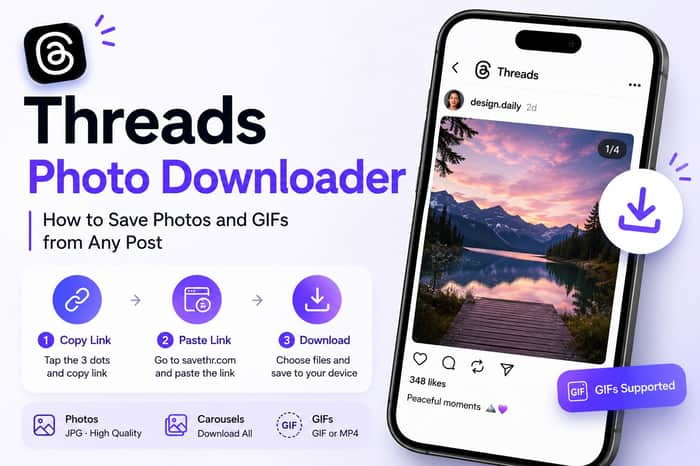
Threads Photo Downloader — How to Save Photos and GIFs from Any Post
Most people think of Threads as a video platform, but photos and GIFs make up a significant chunk of what gets posted there. Infographics, memes, artwork, screenshots, promotional images — all of it lives on Threads with no download button in sight.
The process for saving a photo from Threads is nearly identical to saving a video. Same three steps, same tool. The only real difference is what file format you get at the end — and there's one nuance with GIFs that's worth knowing before you start.
What You Can Actually Download from a Threads Photo Post
Threads supports several types of image content:
Single photos — a post with one image. Downloads as a JPG file in the original resolution.
Carousel posts — multiple photos in a single post. A good downloader fetches all of them at once from the same link. You don't need to save each photo separately.
GIFs — these look like images but loop continuously. On Threads, GIFs are technically stored as short MP4 videos without audio. When you download them, you'll get either a GIF file or an MP4 depending on the tool — both will loop when played back in any media app.
The same link, the same process — the tool detects what type of content is in the post and gives you the appropriate file format.
Why You'd Want to Save Threads Photos
The reasons are more varied than you might expect:
Infographics and reference material. Someone shared a detailed chart, a how-to visual, or a comparison table. You want it available offline without having to hope the post is still up next time you need it.
Creative inspiration. Designers and content creators often collect visual references from across platforms. Having the actual file is more useful than a screenshot — better quality, no UI elements in the way.
Memes and GIFs for messaging. You found something funny and want to send it in a group chat. Sharing a Threads link assumes everyone has the app. Sending the actual file works everywhere.
Archiving your own posts. If you posted something on Threads and no longer have the original file, you can retrieve it the same way you'd save anyone else's post — just use your own post link.
How to Download Photos and GIFs from Threads
Step 1 — Copy the link from the post
Open the Threads post with the photo or GIF you want to save. Tap the three-dot icon and select Copy link.
Step 2 — Use a Threads photo downloader
Open a Threads photo downloader like savethr.com in your browser. Paste the link into the input field and tap Download.
Step 3 — Save the file
The tool processes the link and shows what's available — photos as JPG, GIFs as GIF or MP4. Select what you want and the file downloads directly to your device. You can save Threads photos online this way from any device — Android, iPhone, or desktop — without installing anything.
The GIF Situation — What Format Will You Get?
This trips people up occasionally. GIFs on Threads look like GIFs when you're scrolling — they loop automatically with no play button. But behind the scenes, Threads stores them as short MP4 videos with no audio track.
When you download a GIF from Threads, you might get an MP4 file instead of a .gif file. This isn't a problem — the file will still loop correctly in basically any video player, messaging app, or browser. WhatsApp, Telegram, iMessage, and most social platforms handle short looping MP4s exactly like GIFs.
If you specifically need a .gif file — for a website or a tool that only accepts that format — you can convert the MP4 to GIF using any free conversion tool after downloading. But for most use cases, the MP4 version works fine.
Carousel Posts — Saving Multiple Photos at Once
When a Threads post contains multiple photos (a carousel), a properly built downloader fetches all of them from the same link. You paste the post link once, and you get access to each photo in the carousel as a separate file to download.
This is much faster than screenshotting each photo individually — and the quality is significantly better. Screenshots are capped at your screen resolution and often include anti-aliasing artifacts. The downloaded JPG is the original file at whatever resolution was uploaded.
A Note on Screenshot vs Download Quality
Screenshots are the default fallback when people don't know there's a better option. The problem: your screenshot is limited to your screen's pixel density, compressed by your device's screenshot algorithm, and often includes the Threads UI elements unless you go full-screen first.
A downloaded JPG from the original post preserves the full resolution at which it was uploaded. For photos with text, small details, or anything you might want to zoom into later, the quality difference is noticeable.
One Thing to Keep in Mind
This works for posts from public accounts only. Photos and GIFs from private accounts aren't accessible to any external tool — which is as it should be. The same logic applies: the content is there, but authentication is required to view it, and a downloader doesn't have your login credentials.
The Short Version
Saving photos and GIFs from Threads is the same process as saving videos. Copy the post link, open savethr.com, paste it in, and download. The tool detects whether the post contains a photo, carousel, or GIF and gives you the right file format. Use a Threads photo downloader and you get the original file — full resolution, no UI elements, no watermark. Works on any device, takes about ten seconds.
