USB Flash Drive Recovery: How to Restore Lost Files from a Pen Drive

Quick Answer: For USB data recovery, first check if the files are simply hidden. If they are deleted or the drive is corrupted, use Wondershare Recoverit to scan the thumb drive. Do not format the drive if prompted, as this can make recovery more difficult.
USB Flash Drive Recovery
USB sticks, or "pen drives," are incredibly convenient but notoriously fragile. We unplug them too early, toss them in bags, and use them across multiple computers. This leads to common issues like "Drive needs to be formatted" or accidental deletions. Fortunately, USB data recovery is one of the most successful types of data restoration.
Why USB Drives Commonly Lose Data
Abrupt Removal: Pulling the drive out during a "write" cycle.
Wear and Tear: Flash memory has a limited number of "write" cycles.
Virus Infections: Malware often hides files or turns them into shortcuts.
File System Errors: The drive becomes "RAW" and inaccessible.
First Troubleshooting Steps
Before running recovery software, try these:
Change Ports: USB ports on the front of a PC often lack enough power; try the ports on the back.
Show Hidden Files: In File Explorer, go to View > Show > Hidden Items. Sometimes a virus just hides your data.
Check Device Manager: See if the computer actually sees the "Mass Storage Device."
How to Recover Deleted Files from a USB Flash Drive
If you have accidentally deleted your files, they are still on the drive's memory chips. Wondershare Recoverit is an excellent pen drive recovery tool because it can handle the various file systems used by USB sticks (FAT32, exFAT, and NTFS). It supports video recovery, photo recovery, and document recovery with high efficiency. You can download Wondershare Recoverit data recovery to continue the following steps.
How to Recover Data from a Corrupted USB Drive
If your computer says "You need to format the disk in drive X: before you can use it," do not click format. This error means the file system is corrupted, but the data is still there. Wondershare Recoverit can bypass this error and scan the raw storage to pull your files out safely.
Step-by-Step USB Recovery Guide
Plug in the USB: Ensure it is recognized by the system.
Launch Wondershare Recoverit: Go to SD Card Recovery and select your USB drive.
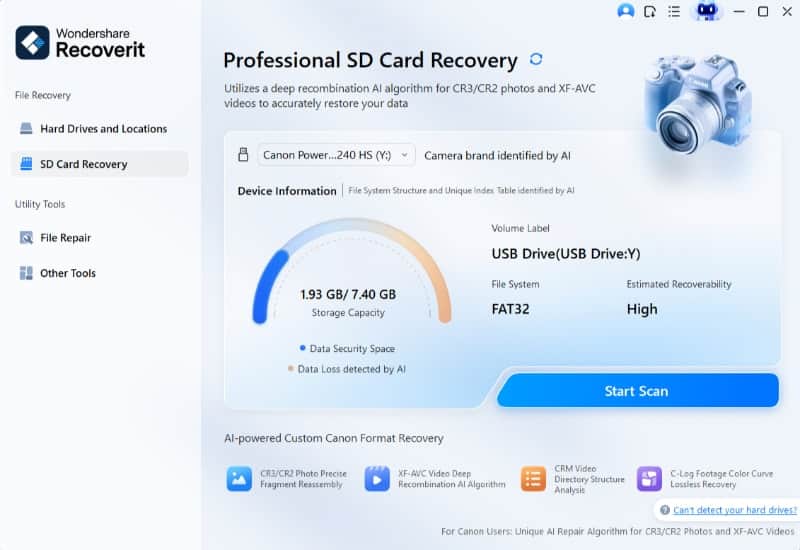
Scan: Start with a Quick Scan. If the files aren't found, the software will automatically suggest a Deep Scan.
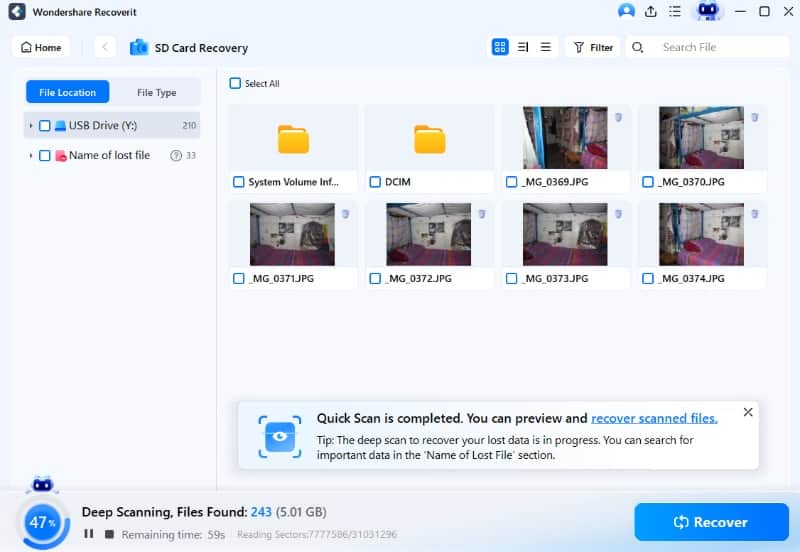
Filter: Use the file type filters (e.g., "Docx" or "JPG") to find your specific lost items.
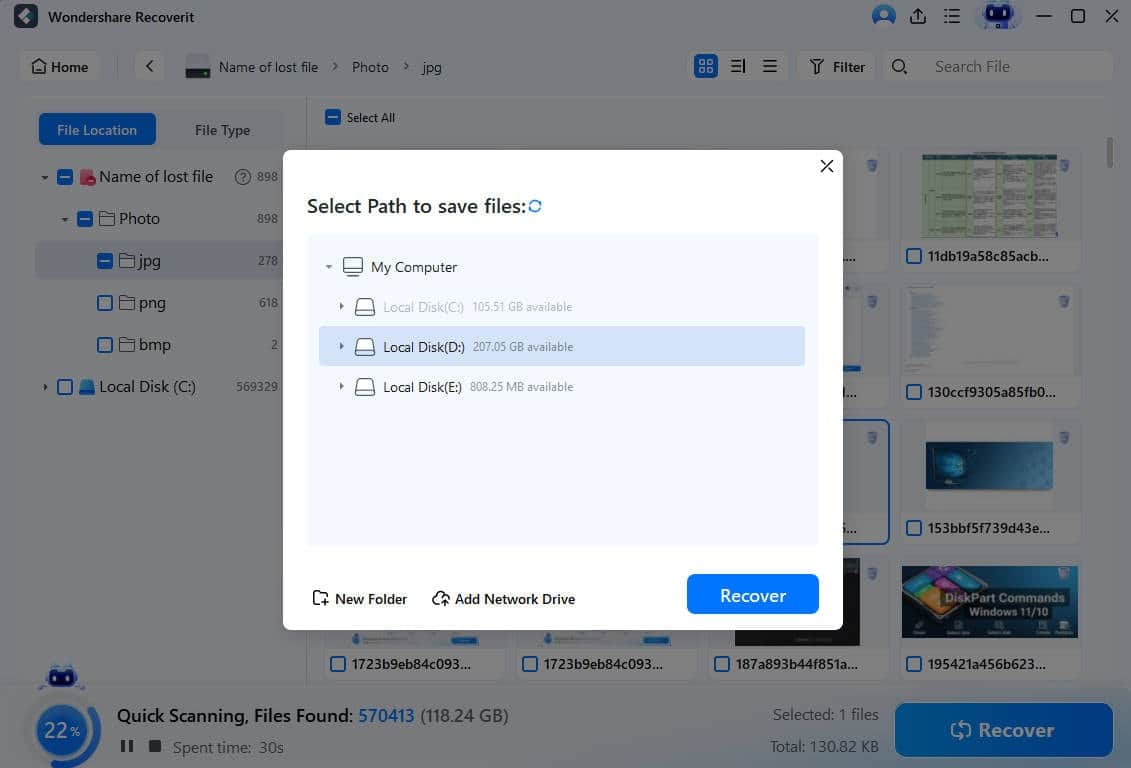
Recover: Save the files to your computer’s hard drive—never back onto the same USB.
What If the USB Drive Is Physically Damaged?
If the USB connector is bent, or the drive feels extremely hot, software cannot help. Physical flash drive deleted file recovery requires soldering the memory chip onto a new board. If the data is critical, stop trying to plug it in and contact a lab.
Prevention Tips for USB Storage
Safely Eject: This is the #1 way to prevent corruption.
Avoid "No-Name" Drives: Cheap USB drives use low-quality memory chips that fail without warning.
Use for Transfer, Not Storage: Use USBs to move files, but keep the "master copy" on a hard drive or cloud service.
FAQ
Can I recover files from a formatted flash drive? Yes, as long as you performed a "Quick Format," Wondershare Recoverit can usually find all the original data.
Why does my USB say it needs formatting? This usually happens due to an unsafe ejection which corrupted the drive's partition table.
Can malware hide my files? Yes. Some viruses change file attributes to "Hidden." A scan with Wondershare Recoverit will find these regardless of their attributes.
Conclusion
A corrupted or empty pen drive doesn't have to mean your work is lost. By following a careful USB flash drive recovery process and using reliable software like Wondershare Recoverit, you can restore your files in minutes. Remember: eject safely and back up often!

