Use In-App Inbox Notification Center to Achieve High Open Rates of +75% for Your SAAS Notifications
Think about popular social media platforms like LinkedIn and Facebook. You know that bell icon notification center at the top? It's like a central hub that quickly tells you about updates you care about and things that need your attention, guiding you on what to do.
Now, why does this in-app Inbox have such a high open rate of 75%, beating email engagement by twice and push notifications by three times? What makes it so effective?
Interact w/ Inbox Playground - Here
Documentation - Here
React Inbox Github Repo - Here
Exploring Use Cases and Building the Perfect Inbox Experience
In this section, we delve into the diverse applications of the In-App Inbox as a communication channel, explore various in-app notification types, and present a comprehensive guide on crafting an optimal Inbox experience for your users. This exploration goes beyond merely adding a feature; it entails strategically enhancing your product's notification capabilities to deliver a superior user experience.
Why is Web/ Mobile App Inbox a Necessity for Modern Applications?
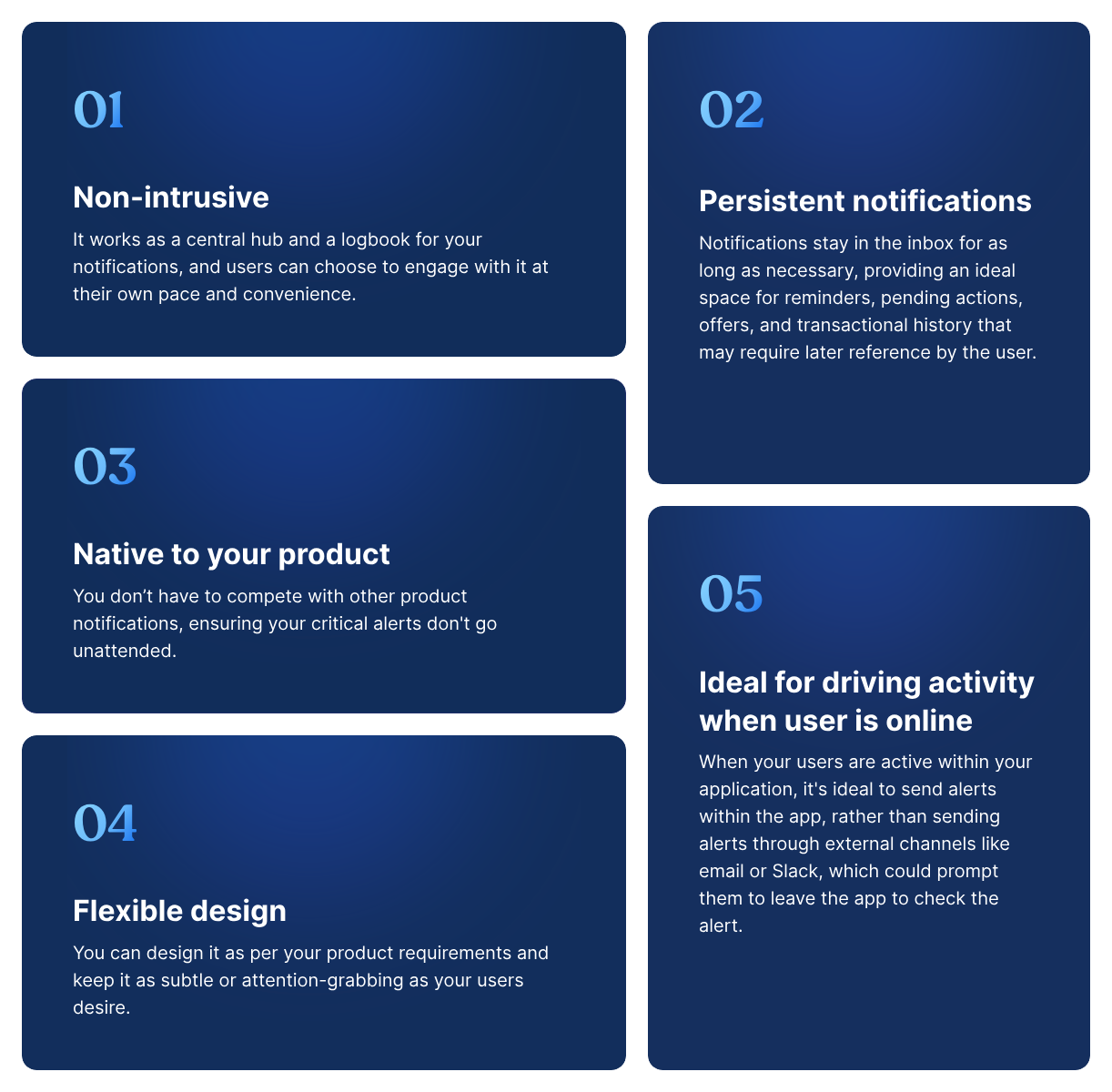
The In-App Inbox isn't positioned as a replacement for email or other communication channels; instead, it thrives when integrated into a larger multichannel communication framework. Think of it as a missing link seamlessly integrating into your communication ecosystem, amplifying your brand's reach. Several compelling reasons underscore the value of incorporating in-app notifications into your product:
- Reduce Notification Overload
In an era dominated by constant notifications across various channels, the In-App Inbox addresses the need for a centralized, unobtrusive notification experience. With email and SMS channels becoming crowded, in-app notifications offer a focused environment for users to access relevant messages, ensuring crucial updates aren't lost in the noise.
In a well-designed notification system, strategic routing to the in-app channel before resorting to attention-seeking channels significantly mitigates notification overload. Certain notifications, like task updates or document mentions, are best consumed at the user's preferred time, enhancing the overall user experience. Check push notification vs mobile inapp inbox notification.
- Great Supplementary Channel for Missed Notifications
Serving as a centralized repository, the Inbox enables users to catch up on notifications they might have missed on other channels. Unlike push channels, where messages are lost upon dismissal, Inbox notifications persist, storing the record of all notifications for convenient later reference. Grouping notifications using tabs enhances convenience, facilitating efficient filtering within the Inbox. You can check about 5 mobile app inbox notification use-cases to get started.
- Real-time Notification for Active Users
For products with high visit rates, such as SaaS applications, workflow management platforms, and collaboration tools, the Inbox becomes the go-to channel for real-time communication. By sending notifications directly into the application, it minimizes the need for users to switch contexts, leading to improved response times and rates. This is particularly valuable for actions users need to take within the product without leaving the application.
- Long-lived Notifications
Inbox notifications boast a longer lifespan, residing in the inbox as long as the company or user deems necessary. This proves ideal for updates and actions requiring future reference, such as offers, referral codes, or impending payments. The flexibility to set expiration dates and update notification content ensures relevance and accuracy.
- Ideal for Collaboration and Workflow Automation Tools
In B2B SaaS applications, especially those focusing on workflow automation and collaboration, the Inbox becomes indispensable. Ensuring timely updates while users are within the product prevents delays in action. This is particularly critical in scenarios involving collaboration across different companies or departments on multiple projects. The Inbox, as seen in platforms like Jira or Notion, efficiently consolidates information, surpassing scattered notifications on out-of-app channels.
Exploring Notification Experiences: Selecting the Right Interface
In this section, we examine the various in-app notification experiences related to the Inbox, namely Full Page Inbox, Floating or Side Panel Inbox (Feeds), and Toasts. Each serves a distinct purpose, catering to diverse user experiences. Let's delve into the specifics of each type to comprehend when and why you might employ them in your product. Additionally, combining these experiences within your product for a tailored approach is also discussed.
Full Page Inbox
A dedicated page within your product designed to showcase Inbox notifications, the Full Page Inbox is well-suited for collaboration and workflow management tools. Here, daily task checklists and activity updates find a home inside the Inbox. Users can seamlessly view new and historical notifications, refine displayed notifications, and utilize the Inbox as a task list for actionable items. This functionality, reminiscent of email inboxes, is exemplified in tools like Jira and Asana.

Floating or Side Panel Inbox (Feeds)
This variant of a full-page inbox serves a slightly different purpose, primarily focused on sharing updates, akin to social media platforms or collaboration tools such as Notion. Notifications are displayed in reverse chronological order, accompanied by a bell icon indicating unread notifications. Users can access the feed through a popover or side panel, taking actions like marking notifications as read/unread or archived.
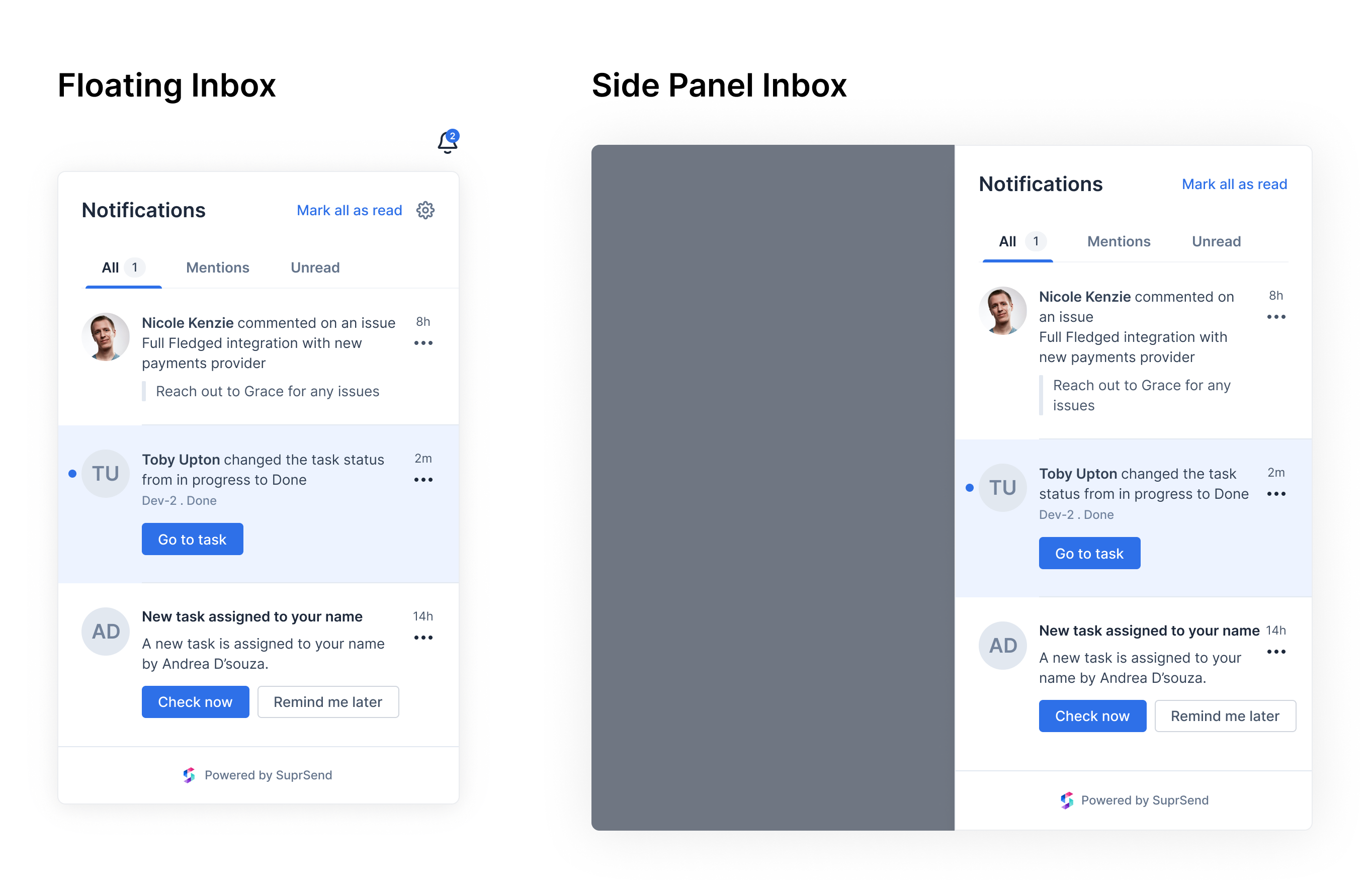
Feeds prove suitable for products where a full-page Inbox might be excessive. Hubspot and Trello illustrate instances where notification feeds efficiently guide users through updates and comments without needing a dedicated page. For products heavily reliant on notifications for day-to-day actions, a combination of both Feed and a Full Page Inbox can be employed, with the feed showing the latest updates and the Full Page Inbox acting as a comprehensive list of older alerts.
Toasts
Notification Toasts deliver real-time notifications through transient UI elements that pop up on the screen and then disappear. Best used for time-sensitive updates, Toasts draw users' attention while actively using the product. Caution is advised to use Toasts sparingly, as they can become a distracting UI pattern when overused.
.gif)
In SuprSend, Feeds, Full Page Inbox, and Toasts can all be implemented with the same Inbox component, offering basic customization for a tailored user experience.
Anatomy of Notification Feed
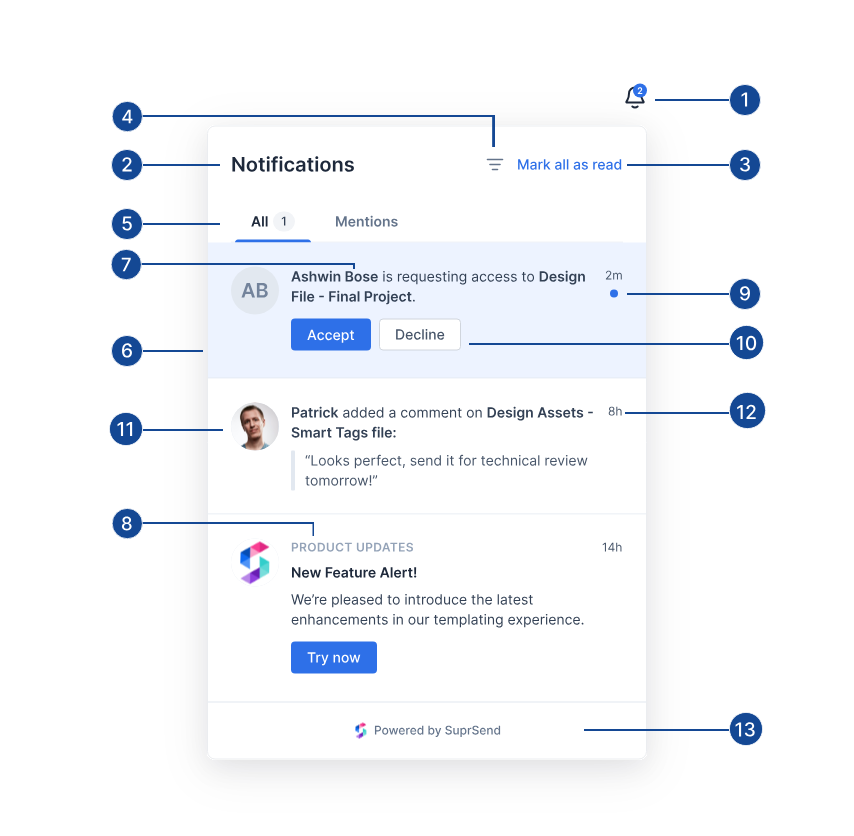
Floating Inbox - Component Breakdown
Certainly! Here's the information presented in bullet-point format with numbering:
-
Bell Icon with Counter
- Displays the number of new notifications since the last Inbox opening.
-
Header Section
- Contains the title of the Inbox, along with filters and general actions like
Mark all as read.
- Contains the title of the Inbox, along with filters and general actions like
-
Mark all as Read
- An action button to mark all unread notifications as read.
-
Filter
- Allows the addition of filters for users to refine notifications, like showing only unread notifications. Helps users reach the required notification faster.
-
Tabs
- Used for categorization and grouping of notifications, based on status (read, unread) or type (mentions, replies).
-
Notification Card
- Displays the actual notification content, including title, body, buttons, avatar, and subtext.
-
Notification Text
- Contains the title and body of the notification, with rich text content.
-
Subtext
- Used for notification tags or supplementary information, such as
20 likes . 5 commentsin a LinkedIn post update.
- Used for notification tags or supplementary information, such as
-
Unread Dot
- Distinguishes between notification states (Read and Unread), crucial for easy differentiation.
-
Buttons
- Navigation buttons for internal product pages and external links, or for driving inline actions like opening a modal or triggering internal functions.
-
Avatar
- Displays user profile images, company logos in social media platforms, or icons to distinguish between various notification types.
-
Received at Time
- Displays the timestamp of when a notification was received, crucial for providing context.
-
Footer
- Ideal for displaying powered by tags for branding or static content similar to Jira's message: "That’s all your notifications from the last 30 days."
Crafting the Ideal Inbox Experience: A Technical Guide
To integrate in-app notifications seamlessly into your product, it is essential to construct two major components:
-
Frontend UI Development:
- Design an intuitive user interface on the frontend that facilitates user interaction with notifications.
- Implement features for composing and formatting various message elements, including avatars, buttons, images, and rich text messages.
- Utilize our Figma design kit for modern in-app notification feed designs, serving as a valuable starting point for your team.
-
Backend System Implementation:
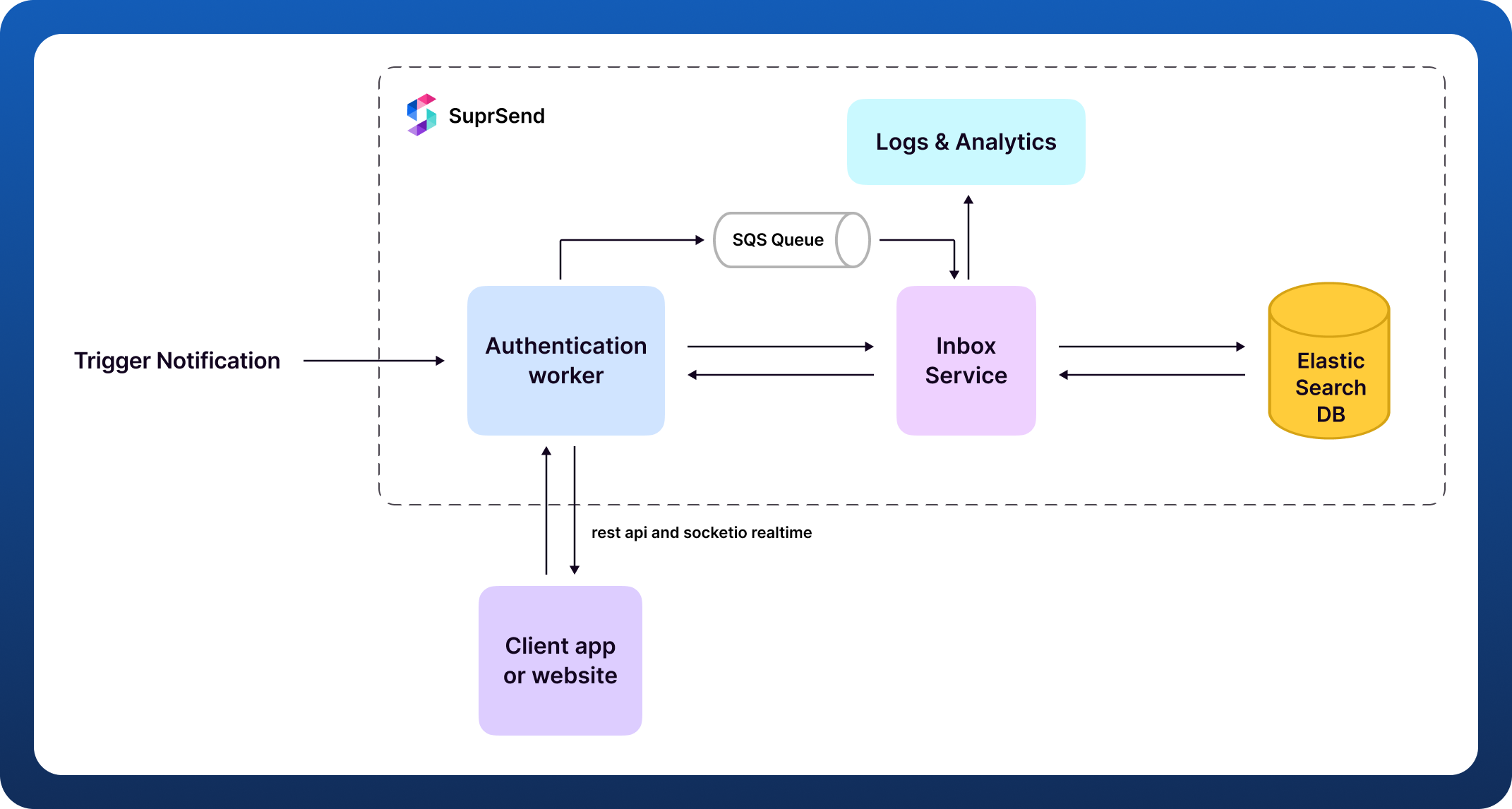
- Establish a robust database infrastructure to store and manage messages, user preferences, and relevant data.
- Develop server-side infrastructure to handle message processing, storage, and delivery.
Backend Responsibilities:
- Infrastructure:
- Set up a resilient database system to efficiently store and manage messages and user preferences.
- Implement server-side infrastructure to process, store, and deliver messages.
-
User Authentication and Authorization:
- Incorporate secure user authentication and authorization mechanisms, such as HMAC or JWT tokens, to prevent unauthorized access to the Inbox service.
-
Real-Time and Cross-Browser Synchronization:
- Integrate web socket connections for real-time updates from the database, ensuring users receive messages instantly without manual refreshes.
- Ensure synchronization across different browsers and devices for a seamless user experience.
-
State Management:
- Implement effective state management to track notification status, user interactions, and message read/unread states.
- Set notification expiry and provide options for users to archive or delete notifications.
-
Aggregation and Filtering:
- Introduce tabs and filtering options in the Inbox for organized notifications.
- Display new notification counts on the bell icon and unread notification counts on each tab for user awareness.
-
Observability Layer:
- Develop an observability layer to track channel performance and facilitate effective debugging of customer-facing issues.
-
Designing for Scale and Reliability:
- Evaluate the scalability and reliability of the system, addressing challenges associated with high write volumes in a notification system.
Beyond these considerations, a well-designed notification system should feature intelligent routing mechanisms, allowing notifications to be routed among multiple channels based on interaction and delivery status. Additionally, building a preference management system to enable users to opt out of specific notification categories and tailoring Inbox feeds and designs for different tenants in a multi-tenant system is crucial.
Implementing Inbox with SuprSend:
Building an Inbox experience in-house can be resource-intensive. Consider SuprSend as a viable alternative, offering a ready-to-use Inbox component that can be seamlessly integrated into your product in less than an hour. SuprSend provides a comprehensive solution with multi-channel notification support, observability, notification routing, user preferences, and multi-tenant support for an enhanced notification experience.
With SuprSend Inbox, you can:
- Create modern Inbox designs native to your product using customizable UI components or build your own UI with a headless library.
- Implement varied in-app experiences, choosing from a full-page Inbox, Notification feed with floating and side panel views, or toast notifications.
- Easily pass any type of notification content (avatar, header, buttons, image, and rich text) using intuitive form editors.
- Organize, group, and filter notifications seamlessly with tabs.
- Handle various click actions, such as opening links, launching modals, or calling internal functions like
approve. - Gain complete observability into notifications with state management features like mark as read/unread, clicked, and archive.
- Experience real-time notification synchronization and cross-browser/device notification state synchronization without infrastructure setup and maintenance.
Moreover, SuprSend extends beyond in-app notifications, offering capabilities for scheduling, batching, and orchestrating notifications across multiple out-of-app channels and managing user preferences, all without the need for custom application code.
Ready to explore SuprSend Inbox? Check out our live demo or delve into the documentation for a comprehensive understanding of this feature.
