Why Desktop Messaging Still Matters for Distributed Teams
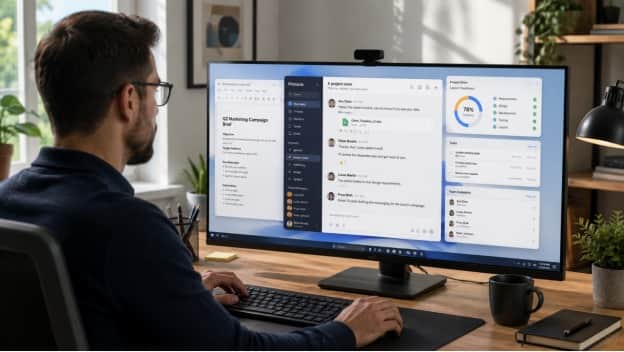
Remote and distributed teams have become comfortable working across laptops, phones, browsers, and cloud platforms. Yet one part of the workflow still creates unnecessary friction for many teams: communication that depends too heavily on mobile devices.
Messaging apps are often introduced as mobile-first tools, but daily work rarely happens only on a phone. Developers write code on desktop computers. Designers review files on large displays. Support teams respond to customers from Windows workstations. Founders move constantly between browsers, spreadsheets, dashboards, and documents.
When messaging remains limited to a phone, every conversation requires a context switch away from the main work environment.
Desktop messaging changes that. A well-configured Windows client can make communication feel like part of the workflow instead of an interruption to it.
Mobile-Only Communication Creates Workflow Friction
Phones are excellent for quick communication. They are always nearby, notifications arrive immediately, and short responses can be handled almost anywhere.
The problem appears when short conversations become real work.
Imagine a remote employee receiving a message that contains:
· a long project update;
· a document that needs review;
· several screenshots;
· a link to a task;
· a request for detailed feedback.
Handling that entire exchange from a phone is possible, but it is not always efficient.
The user may need to move between the phone and a Windows computer repeatedly. A link opened on mobile may need to be found again on desktop. A document may need to be downloaded twice. A detailed reply that takes several minutes to type on a phone could have been written much faster with a keyboard.
These interruptions seem minor individually, but distributed teams experience them dozens of times per day.
Over time, mobile-only communication can create unnecessary context switching.
What Desktop Messaging Adds to the Workday
A desktop client does more than display the same conversations on a larger screen.
It changes how communication fits into the rest of the work environment.
Faster writing
A physical keyboard makes detailed communication easier.
This matters when team members need to:
· explain a technical issue;
· write structured feedback;
· respond to customers;
· document a decision;
· summarize a meeting;
· coordinate a complex task.
A desktop environment supports longer, clearer responses without forcing the user to type on a small touchscreen.
Easier copying between tools
Remote work often involves moving information between applications.
A user may need to copy:
· a task ID from a project-management platform;
· a URL from a browser;
· a code snippet from an editor;
· a number from a spreadsheet;
· a paragraph from a document.
Desktop messaging makes this process much more direct.
Better visibility
Large screens also make it easier to compare information.
A worker can keep a conversation open beside another application instead of repeatedly switching between screens.
This is especially useful during troubleshooting, support work, project reviews, and collaborative planning.
Windows Remains a Core Work Platform
Even as more work moves into browsers and cloud applications, Windows remains an important desktop environment for many remote teams.
A Windows laptop may be the primary device for:
· software development;
· customer service;
· finance;
· sales;
· content production;
· operations;
· administration.
For employees who already spend most of the day inside Windows, a desktop messaging client naturally becomes part of that environment.
Instead of checking a phone whenever a message arrives, users can handle communication from the same computer they use for everything else.
This creates a more continuous workflow.
A message can arrive, be reviewed, connected to a document or task, and answered without leaving the desktop.
Choosing the Right Desktop Setup
Before installing any messaging client, users should think about how they plan to use it.
Some people need only basic direct messaging. Others may manage large groups, transfer files, monitor community discussions, or work across several devices.
The setup should match the use case.
A few questions are useful:
· Is the desktop app intended for daily use or occasional access?
· Does the user work primarily on Windows 10 or Windows 11?
· Will large files or media be downloaded regularly?
· Does the user need notifications during the entire workday?
· Will the account also remain active on a mobile device?
Thinking through these questions helps avoid unnecessary reconfiguration later.
Downloading and Setting Up a Desktop Client
Chinese-speaking users who prefer to manage conversations from a Windows computer may review an 电报电脑版下载 resource when comparing desktop setup options and installation information.
Whatever application is being installed, users should first confirm that the version they choose is suitable for their Windows environment.
Useful checks include:
· supported Windows versions;
· system architecture;
· installer type;
· available storage;
· update requirements.
Once the appropriate client has been installed, the user should sign in and confirm that the expected conversations, contacts, and groups are available.
It is also worth checking whether the desktop application uses the same account as the mobile version or creates a separate session.
For distributed teams, the goal is usually continuity.
A person should be able to read a message on mobile while away from the desk, then continue the conversation on Windows later without losing context.
Multi-Device Sync Is More Important Than It Looks
A good desktop messaging workflow depends heavily on synchronization.
Users expect conversations to remain consistent across devices, but several related settings may behave differently.
Notifications
A message may generate an alert on both the desktop and the phone.
If both devices are active at the same time, duplicated alerts can quickly become distracting.
Many users prefer to make desktop notifications primary during work hours and rely on mobile alerts only when away from the computer.
Active sessions
Users should know which devices are currently signed in.
This is useful both for convenience and account security.
Old or unused sessions should be reviewed periodically.
Chat organization
Pinned conversations, folders, archived chats, and other organizational tools may or may not behave identically across platforms.
Users who depend heavily on these features should check whether their organization method remains consistent between desktop and mobile.
Desktop Messaging Makes File Handling Easier
One of the biggest practical advantages of desktop messaging is file management.
Remote teams constantly exchange:
· PDFs;
· spreadsheets;
· presentations;
· screenshots;
· images;
· compressed files;
· text documents.
Handling these from a phone often creates extra steps.
On Windows, a user can usually drag a file directly into a conversation, download an attachment into a project folder, or open a document immediately in the appropriate desktop application.
This is much more efficient for operational work.
It also makes it easier to organize downloads.
Users should still check where the messaging app saves files by default. Otherwise, important attachments can disappear into a generic download folder and become difficult to find later.
A simple practice is to separate:
· temporary chat downloads;
· project files;
· long-term documents.
Messaging apps are useful for transferring information, but they should not become the only storage location for important business assets.
Large Screens Improve Group and Community Management
Desktop messaging becomes even more valuable when someone manages multiple groups or large communities.
A community manager may need to:
· monitor several conversations;
· review member questions;
· share announcements;
· search old discussions;
· send files;
· moderate activity.
Trying to do all of this from a small phone screen can be slow.
On desktop, the user can keep several supporting tools open at once.
For example:
· the messaging app;
· a spreadsheet containing member data;
· a moderation guide;
· a browser with reference material.
This allows faster decisions without repeatedly switching devices.
For founders or community operators, that can turn messaging from a purely conversational tool into a practical operations interface.
Search Becomes More Useful on Desktop
As team conversations grow, finding old information becomes harder.
Messaging applications often contain valuable context that does not exist anywhere else:
· decisions;
· links;
· instructions;
· screenshots;
· customer feedback;
· technical explanations.
Desktop environments make searching this history easier because users can review more results at once and compare them with other documents.
Search is especially useful when a team needs to answer questions such as:
· When was this decision made?
· Who shared this document?
· What was the previous version of this instruction?
· Which group discussed this issue?
A messaging platform should not replace formal documentation, but search can help recover context quickly.
Control Notifications Before They Control the Workday
The convenience of desktop messaging creates one obvious risk: constant interruption.
Once a communication tool is open on the same screen as the user's main work, every alert competes for attention.
A good setup therefore requires notification discipline.
Users can consider dividing conversations into categories.
Immediate-response conversations
These might include:
· direct messages from key teammates;
· urgent customer issues;
· critical operational alerts.
Normal-priority conversations
These can usually be reviewed periodically.
Low-priority groups
Large social or community groups may not need desktop alerts at all.
The goal is not to disable communication. It is to make the signaling system meaningful.
If every conversation produces the same alert, users eventually learn to ignore all alerts.
Use Desktop Messaging Without Creating More Distractions
Desktop software can improve productivity, but only if it is integrated carefully.
Some practical habits include:
· keeping only necessary conversations pinned;
· muting high-volume groups;
· using folders or categories when available;
· closing the application during deep-focus periods;
· checking lower-priority messages at scheduled times.
Founders and remote workers often assume they need to remain available every minute.
In reality, many teams communicate more effectively when they establish clear expectations about response times.
Not every message needs an immediate answer.
A desktop client works best when it supports intentional communication rather than constant reaction.
Review Security on Shared or Work Computers
Moving communication onto a Windows computer also changes the security environment.
A desktop device may contain:
· business documents;
· customer information;
· credentials;
· browser sessions;
· internal tools.
Users should therefore treat messaging sessions as part of the broader device-security model.
Useful practices include:
· locking Windows when leaving the desk;
· using strong account authentication;
· reviewing active sessions;
· removing unused devices;
· keeping the operating system updated;
· avoiding installation on untrusted shared computers.
If the application provides a local passcode or additional privacy controls, those features may also be useful.
Security should be especially important for founders and distributed teams because one compromised account can expose internal conversations and shared files.
Keep the Desktop Application Updated
Messaging clients change frequently.
Updates may improve:
· compatibility;
· performance;
· security;
· interface behavior;
· notification controls.
Users should understand how the desktop client receives updates.
Some applications update automatically, while others require manual action.
Leaving communication software outdated for long periods may eventually cause compatibility problems or prevent access to newer features.
Teams that manage company devices centrally may want to include messaging clients in their normal software-update process. When reinstalling or moving to a new PC, users comparing 电报下载 options should repeat the same version and security checks instead of relying on an old installer.
Define a Simple Communication Workflow
Technology becomes more useful when the team agrees on how to use it.
A distributed team might establish rules such as:
· direct messages for urgent or personal questions;
· project groups for ongoing work;
· documentation tools for long-term knowledge;
· email for formal external communication;
· messaging for rapid coordination.
This prevents the messaging app from becoming a chaotic place where every type of information is mixed together.
It also helps new employees understand where to look for information.
Desktop access makes communication easier, but good communication still depends on structure.
A Practical Desktop Messaging Routine
A simple workflow might look like this:
- Start the Windows computer and open the messaging client.
- Review urgent direct messages first.
- Check priority project groups.
- Move important files into the correct project folders.
- Turn off unnecessary alerts before focused work.
- Respond to lower-priority conversations during scheduled breaks.
- Review mobile and desktop sessions periodically.
- Keep the application updated.
This routine creates predictable communication habits without making messaging the center of the entire workday.
Final Thoughts
Mobile messaging is valuable because it keeps teams connected from almost anywhere.
But for distributed teams that spend most of the day working on Windows computers, mobile-only communication can create unnecessary friction.
Desktop messaging reduces device switching, makes detailed conversations easier, improves file handling, and provides a better environment for managing groups and work-related discussions.
The important point is not simply to install another application.
A useful desktop communication setup should be integrated into the wider workflow: Windows, documents, files, browser tools, mobile devices, notifications, and team communication rules should all work together.
When that happens, messaging becomes less of an interruption and more of a natural part of how distributed teams get work done.
