
ftpGrid
Fast, secure FTP/SFTP hosting – without the headaches.
A surprising number of systems still rely on FTP to transfer data — believe me I come from a world of banking and mainframe.
Security cameras.
IoT devices.
Legacy enterprise software.
Backup tools.
Random scripts written 20 years ago.
Mainframe & Cobol
They all rely on transferring files using FTP or SFTP. But modern infrastructure lives in object storage like AWS S3. And those two worlds don’t always talk to each other very well.

One of the most requested features
While building ftpGrid, I kept getting the same request from users:
My system uploads files using FTP… but I need them in S3. So I hacked around FTP to move the files to external cloud blob storage.
Examples included:
surveillance cameras sending recordings
IoT devices uploading logs
backup tools exporting archives
legacy software exporting data
These systems couldn’t easily speak S3.
The Idea
What if ftpGrid could simply synchronize with cloud storage providers automatically?
Instead of rewriting systems, you could just do this:
Device → FTP upload → ftpGrid → S3
No scripts. No glue code. No infrastructure.
Just upload files like you always have.
Introducing Cloud Integration
So we built Cloud Integration into ftpGrid.
It allows you to automatically synchronize files between ftpGrid storage and AWS S3 (or S3-compatible providers).
You can choose between several modes:
Copy ftpGrid → S3
Copy S3 → ftpGrid
Mirror ftpGrid → S3
Mirror S3 → ftpGrid
That means ftpGrid can now act as a bridge between legacy file transfer protocols and modern cloud storage.
It Also Works With S3-Compatible Storage
The integration supports more than AWS.
Anything speaking the S3 API works, including:
Cloudflare R2
OVH Object Storage
MinIO
Wasabi
Backblaze B2 (S3 mode)
If You’re Curious
I wrote a full tutorial showing how to set it up step-by-step:
https://ftpgrid.com/tutorials/ftp-to-s3-cloud-integration/
It only takes a few minutes. Building ftpGrid has been a constant reminder that the tech world is messy.
We love new tools and modern infrastructure but there are systems that still only speaks FTP.
And that’s fine. Sometimes the best solution isn’t replacing old systems. Sometimes it’s just building a bridge between them.

If you own a Reolink or Axis camera, you already know how limiting their built-in “cloud” services can be — expensive subscriptions, short retention times, and data stored outside the EU.
At ftpGrid, we’ve built something different:
Secure, GDPR-compliant cloud storage with full FTP and SFTP access, optimized for camera uploads.
No vendor lock-in.
No hidden costs.
Just open standards that work with everything.
Oh and we don't do mining, tracking, or selling of your data!
Optimized for Reolink and Axis Cameras
Most cameras already support FTP upload — all you need is a reliable, always-on endpoint.
ftpGrid provides exactly that:
FTP, FTPS, SFTP, and SCP endpoints hosted in Germany
Automatic SSL/TLS via Let’s Encrypt
Encryption at rest and in transit
24/7 uptime with instant scaling
Free tier (256 MB) to get started in minutes
It works out of the box with:
Why It Matters
When AWS went down yesterday, countless “smart” camera services stopped working — leaving users with no access to their own footage.
ftpGrid isn’t built on Big Tech clouds.
Your data stays inside the EU, encrypted and private, running on co-located servers in Germany (Hetzner).
This isn’t just storage — it’s data independence.
Learn More
We just published the full tutorial on how to use ftpGrid as your optimized camera cloud storage:
Camera Cloud Storage – Optimized FTP/SFTP for Reolink and Axis
Or explore our main pages:
Built in Denmark 🇩🇰, hosted in Germany 🇩🇪,
trusted by users worldwide 🌍.
Try the free tier today:
https://ftpgrid.com
-
1
Nice, too bad I threw out all the old Axis cameras I've built integrations with in the past :D. One comment, the idea is reasonably hobbyist-friendly, but the site I get to when clicking the link feels very "backend developer". Could be an idea to create a landing page for this exact use case.

For a long time, ftpGrid has been built for developers, teams, and businesses who need secure, GDPR-compliant FTP & SFTP cloud hosting — but until now, you had to pay to try it.
That changes today.
We’ve just launched the ftpGrid Free Tier, giving everyone 256 MB of free storage, full access to FTP, FTPS, SFTP, and no credit card required.
You can now test, integrate, and automate with ftpGrid — completely free.
Read the full announcement here:
https://ftpgrid.com/tutorials/ftpgrid-free-tier-launch/
Why It Matters
If you’ve ever wanted to:
Test a backup to SFTP without setting up a server
Connect an IoT device or camera to secure cloud storage
Try FTP automation scripts or integrations
…you can now do all that instantly — no setup, no hidden limits, and no billing surprises.
Your account is hosted in Germany (Hetzner), fully GDPR-compliant, and your files are encrypted in transit and at rest.
Even on the free plan, privacy and reliability come first.
Try It Today
Go to ftpgrid.com and click Sign up — your account will start on the Free Tierautomatically.
You’ll have your own secure FTP & SFTP endpoint in under a minute.
Perfect for testing scripts, backups, or integrations — and upgrading is just one click away when you need more storage.
Learn more about what’s included:
ftpGrid Free Tier Launch Guide
When you think about building a quick Storage API, chances are you imagine setting up buckets, SDKs, and custom APIs. But there’s an easier way: use a protocol you already know — SFTP (or FTP/FTPS).
With ftpGrid cloud FTP storage, you get all the benefits of a managed cloud service (GDPR compliance, automatic SSL, encryption at rest and in transit) — while still working with simple, familiar tools. No need to manage servers, patches, or firewalls. Just connect, upload, and you’re done.
Tutorials: Quick Storage API in Your Favorite Language
We’ve published a full Quick Storage API series, where each tutorial shows how to create a file and upload it to ftpGrid with SFTP:
Why choose SFTP as your storage API?
It’s language-agnostic: every language has a library or command-line tool.
It’s secure: encrypted by default, easy to integrate with keys.
It’s familiar: no steep learning curve, just upload and download.
It’s scalable: start with one file, expand to terabytes of data.
If you want to try it out, check our FTP Cloud Storage page or follow the Quick Start guide to get set up in minutes.
No buckets. No vendor lock-in. Just plain and simple cloud FTP storage.
When developers talk about file storage, FTP is still one of the simplest and most widely supported protocols. But instead of running your own server, you can now use a cloud FTP server with managed hosting, GDPR compliance, and automatic TLS certificates.
At ftpGrid, we’ve started a blog series showing how to use cloud FTP storage as a simple storage API across different programming languages. Each tutorial demonstrates how to create a small text file and upload it securely via SFTP — giving you a quick way to integrate FTP cloud storage into your own projects.
Tutorials in the Series
Why Cloud FTP?
Using a cloud FTP server has clear advantages compared to running your own:
No server maintenance, patches, or firewalls
Automatic SSL/TLS certificates with Let’s Encrypt
Encryption in transit and at rest
Hosted in Germany with GDPR compliance
Works with FTP, SFTP, FTPS, and SCP
Read more on our dedicated page about FTP cloud storage.
Next Steps
If you’re a developer looking for a simple, language-agnostic way to add FTP storage to your projects, try out these tutorials. They show just how quick it is to set up SFTP uploads with only a few lines of code.
We’ll continue expanding the series with more languages and real-world use cases. Stay tuned!
Running your own FTP server can be time-consuming and risky — managing certificates, configuring firewalls, handling user permissions, and keeping security patches up-to-date. ftpGrid’s Managed FTP Hosting takes care of all of that for you, so you can focus on your work instead of server admin. Whether you need FTP, FTPS, or SFTP, ftpGrid delivers enterprise-grade security and zero-maintenance hosting, all in the cloud.
Use cases for managed FTP/SFTP hosting:
Agencies exchanging files with clients
Enterprises with strict compliance requirements
Software vendors needing a secure delivery channel
Teams that want FTP/SFTP without the complexity of self-hosting
Private and professional surveillance camera storage
FTP/SFTP based API for cloud storage without privacy or GDPR concerns
Get started in 6 easy steps
Follow our onboarding guide and be up and running in seconds
Need an easy way to store surveillance footage in the cloud? If you’re using an Axis network camera, we’ve put together a step-by-step guide showing how to connect it to ftpGrid for reliable FTP-based backup. The tutorial walks you through setting up motion detection, creating upload paths, and verifying that files are being securely stored — all without the need for local infrastructure.
Despite the age of FTP, it's still deeply embedded in many workflows – from backups and batch transfers to legacy integrations and automation. At [ftpGrid.com](https://ftpgrid.com), we’ve launched a practical tutorial series to help developers and sysadmins get confident with FTP, FTPS, and SFTP usage – one small topic at a time.
Whether you're managing cronjobs, writing backup scripts, or just want to brush up on those dusty command-line skills, this series is made for you.
The Tutorials
Why does FTP even have two connection modes? We break down the difference between active and passive FTP, complete with ports, NAT issues, and a simple diagram.
https://ftpgrid.com/tutorials/ftp-101-active-vs-passive-connections/
What happens if you upload a .txt file in binary mode – or worse, an image in ASCII mode? This tutorial explains transfer modes and when they matter.
https://ftpgrid.com/tutorials/ftp-101-ascii-binary-transfer-types/
Plain FTP transmits passwords in cleartext. We explain the risks, and why protocols like SFTP are now the standard. ftpGrid enforces strong user/password combos, but you should really go SFTP.
https://ftpgrid.com/tutorials/ftp-101-authentication-is-unsecure/
Learn the classic commands: upload (`put`), download (`get`), list (`ls`), and move around. No fluff, just the essentials.
https://ftpgrid.com/tutorials/ftp-101-basic-ftp-usage-commands/
FTP is great for compatibility, but it has real limitations. This piece explains why many devs are choosing SFTP or SCP instead.
https://ftpgrid.com/tutorials/ftp-101-why-many-are-moving-from-plain-ftp/
Single file or multiple? get vs mget can be confusing at first. Here’s how to fetch files the smart way.
https://ftpgrid.com/tutorials/ftp-101-difference-between-ftp-get-and-mget/
Want to upload just one file, or dozens? Learn how put and mput handle uploads – including common mistakes to avoid.
https://ftpgrid.com/tutorials/ftp-101-difference-between-ftp-put-and-mput/
Move around your FTP server and create folders like a pro. This tutorial covers cd, mkdir, and how to prep the structure before you upload.
https://ftpgrid.com/tutorials/ftp-101-navigating-with-mkdir-and-cd/
Clean up your remote files with rename, delete, and rmdir. We explain the syntax and caveats when deleting folders.
https://ftpgrid.com/tutorials/ftp-101-rename-and-remove-in-ftp/
Why this series?
FTP is not dead – it’s just underappreciated. Whether you’re managing FTP storage from a script, deploying backups from a cronjob, or debugging legacy automation, knowing the tools matters.
At ftpgrid.com, we’re building cloud-hosted FTP/SFTP with modern features, including:
Simple dashboards
Automatic strong credential enforcement
Secure SFTP with SSH key support
FTPS and plain FTP for legacy systems
…and yes, plenty more tutorials coming soon (including how to use FTP in Python, Go, Bash, and even Cobol ... no not really Cobol!).
Follow the Series
To keep things digestible, each article is tiny and focused. We’ll continue exploring FTP use cases, backups, SFTP integration in code, and more.
Got a use case or language you want covered? Contact using https://ftpgrid.com/.
Let’s make FTP usable again.
ftpGrid.com – SFTP, FTPS, and FTP hosting for developers
First of all, I'm old(er), I'm old-school, and I just love using Linux, terminal and generally being in control of the box and my data. So there might be tons fantastic, AI-powers, LLM engine, ketamine infused, smarter backup solutions out there. But using this kind of setup has saved my a.. many times.
Part of this tutorial was posted also on https://ftpgrid.com/tutorials/sftp-backup-script-with-ssh-keys.
In this tutorial I'll show you how to create a fast and easy file backup solution on Linux, UNIX, or even Mac OS, using just ftpGrid and some super simple terminal commands. We don't manage stuff like retention or partial backup in this script, event though it could easily be extended to have such features. I'll go through:
Creating a secure SSH key for connecting with the SFTP edge service.
Setting up a new account to use the key
Testing your SFTP connection
Writing a script to zip and upload a directory
In this tutorial I assume a certain knowledge of using a basic terminal, and if a command is missing being able to perform an apt install missing-command command.
Generate an ssh-ed25519 Key Pair
SSH keys are the modern, secure way to authenticate with servers – especially in automated scripts. I would always recommend against using password when possible.
Open your terminal and run:
ssh-keygen -t ed25519 -C "your_email@example.com"
Press Enter to accept the default file location (~/.ssh/id_ed25519)
Optionally add a passphrase (leave blank for non-interactive scripts)
This gives you:
~/.ssh/id_ed25519 → your private key (keep it safe!)
~/.ssh/id_ed25519.pub → your public key
Create Your ftpGrid Account and Upload Your Public Key
Sign up or log in to https://app.ftpgrid.com/auth/login
Go to your account dashboard at https://app.ftpgrid.com/app/ftpaccounts
Create a new FTP Account. "FTP Account" is just our word for an edge service account and is used for both FTP and SFTP.
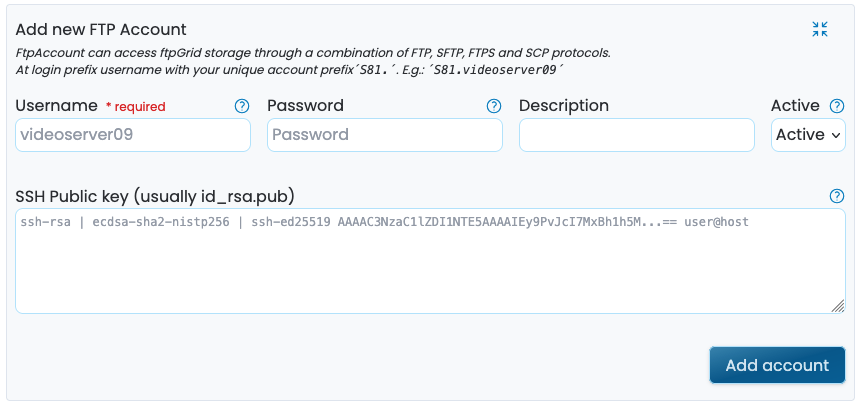
You can view the contents of you public key by running in bash:
cat ~/.ssh/id_ed25519.pubEnter a meaningful name like backup
Copy paste the contents from ~/.ssh/id_ed25519.pub into the field "SSH Public key (usually id_rsa.pub)"
Save the user
Please note the full username required to login uses you account prefix.backup
Test the SFTP Connection in Your Terminal
Try connecting to the server manually to confirm everything is set up correctly, where edgeN is your assigned edge server, for instance edge7.ftpgrid.com:
sftp -i ~/.ssh/id_ed25519 prefix.backup@edgeN.ftpgrid.com
You should land in the remote shell without being asked for a password. Try running ls or put testfile.txt to test upload capability.
If you are prompted for a password, you might have forgotten the account prefix.
Write a Simple Bash Script for Automated Backups
Here’s a minimal bash script which creates our backup:
Compresses a directory into a .zip file
Adds today’s date to the filename
Uploads the file to your ftpGrid account via SFTP
Make sure to replace:
SRC_DIR with the directory you need to backup
SFTP_USER with the user you created
SFTP_HOST with your assigned edge service.
```
#!/bin/bash
# CONFIG
SRC_DIR="dir-to-backup"
BACKUP_NAME="backup-$(date +%Y-%m-%d).zip"
TMP_PATH="/tmp/$BACKUP_NAME"
SFTP_USER="prefix.backup"
SFTP_HOST="edgeN.ftpgrid.com"
SSH_KEY="$HOME/.ssh/id_ed25519"
REMOTE_DIR="/backups"
# Compress the directory
zip -r "$TMP_PATH" "$SRC_DIR"
# Upload to ftpGrid
sftp -i "$SSH_KEY" "$SFTP_USER@$SFTP_HOST" << EOF
mkdir $REMOTE_DIR
cd $REMOTE_DIR
put "$TMP_PATH"
bye
EOF
# Optional: Remove local zip after upload
rm "$TMP_PATH"
```
Make the script executable and do a test run:
chmod +x backup-to-ftpgrid.sh ./backup-to-ftpgrid.sh
Then you can run it manually or add it to a daily cron job for automated backups.
Without going into too much detail, a cronjob running this backup daily at 4.00(AM) would look something like this:
0 4 * * * /path/to/backup-to-ftpgrid.sh > /dev/null 2>&1
Wrapping Up
With SSH keys and a few lines of bash, you’ve created a secure, automated backup workflow using SFTP. No more typing passwords. No more forgetting to upload your files. Just simple, reliable backups — every day.
Need help? Reach out to us using our contact page, or through our build in helpdesk, we’re happy to assist. If you haven't signed up yet you can do so here.
Originally posted on https://ftpgrid.com/tutorials/create-ssh-keys-for-sftp-scp-authentication
In this tutorial we show how to create your own SSH keys for key based authentication against a SFTP or SCP host like ftpgrid.com. If you’re still using passwords to authenticate SFTP or SCP access, it’s time for an upgrade. Not only are passwords inherently insecure in today’s threat landscape, but they also get in the way of automation, scripting, and scalable workflows.
This blog post covers:
Why SSH keys are the preferred authentication method for secure file transfers
The differences between SSH key types
How to generate your own SSH key pair
How to connect to ftpgrid.com using your SSH key
Let’s dive in.
SSH Keys vs. Passwords: Pros and Cons
Passwords are easy to get started with but offer little in terms of long-term security or convenience. They’re vulnerable to brute force attacks, phishing, and reuse across systems. More importantly, they’re a pain to use in automated scripts or CI/CD pipelines.
SSH keys, on the other hand, are:
Far more secure (especially when passphrase-protected)
Non-interactive (perfect for automation)
Easier to rotate or revoke
Supported by virtually every modern SSH client and server
Common SSH Key Types Explained
Not all SSH keys are created equal. Here’s a quick overview of the most common types:
1. ssh-rsa
Based on RSA encryption (public/private key pair)
Historically the default key type
Still widely supported, but slowly being phased out due to security concerns with older SHA-1 signatures
2. ecdsa-sha2-nistp256
Based on elliptic curve cryptography (ECC)
More compact than RSA, with similar security
Supported by most modern systems, but some older clients may lack compatibility
3. ssh-ed25519
The newest and most secure default
Extremely fast and lightweight
High security with small key size
Preferred for new setups
Recommendation: Use ssh-ed25519 unless you have a specific reason not to (e.g. legacy system support, but ftpgrid.com fully supports ssh-ed25519).
How to Generate SSH Keys
To generate a new SSH key pair on your local machine, use:
ssh-keygen -t ed25519 -C "your_email@example.com"
Or for RSA (if needed):
ssh-keygen -t rsa -b 4096 -C "your_email@example.com"
You’ll be asked where to save the key (default is ~/.ssh/id_ed25519) and whether you want to protect it with a passphrase (recommended).
Once generated, you’ll have:
A private key (keep this secure!)
A public key (you can upload this to ftpgrid.com)
Connecting to ftpgrid.com Using SSH Keys
Assuming your public key is now registered with your ftpGrid user, if not go to app.ftpgrid.com -> FTP accounts, here’s how to connect:
Using SFTP, where edgeN is your assigned edge server, for instance edge7.ftpgrid.com:
sftp -i ~/.ssh/id_ed25519 youruser@edgeN.ftpgrid.com
Using SCP, where edgeN is your assigned edge server, for instance edge7.ftpgrid.com:
scp -i ~/.ssh/id_ed25519 localfile.txt youruser@edgeN.ftpgrid.com:/upload
No password prompts. Fully scriptable. End-to-end encrypted.
Final Thoughts
Passwords are a thing of the past when it comes to secure file transfer. SSH keys give you the tools for robust, scalable, and secure SFTP/SCP operations – and they’re easy to set up.
If you are not already, sign up to ftpGrid.com now, or read more on our features page.
-
2
This is a great breakdown on securing SFTP/SCP with SSH keys.
You should also share this guide on BusinessHunt.co where devs, startups, and businesses discover tools like ftpGrid.
It’s a solid way to boost visibility, connect with users, and grow your brand in the tech ecosystem.

Comment