
Nureti
Time tracking and invoicing for small teams and freelancers.
Getting started with time tracking shouldn’t be a hassle. Whether you're a freelancer, consultant, or small team, you probably don’t want to waste time setting up complex tools just to track your time.
That’s why we built Nureti – a lightweight and intuitive time tracking platform that works out of the box, without friction.
We just launched our new Time Tracking Quick Start Guide to help new users hit the ground running in under 5 minutes.
Read it here: https://nureti.com/time-tracking-quick-start-quide
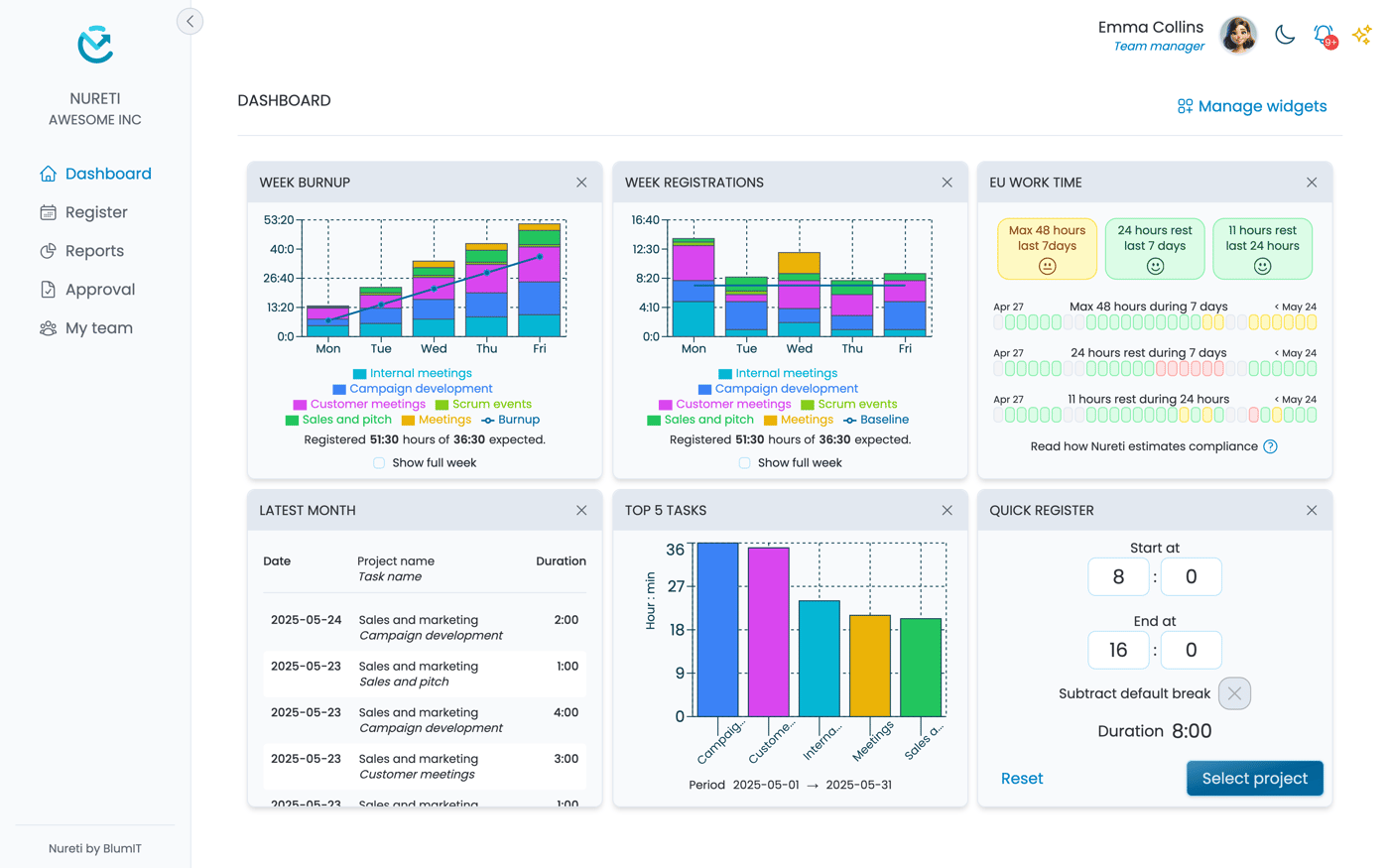
What you’ll learn in the guide:
How to log your first time entry in seconds
Using calendar view, one-click timers, or manual input – your choice
Managing projects, tasks and reports with zero bloat
Staying compliant with work-time regulations (if you're in the EU, for example)
No more spreadsheets. No more clunky interfaces. Just fast, clean time tracking.
Try Nureti for free → https://nureti.com
Let us know what you think — feedback is always welcome!

We created a post about it here https://nureti.com/blog/freelancer-invoicing-tips/
As an independent freelancer, you wear many hats — including accountant.
While doing the work is your focus, getting paid is what keeps you going.
And yet, invoicing can feel like a chore. Especially when it gets delayed, done manually, or worse — ignored by the client.
Here’s how to make invoicing faster, easier, and more professional — so you can spend less time chasing payments and more time doing what you love.
1. Set clear terms upfront
Avoid surprises by agreeing on:
Hourly rate or fixed price
Payment deadlines (e.g., “Net 14 days”)
What exactly will be delivered — and when
Put it in writing. Even simple email confirmation helps set expectations.
2. Track your time (accurately)
If you invoice by the hour, messy or incomplete time logs are your enemy. You don’t want to undercharge — or end up in disputes.
Use a reliable time tracking tool like Nureti:
Track time as you work (real-time stopwatch or calendar view)
Break down time by task or project
Export time logs directly into your invoices
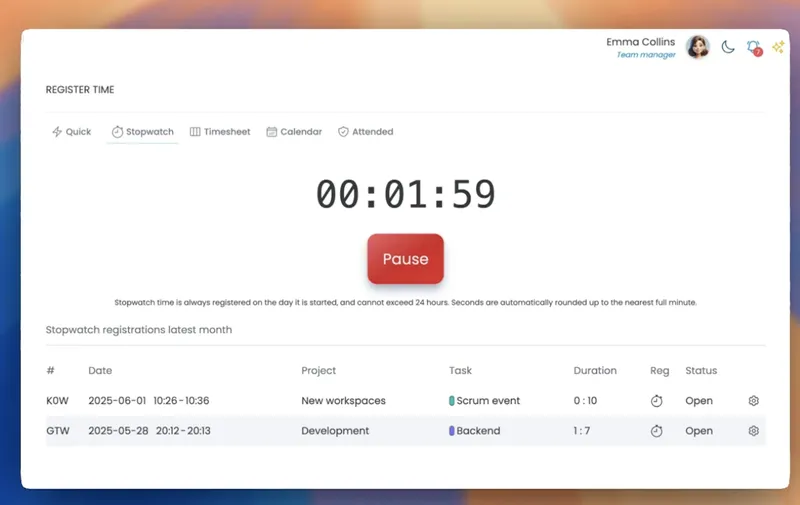
Read more about using the stopwatch here, and the calendar here.
3. Use professional invoice templates
Your invoice should include:
Your name, business info, and tax ID (if needed)
Client name and address
Date and unique invoice number
Itemized list of services
Total amount and due date
Preferred payment method (bank, PayPal, etc.)
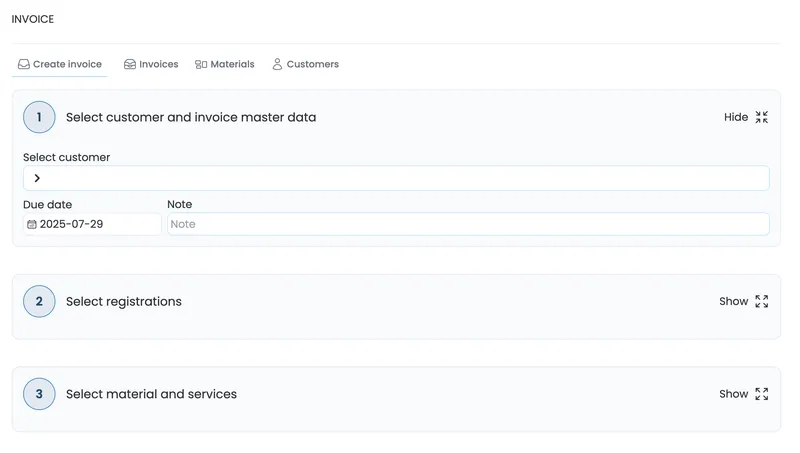
4. Automate when possible
Tired of copying data from time logs to invoices?
Nureti will let you create invoices based directly on your tracked time — saving hours each month.
5. Follow up — nicely
Clients forget. Things get buried.
Set up polite reminder emails a few days before and after the due date. Keep it friendly, professional, and clear.
Example:
"Hi [Name], just a quick reminder that invoice #102 is due this week. Let me know if you need anything else from me. Thanks!"
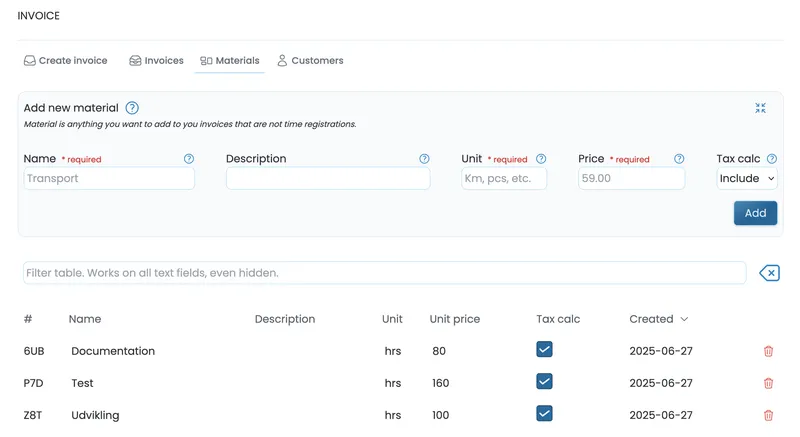
Ready to streamline invoicing?
The easier you make it to get paid, the smoother your freelance business runs. With accurate time logs and clear invoices, you reduce friction — and get paid faster.
Try Nureti for free and start tracking time like a pro.
Originally posted https://nureti.com/blog/calendar-timesheet-monthly-template/
Do you have a really busy schedule, working nine to five ("what a way to make a livin'")?
Do you like to plan ahead to get an overview of you full work week?
Do you need an easy way to see when you can fit in new projects?
Nureti calendar helps you keep your timesheet on track.
No more need for excel spreadsheets! Nureti help you plan and register time all in one place!
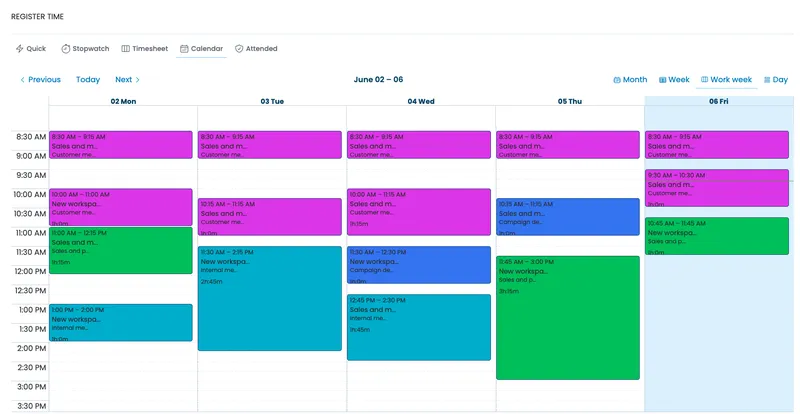
What are the different ways to use Nureti Calendar for time traking?
There are four different ways to view the calendar:
Monthly calendar view
Week calendar view - Monday to sunday (european) or sunday to saturday (American)
Work week calendar view - Monday to friday
Day view - Current day
This gives you the possibility to use the calender for your timesheet tracking just as it fits best with your way of working.
No matter which view you choose, tracking time is done in the exact same way.
You choose your prefered calendar view and get started.
Lets have a look at the monthly calendar
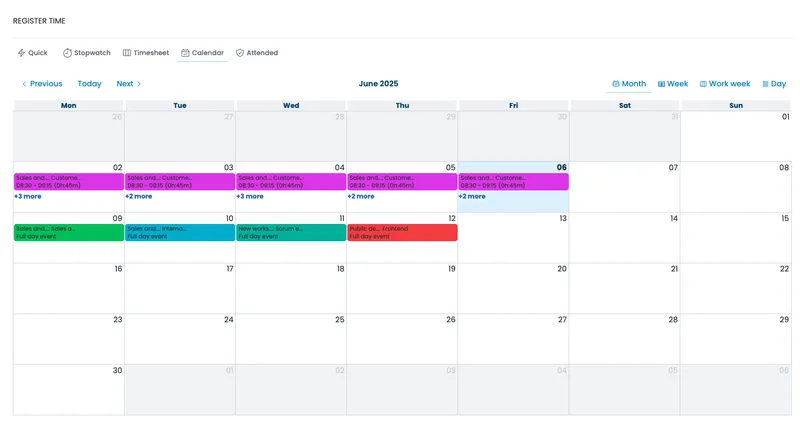
Example:
Choose the calendar for June 2025.
If you want to make a full day event, you click the day of the event, and then register the Project and Task of the event.
That's it.
Time is now registered.
You can also choose several consecutive days.
For example if you were at a seminar, taking place over more days.
You drag your mouse - or finger if you are using your mobile phone - over the number of days you need to track, put in project and task, and now all days are added.
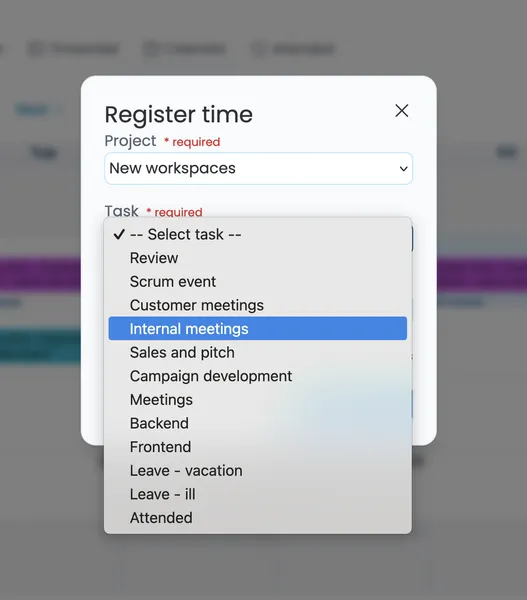
How to track multiple projects in a single day
To track several projects on the same day, use the Week or Work Week view.
Choose day, and select the timeslot by dragging your mouse from start time to end time.
When this is done the Register time box will, appear on screen and you now choose project and task - Done!
Does it get any easier?
No... right?!... I don't think so.
Repeating meetings
Do you have recurring meetings?
You can very easily track these, without having to write the same over and over again
Go to the Week view, and choose the timeslot to put in the task. The Register time screen appears,
before chosing project or task, make sure to check the box
Save project, task and comment as default values, then the same project and task will be pre-selected every time you track time, from now on and until you choose to "uncheck" it.
Plan ahead
What about planning ahead?
This can also be done and can be a big help for getting an overview of all projects planned.
This is one of the strengths of the Nureti calendar feature.
If you want to plan 1, 2 or more weeks ahead, you use the Week or work week template, and you can register all projects, meetings etc. going forward.
This really gives you a great way of being in control of your time, and gives you the best possibilities to plan you time in a very manageable way. An overview of all projects planned.
It can be used to see when you will be able to put in more projects, and give your costumers a forecast on when you will be able to work on their tasks.
Pro tip: Use colours
Make sure that you use different colours on your tasks, this makes it even easier to see what's coming up, and a great way to see which days you have the recurring tasks.
Ready to get started?
Try Nureti Calendar today, and experience smarter time tracking with visual planning, or read more on our features page https://nureti.com/features/.
-
2
Really interesting tool - I like how clean and flexible it looks.
Quick thought on the EU Working Time Directive part: I recently came across some country-specific differences. For example, in Spain it’s required to log the exact start and end times of each workday (kind of like a check-in/check-out system), not just total hours.
It can also be necessary to set maximums and even minimums - like always logging exactly 40 hours per week in my case. Just something to keep in mind if you’re planning to support compliance across different EU countries.
-
1
Thanks a lot, that means a lot to me. :-)
I agree the rules are different from country to country, and in some countries it is enforced by different laws etc. It is actually hugely complex. In some cases we can directly calculate if you are compliant with European Working Time Directive, and in other instance we make assumptions and provide guidance. For instance the 48 hours max pr. week calculated as average over 4 months differs vastly from country to country.
Thanks again for you input!!
-

Originally posted on https://nureti.com/blog/time-tracking-for-remote-teams/
In a remote setup, visibility is limited. You can’t walk past someone’s desk or ask what they’re working on. Time tracking gives managers and teams clarity, accountability, and reliable data for billing or payroll.
Step-by-Step: How to Track Time Effectively
1. Choose the Right Tool
Look for a simple, cloud-based time tracker that works across devices. Nureti is built for remote teams with intuitive tracking and zero setup.
2. Set Clear Expectations
Let your team know what should be tracked — client hours, internal meetings, breaks, etc. Consistency is key.
3. Track by Task or Project
Segment time entries by project or type of work. This helps with reporting and client transparency.
4. Review and Analyze
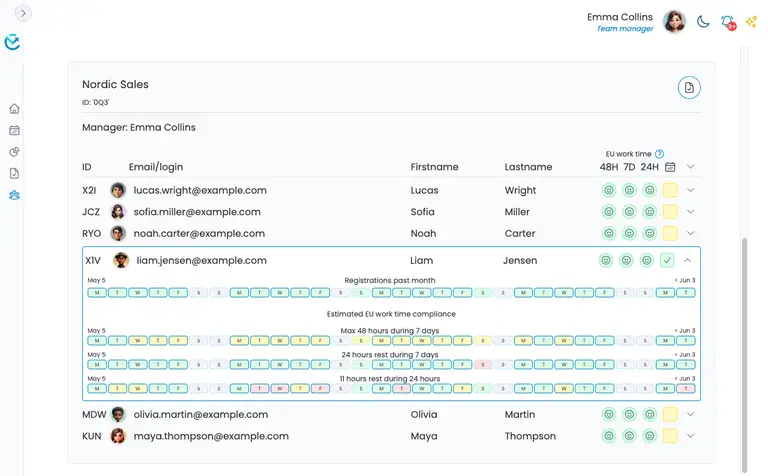
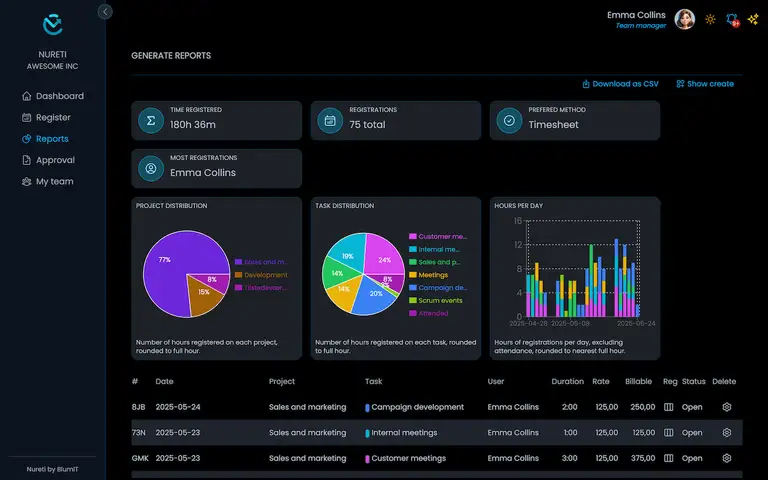
Use tools like Nureti’s My Team dashboard to get a full overview: see who has logged hours, who forgot, and whether your team is compliant with the EU Work Time Directive.
5. Share Reports Easily
Export time data weekly or monthly for invoicing or performance reviews. Nureti lets you download reports in one click.
Bonus Tips
Encourage daily check-ins to keep logging consistent
Integrate your tracker with payroll or invoicing tools
Start Free with Nureti
Ready to simplify your remote team's time tracking? Start using Nureti for free — no credit card required. Read about all Nureti features on our https://nureti.com/features page. Our "My Team" feature gives managers peace of mind and full visibility.
I used to work as a software developer, and keeping track of my time was essential!
The costumers were paying us hour-based so we needed to be precise in the hours used.
Originally posted by Tina https://nureti.com/blog/timer-for-tracking-your-tasks/
In this blogpost, I will tell you how to use our task timer, Nureti Stopwatch, for tracking time on your tasks.
I'll tell you what I want ("What I really really want")!
I want a task timer!
What I really really wanted, as a developer was an easy way to make sure I tracked the right time on the right projects.
I used to note down, on a piece of paper, what task I was working on, the time I started working, and then the time I was done with the task.
At the end of the day I registered the project and time used, in our systems.
Did this method work?
Yes..
Was it an easy way to track time?
Kind of..
Did I often make mistakes in the time Tracking?
Unfortunately yes, sometimes I forgot to write down from the beginning, other times I lost the paper sheet.
I tried my best, but it never became a habbit for me, to do it like this.
Timer for tasks

Nureti has several ways of tracking your time.
If you need to be very specific in projects and task, if you need to write down every 'minute' of your work or if you just need to register being at work, Nureti has a way to do it.
For me, at the time as a developer, Nureti's Stopwatch function would have been a big help!
It's part of the free version - Starter version, and you will be up an runnning in a few minutes, and ready to start using the timer for tracking your tasks.
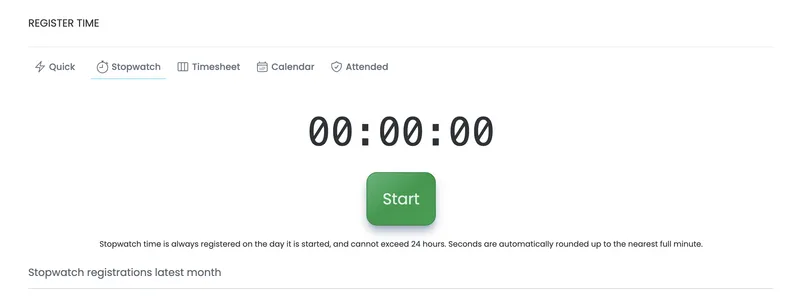
Start timer Press 'Start' when you start working at a task
End timer Press 'Pause' When you have finished the task
Select project and task And then press Register time
Done! It's as easy as that.
There are a few extra features fx.:
Pause Can also be used for example if you don't have payed lunch. Pause the time until you are back.
Resume Will start the time again, just where you paused it
Reset Reset timer to zero
Nureti works on both PC, iPads, and phones.
Nureti Stopwatch feature is easy to use on all of them and is great wether you are a software developer, consultant or anyone who needs to track your time very clearly!
If you are out on the road, driving from client to client, it's easy to start your timer on your phone and end it when your job is over.
You will have your timer for work tasks right at hand.
Ready to get started?
Try Nureti stopwatch today right here - no credit card required.
Read about all Nureti features on our https://nureti.com/features page.
Originally posted on https://nureti.com/blog/timesheets-for-contractors-and-freelancers/ by Tina
As an independent contractor, time tracking is both necessary and absolutely important for getting paid. It also helps you stay organized and, by being in full control of the hours spent, it maintains trust from your clients. But often, time tracking feels like an unwanted chore.
In this blogpost, we will show you the smart and easy way to track your time using Nureti Timesheet.
This article specifically explains Nureti Timesheet in the context of an independent or self-employed solo person — whether your role is contractor, freelancer, or consultant. I mix and match the terms.
What is Independent Contractor Time Tracking?
As an independent contractor, freelancer, or consultant, it's important that your time is tracked precisely. You often work with different customers and on different projects — sometimes even in parallel. Whether you bill hourly or per contract, you need to track your time to bill each client accordingly.
Time Tracking Methods for Freelancers
When I worked as a freelancer, I used Excel spreadsheets, calendars, and even a simple notebook to track my time. But all of these added extra admin work and took time away from what I really wanted to do.
Manual tracking and calendar: Quick and easy, but error-prone and not secure.
Excel sheets: Possible to automate with macros, but requires discipline and consistency.
Online time tracking apps: Many options exist — and Nureti is one of them!
Nureti works on PC, iPads, and phones. The Timesheet feature is especially well-suited for freelancers and similar roles.
Nureti – Smart Time Tracking
Using Nureti Timesheet gives you a perfect overview of all your active projects. When you need a full overview of your hours, reports are just a click away. Choose the project and time period, then hit the button — done!
Timesheets – Step by Step
("uh baby, gonna get to you girl... musical notes 🎶" – I honestly crack myself up!)
Start by adding a project. Click +Add project to the right.
Select from your team’s projects in the dropdown.
If needed, add specific tasks for the project.
Example:
Project: New workspaces
Tasks: Internal meetings, customer meetings.
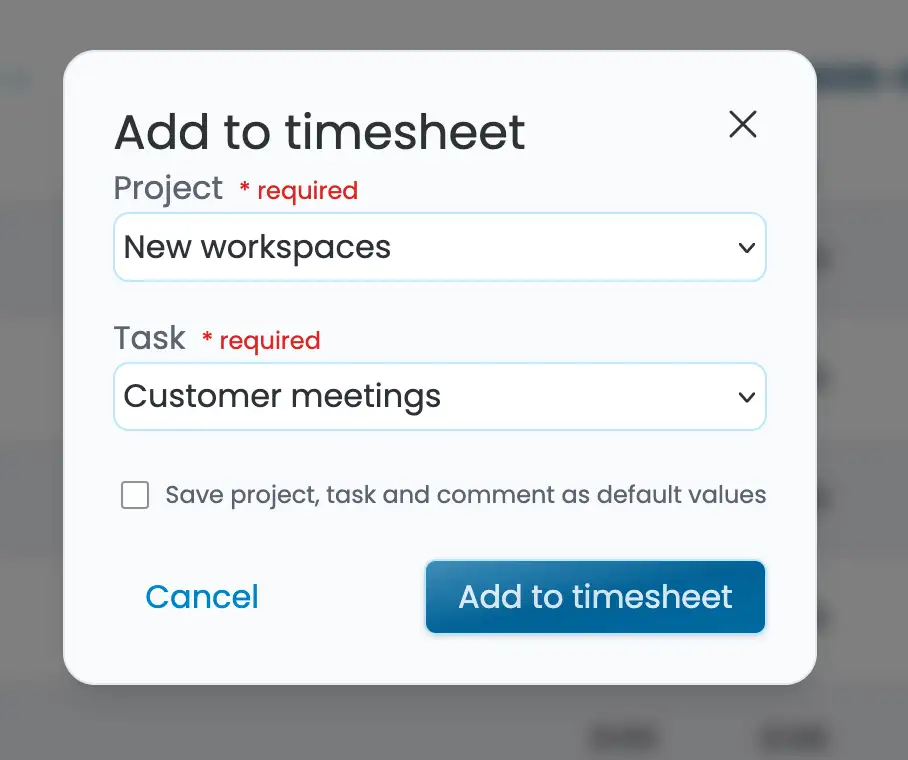
You can differentiate between tasks under each project. Tasks appear on the same row as the project in the timesheet.
In the example below, “Sales and Marketing” appears three times, each with a different task. If you love details like I do, this is a great way to see exactly where your time is going.
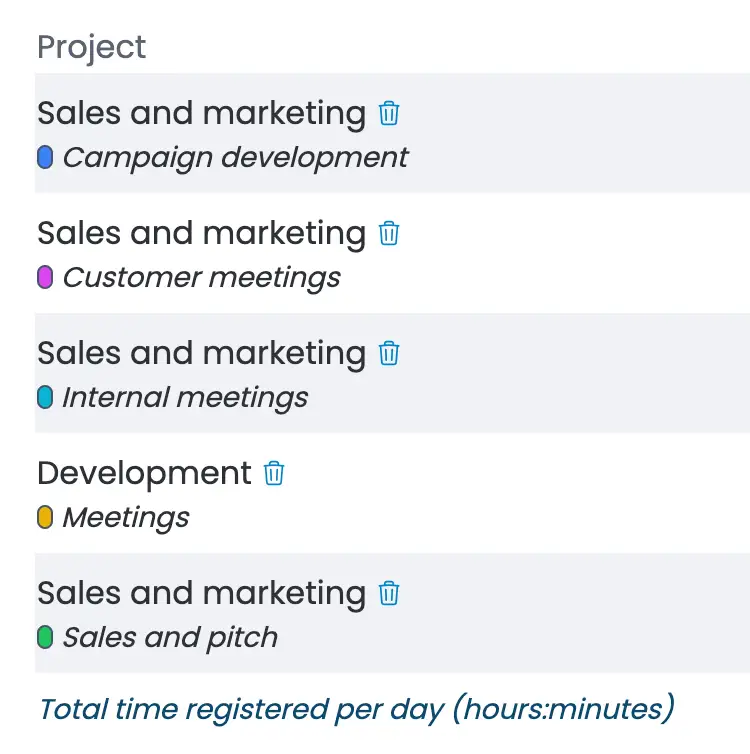
Each project shows a weekly timeline, starting at 0:00 hours. A gray vertical line marks the current day.
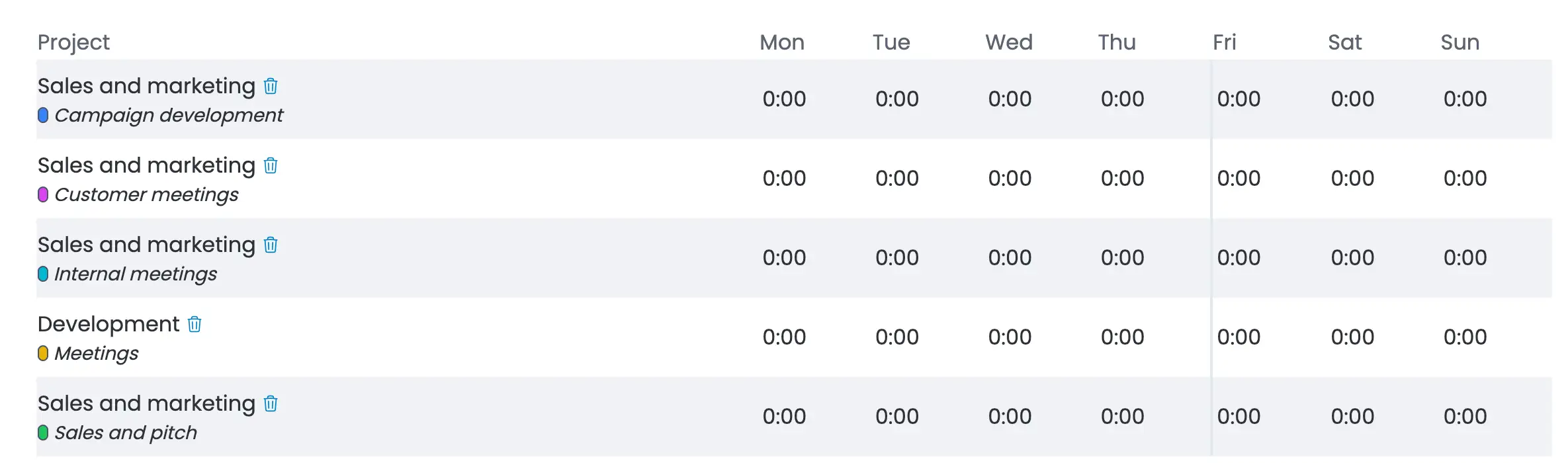
All added projects and tasks stay in your timesheet until you remove them. This makes time tracking easier — no need to re-enter them daily.
Even if you remove a project from the coming week, it will still be visible in previous weeks. Just log your hours daily, and Nureti handles the totals.
Entering Time
Time is shown in hours:minutes format:
1:00 = 1 hour
1:50 = 1 hour 50 minutes
1:05 = 1 hour 5 minutes
0:50 = 50 minutes
0:90 = 1 hour 30 minutes
0:180 = 3 hours
You get the point? You can register only the time spent — no need for exact start/end times. Super easy!
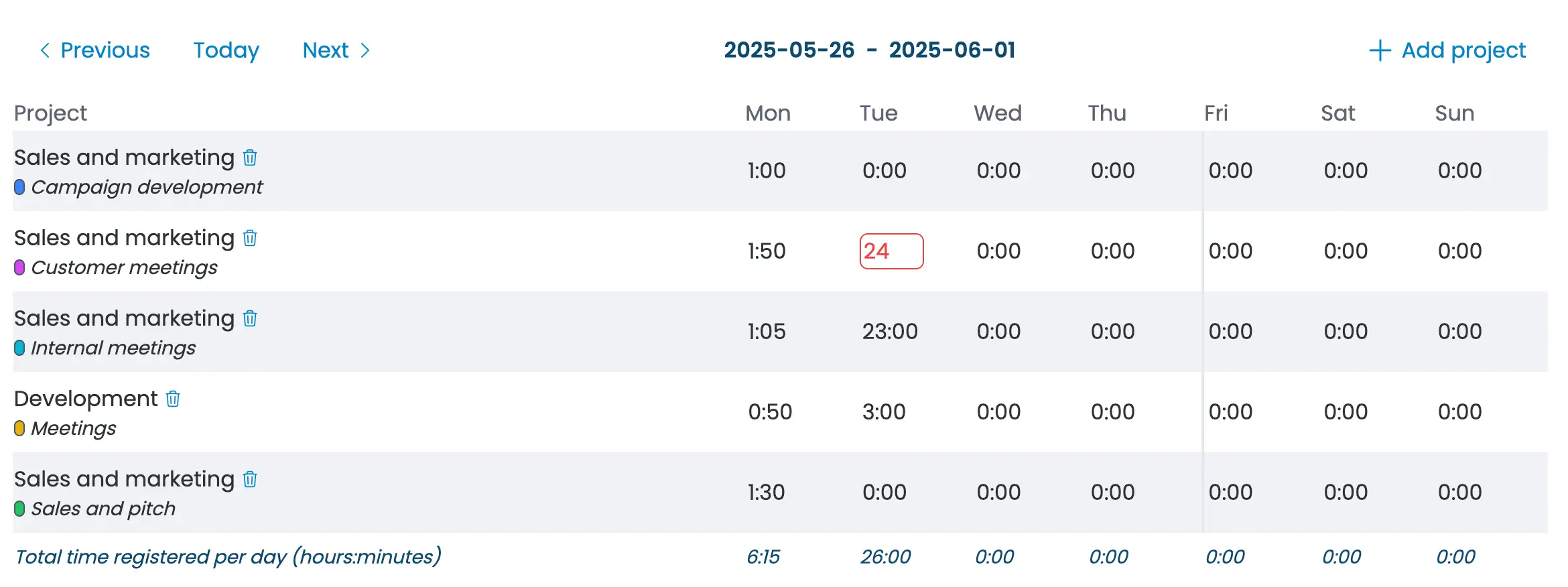
If you make a mistake (e.g., more than 23:55 hours on one day, or typing letters), the input turns red to notify you.
This Is What You Get!
Quick registration and great overview
Weekly templates with a standard work setup
Project and task based
Daily overview of all tracked time
Quick overview of total time
Perfect for routines, regular client work, and recurring internal processes
It doesn’t get easier!
Why not Start using Nureti for free — no credit card required. Read about all Nureti features on our https://nureti.com/features page.
Yes yes - it has been done hundreds of times... eh.. that's probably thousands of times really. But after having spend years as both freelancers and managers, we kept seeing the same problems over and over: time tracking tools that were either bloated, inflexible, or didn’t help teams stay compliant with actual labor laws. Especially in the EU, where regulations are strict, and well to be honest often ignored.

From day one, the focus has been clarity, speed, and flexibility. We’ve built Nureti using state-of-the-art technology, but what matters most to us is that it feels invisible – time tracking that just works, with fast onboarding and seamless integration into the way you already work.
The major features include:
Time tracking:
Calendar
Timesheet / template
Quick
Stopwatch
Attendance
Teams and users management
Time approval flows
Advanced reporting and statistics
Invoicing
And much much more..
We’re proud of what we’ve created. Time tracking used to feel like an obstacle. With Nureti, we barely notice we’re doing it – and that’s exactly the point.
Oh and why is it called Nureti, asked no one ever? It is simply Nu (slang for New) Register Time - Nureti. :-)
Right, "we" is my lovely wife Tina and myself.
Comment