
Reassign
A visual 24h circular time-blocking day planner
Break a task down into microtasks inside the block you already planned: an ordered checklist on Reassign's 24-hour dial, written by hand or drafted with AI.

A block says when something happens. Now it can carry what getting it done takes: give any block a checklist of microtasks and tick them off right where the time already is. It’s a breakdown of one block, not another list to keep, and writing and ticking are free. When writing the list is the hard part, the AI drafts it for you (Pro). Either way the microtasks follow the block: onto the dial label, into focus mode, through your reflection, and into the morning brief.
Microtasks, inside the block (free): open any block on the dial and break it into an ordered checklist. “Write intro, review PR, reply emails,” each one a line you tick as you go, with a quiet done-of-total count on the block’s label so a glance tells you how far in you are. On a block that’s already on your day each one saves the moment you commit it, so there’s no Save to remember. Every kind of block qualifies: solid, non-blocking, reference, or parked in your Backlog, so you can break something down before it even has a time. It’s deliberately a breakdown of the one block, not a task manager: no due dates, no separate list. Why the microtasks live in the block →
Break it down for me, when writing the list is the hard part (Pro): in focus mode a block with no list offers “Break this down,” and one tap gets you one. From the palette, type /microtasks, pick the block, and you get a moment to say what you want out of it (“just the writing bits,” “I only have an hour”) before anything is drafted, or send it empty and let the block speak for itself. Either way the list is sized to the block’s length and focus rhythm, and a block too vague to guess at gets one clarifying question instead of an invention. Nothing lands until you accept it, the palette batch sits behind a single undo, and parked blocks work too.
Tick one straight from the dial: the desktop label now lists the next few microtasks still open, each with its own box, so you can mark one done without opening anything. On your phone the day sheet’s “now” peek gives you the one you’re on, tickable in place.
Shared microtasks, ticked off day by day: put a checklist on a repeating block and every occurrence carries the same microtasks, while the ticks stay on the day you make them, so Monday’s progress never bleeds into Tuesday. Changing the list itself asks whether you mean this day only or every occurrence; ticking never asks.
The checklist follows you into focus mode (Pro): enter focus on a working block and its microtasks sit beside the turning dial, so you work down the list as the arc counts the block down, adding one there if the work turns up something you hadn’t planned for. On a phone it shows one at a time over a progress rail, swipeable, carrying you to the next still open as you tick. Nothing is counted for you, and finishing the last one sets off no streak, no nudge, no confetti. How focus mode works →
What you didn’t get to, handled honestly: reflect on a day and each block’s microtasks are there in the state you left them, with one you finished but never tapped still tappable until the day locks. On a one-off block, send just the unfinished ones to your Backlog in a tap (Pro), parked as “what’s left,” with an undo. Insights adds a Microtask follow-through reading by area, and the morning email lists what’s still open under your next block.
Claude keeps the list too (Pro): over MCP it can read a block’s microtasks and how many are done, rewrite or reorder them, and tick a microtask off by name, saying whether it means one day or the whole series so it can never quietly rewrite every occurrence. It can put microtasks on a parked block too. See the tools →
The mobile command palette, rebuilt around the keyboard: on your phone the ⌘K sheet now pins its field to the thumb zone, with a send button right in it when you’re dumping or replying to a plan, and sizes itself to the visible band above the keyboard instead of hiding behind it. Rounded top corners, fewer taps, no more chasing a field up the screen.
Warmer email through your trial week: the no-card trial now writes a few short, honest notes across the week (what you’ve actually built, one Pro lever worth a look, a clear word the day it ends), each opening on an illustration in the same ink-and-warm-paper style as the site, signed off with a real photo of Leo. The daily and weekly briefs keep showing your own dial, and now name the thing in the subject (your first block, your top area) instead of a flat label.

I'm building Reassign, a circular 24-hour day planner. This week's release finally closes a loop I've been circling for months: focus intervals gave blocks a rhythm, but there was nowhere to actually sit inside one.
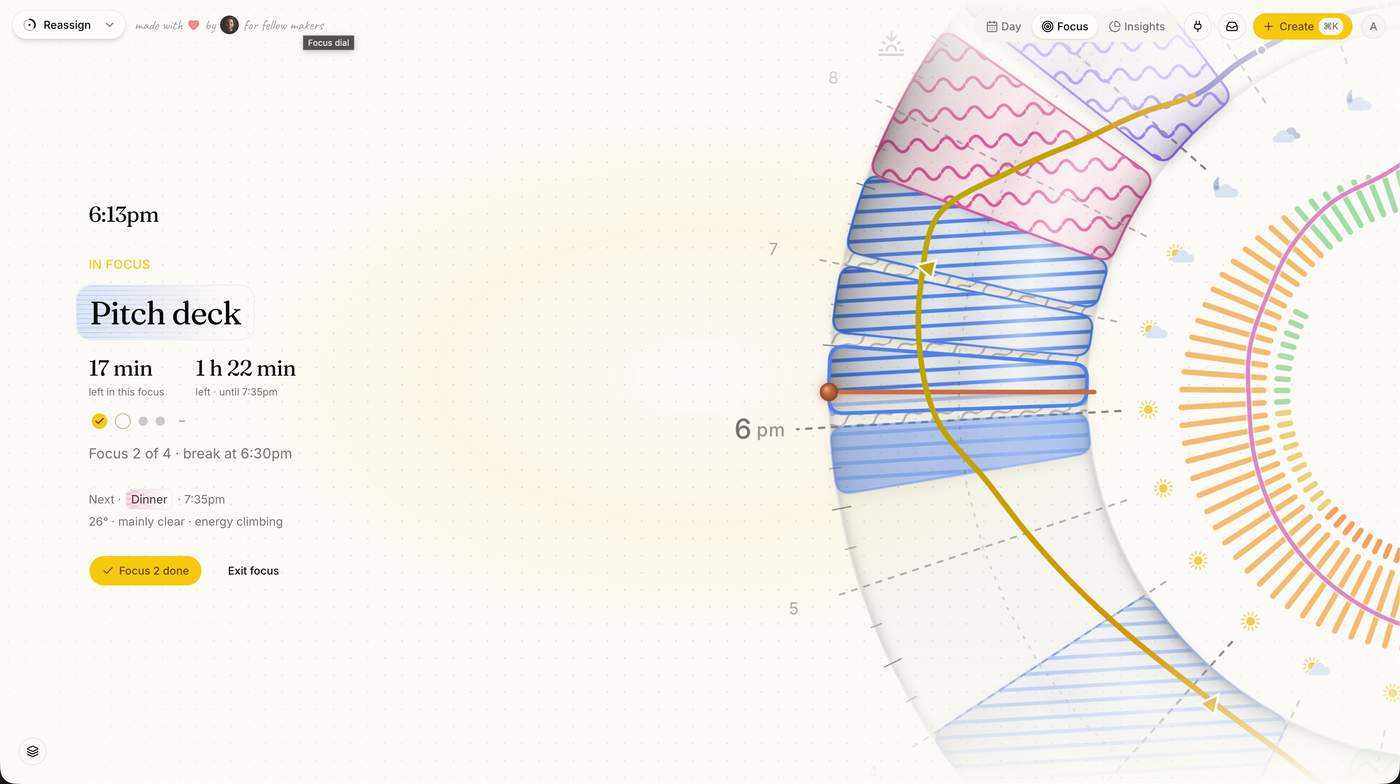
Focus mode. Press F on a block and you get a screen built for just that block. Instead of drawing a new timer, I crop the real dial — your events and layers still on it — to an arc that rotates under a marker pinned at "now". The rotation is the countdown. A quiet panel shows what you're in, time left, what's next. Finish an interval and a bead fills on the ring. No decorative animation, screen stays awake, Esc drops you back on the day.
The design constraint I gave myself: don't build a second UI. Reuse the dial people already trust, just reframe it. That decision cut the feature roughly in half.
Braindump into the command palette. Type /braindump in ⌘K, get a multi-line field, dump everything one thought per line. It comes back as an editable plan: lines with times become blocks, timeless to-dos park in the backlog, feelings log as moods, and "25 on, 5 off" sets the block's focus rhythm. Nothing lands until you apply.
Correcting a plan without rebuilding it. This was the hard one. With the plan cards on screen you can type "make the gym 8am instead" and the plan comes back rewritten with your other edits intact, up to six turns. When a line is genuinely ambiguous it asks instead of guessing — and picking an answer resolves locally, no second round-trip to the model. Keeping the user's manual edits stable across LLM rewrites took more work than the braindump parsing itself.
Also in this release: slash verbs render as chips in the palette input, two new Insights panels built from intervals you actually finish (not ones you started), and a batch of fixes — including a fun one where a browser extension rearranging the DOM mid-render could take the whole app down.
Reassign is at https://reassign.ai — Pro is $8/mo with a 14-day trial, no card.
Curious how others handle multi-turn corrections on AI-generated plans: do you diff against the previous output, or re-prompt with full state each turn? I went with full state + explicit edit ledger and it's holding, but it's token-hungry.

A working block can now hold a rhythm: split it into focus and break intervals and the ring draws the beads of work and the rest between them. Plus the palette of colours opens all the way up, and the whole dial can turn so midnight sits at the bottom.
Focus intervals, drawn round the block (Pro): open any blocking event and split it into a Pomodoro-style rhythm. The dial fills the block with focus beads joined by a muted “recharge” texture for the breaks, and the rhythm reflows live as you set the focus and break minutes (steppers, quick-pick chips, and your last few cadences kept as presets). It rides on the one block, so the event still selects, drags, repeats, and syncs as a single thing. Completed intervals roll into your day’s reflection and a new focus panel in Insights, and Claude can read and set the rhythm over MCP. How focus intervals work →
Any colour you like, free: the area, tracker, and calendar palettes keep their one-tap presets and add a custom cell that opens your system colour picker. Paint an area, a moment tracker, or a synced calendar any exact colour you want, and an AI-sorted calendar picks up the same free choice.
Midnight at the bottom, if you prefer: a “Midnight at bottom” toggle in Settings, under Appearance & sound, turns the 24-hour dial a half-turn so midnight sits at the foot and noon at the top. It is purely how the ring is drawn, so your blocks, drags, and cross-midnight events are all unchanged, and the in-chat MCP dial follows the same orientation.
A week of fixes: a fresh drag-created block resizes on the first try; a tap on mobile opens the editor (and the touch dial runs calmer); a block that crossed midnight logs its actual against the night it belonged to; the welcome screen sits on a clean circular scrim instead of a crowd of dial blocks; and when a new deploy lands mid-session, the app offers a tidy refresh instead of a broken chunk.
The Backlog began as a tray for blocks with no time yet. Now it knows when things are due before they have one: give a parked block a day, or a window of days, and the tray groups itself around what’s coming. Plus repeating events get a safer hand, the emails learn some manners, and every Pro gate makes the same honest offer.
A tray that reads like a queue (Pro): give a parked block a planned day, or a window of days, right in the tray, and the Backlog sorts itself around it: Overdue pinned first, then Today, Tomorrow and the days beyond, then Someday, then one group per Todoist list. Open a group to search inside it, or send a block back to Someday in one tap. A tray with no dates stays a plain tray. How the Backlog works
Todoist dates come across on their own: a task due on a day (with no time) takes that day as its planned day, and a Todoist deadline sets the far edge of its window, so the tray mirrors the queue you already keep. How Todoist sync works
Claude reads the queue too: get_schedule now carries each parked block’s planned day and an overdue flag, and can filter to a single day; manage_backlog sets or clears planned days. See the tools
Editing one day of a repeat touches only that day: drag or resize an occurrence and just the grabbed day changes, with Undo (or ⌘Z) to put it back. Rewriting a whole series is an explicit choice now: this day, this and following, or all events, asked before anything is written.
The dial’s emails, tuned: the weekly review skips a week with nothing in it, the daily digests stand down on a day a welcome or trial note already goes out, the evening nudge quotes tomorrow’s real open hours (not the week’s), and every email greets you by your actual first name. Also fixed: a bug that had kept the scheduled digests from sending at all.
One honest prompt at every Pro gate: tap a locked feature and you see what it does, signed in or not. Free accounts see the price; guests get the 7-day no-card trial offer up front instead of a bare sign-in wall.
Last night’s sleep checks off on today: tapping the finished tail of a block that crossed midnight opens the check-off for the stretch you just lived, not tonight’s upcoming one.
The setup wizard holds its place: step away mid-setup and it resumes right where you were, with the day you composed intact, and a factory reset no longer replays it.
Sturdier plumbing: a Todoist account with a couple of thousand tasks no longer trips the first import, the rarest calendar-sync races now recover on their own, and the app heals itself when a fresh deploy catches you on flaky wifi.

The bottom quick-add bar retires, and one command palette takes its place. Press ⌘K anywhere: every command in one list, a plain sentence that parses straight into an event, and an Ask AI row for the requests with commas in them. The dial stays visible behind it the whole time, and everything previews on the ring before it lands.
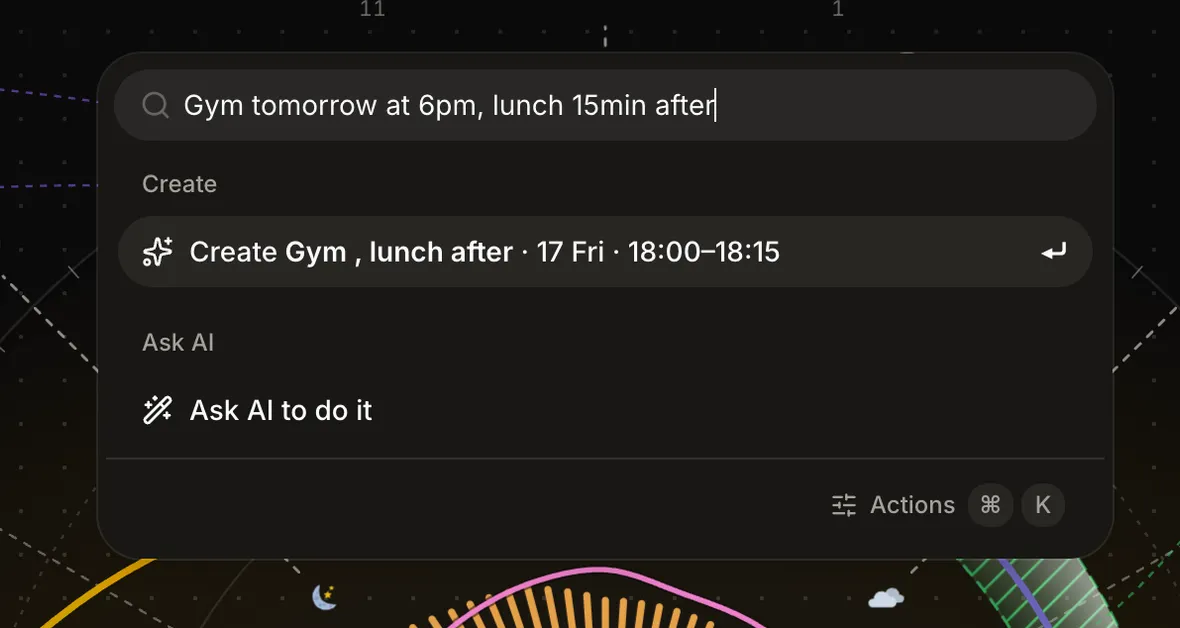
One palette for the whole app: press ⌘K, or tap Create in the header, and fuzzy-search across everything: new event, log mood, add moment, clear the afternoon or evening, jump between days, toggle dial layers, open Insights, reflect, connect a calendar, reach any settings pane. Free, and a sheet on your phone. How the palette works
Type a sentence, get a block: “Gym tomorrow at 6pm” parses the moment you type it into a Create row with the right day and time. The parse is deterministic and offline, no AI call, no waiting, free. Add #area or @type in the line to paint the block as you make it, and a line with no time offers to park to your inbox instead.
Ask AI to do it (Pro): a compound request like “Gym tomorrow at 6pm, lunch 15min after” goes to the model and comes back as editable plan cards, one per change, previewed on the dial. Adjust or drop any of them, then apply.
Slash commands for the six verbs a day runs on: /create, /park, /shift, /delete, /mood, /moment. /shift is ripple shift, two keystrokes from anywhere.
Escape now behaves in every search field: the first press clears what you typed, the second closes the panel. The same convention everywhere a field searches.

Until now the dial edited one block at a time. This week it learns to act on many: shift the whole day when the morning runs long, select a handful of blocks and edit them together, and copy or paste them across days. Plus the midnight seam casts a real shadow, every toast finds its voice, and the first run lays out a day with no overlaps.
Shift the whole day when it slips: choose “Shift this and later” from a block’s menu, or press S, and that block and everything after it slide down the ring together. An exclude list holds the anchors that can’t move, and one Undo puts the whole ripple back. Free, on desktop. How ripple shift works →
Select several blocks and act on them at once (Pro): Shift-click, sweep an arc-marquee, or ⌘A to select the day, then edit the fields they share, drag them as a group, park or delete them together, or copy, cut, and paste them across days with ⌘C / ⌘X / ⌘V. A new “Paste here” drops the clipboard at the hour you click. Desktop. How multi-select works →
The midnight seam now casts a shadow: at the top of the ring the day’s end lies over its start, so the 24-hour dial reads as a coil, not a closed loop.
Warmer toasts: every message now carries a semantic icon (a plug for a connection, a card for billing) and reads in the product’s own voice.
A first run that lays out a day with no overlaps: the build-your-day wizard now spaces your blocks so none collide, lets you edit your meals inline, and reconciles what you sketched against a calendar you connect.
Reflect, refined: a past day starts with no mark pre-selected, you step through days with Prev and Next, and dragging a block on a reviewed day re-plans it cleanly.
Steadier on rough ground: the dial keeps working when iOS Lockdown Mode hides its local database, and a batch of Google, Outlook, and Todoist sync races are closed.
-
1
What stood out to me is that these updates reduce the cost of changing a plan, not just creating one. As schedules become more dynamic, making revisions feel effortless can become a bigger advantage than adding more planning features.

Hello fellow indie hackers. Todo lists and classic calendars don't work for me. I see the blocks, but I have a hard time imagining my day. And the latter is what gets me moving. One shape that worked — and still works for me — is the circle. I imagine my days in a clock shape. For 10 years I printed out a template and drew and color-coded my next day on it. It worked perfectly, but it was time consuming. It also wasn't connected to my existing stack (work calendar, Todoist) or my routines.
As a software engineer, father of 3, and partner to my wife, I've always struggled with finding time and keeping everything in balance. So you could say I'm an optimization/productivity junkie, always testing what works and what doesn't. This method works for me — it helps me stay sharp at my job and at the same time shows me when I'm neglecting other parts of my life. It even helped me travel the world with my family in my 20s ;)
To solve this I built reassign.ai. It's a digital version of my paper edition, connected to my existing tools. 2-way sync makes sure anything I change — either on the Reassign dial or in an integration — is reflected in my day. It helps me build routines and gives me insights. As a bonus, it has a built-in MCP, so I can just take a screenshot of my notebook, ask Claude to organize it, and help me plan my day.
I'm looking for early adopters — fellow busy makers who'd like to try it out and tell me what they think. It's super early phase, but it already delivers value if it clicks for you.
Would love your honest feedback, especially if visual planning resonates with you.
-
2
What stood out to me is that you didn't start by replacing calendars—you started by matching the way you naturally think about time.
That's an important distinction. If people begin planning around a mental model instead of forcing themselves into a traditional interface, you're solving something much deeper than task management.
-
1
Aryan, thank you for the warm feedback and encouragement :) Reassign is my first side project after almost 10 years of contracting. Before that I shipped more, so it's a nice welcome-back comment. I think Reassign is for highly visual people — lately I'm even connecting it to ADHD (got diagnosed not long ago), so things are slowly starting to click together :)
-
1
Glad it resonated.
Your reply made me think there's one strategic decision sitting underneath that mental model which becomes much more significant as Reassign grows, but I don't think I can explain the reasoning properly in a thread without oversimplifying it.
If you're interested, what's the best email to reach you on?
-
-
Comment